Invoice Management
Not sure how to navigate the invoice portion of the work order?
Overview
Create invoices from completed work and automatically sync them with your connected QuickBooks account. Services and parts recorded by the technician can be imported into the invoice, reducing manual entry and speeding up billing.
Import Services & Parts
Before importing:
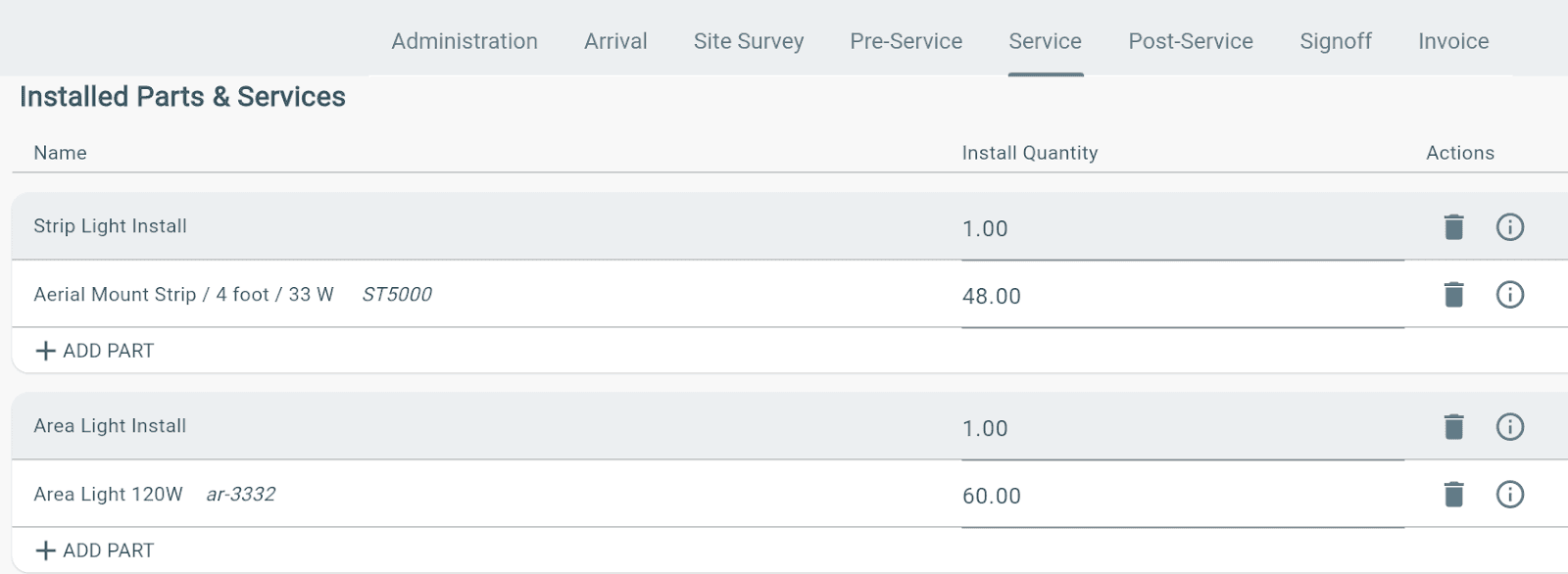
✓ Complete the Service tab.
- Enter all Services.
- Enter all Parts.
- Update the quantity for each item.
Then:
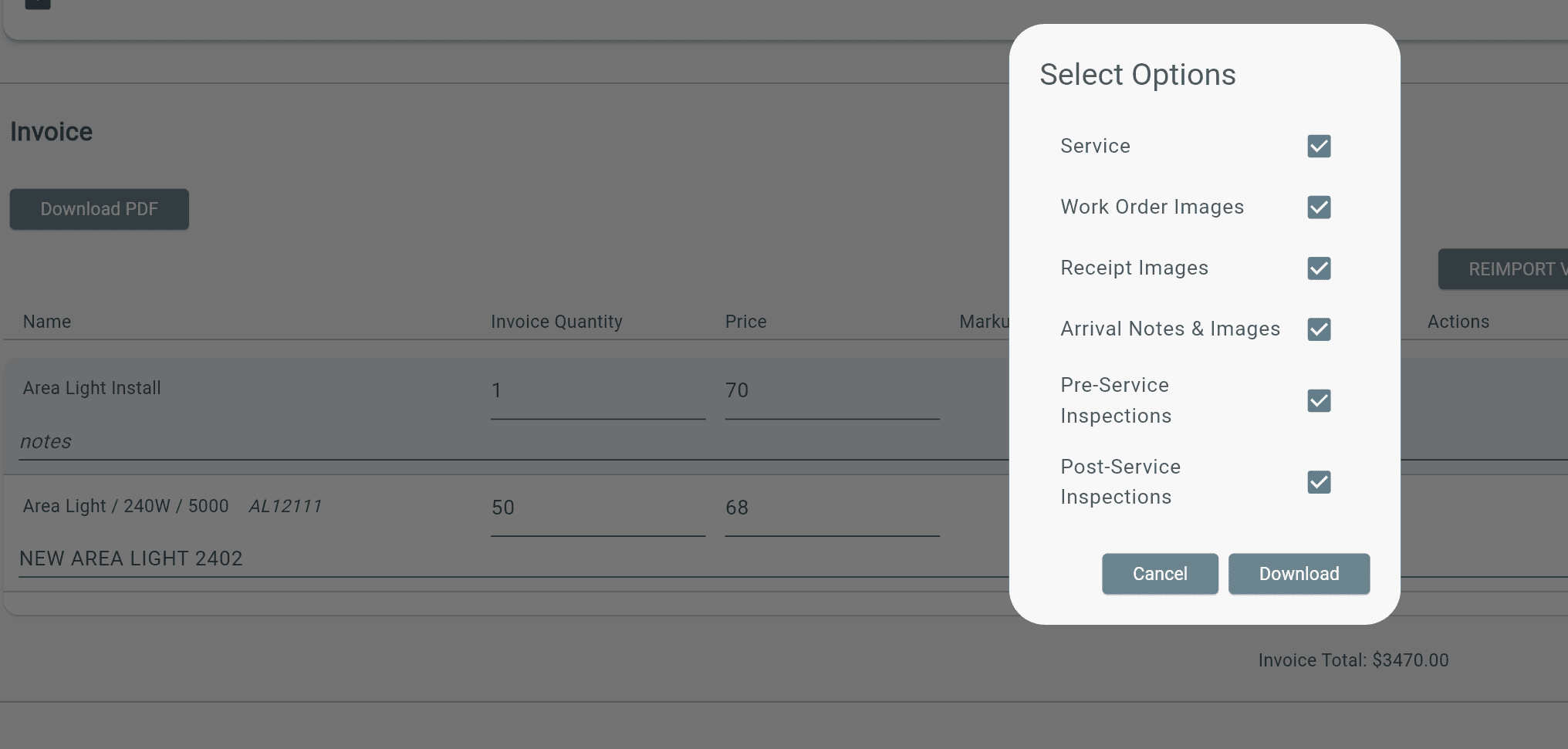
→ Open the Invoice tab.
→ Import the services and parts into the invoice.
Note: Services and parts are copied automatically, but quantities are not. If quantities were not entered in the Service tab, they will import as 0.
Create an Invoice in QuickBooks
How you create an invoice depends on your QuickBooks integration.
- QuickBooks Desktop → Sync the invoice from Lexul to QuickBooks Desktop. See Sync Invoices to QuickBooks Desktop for step-by-step instructions.
- QuickBooks Online → Sync the invoice from Lexul to QuickBooks Online. See Sync Invoices to QuickBooks Online for step-by-step instructions.
Multiple Invoices
Multiple invoices will be seen on work orders IF they have been enabled for your workspace.
1. Find work order
2. Find or Create Invoice
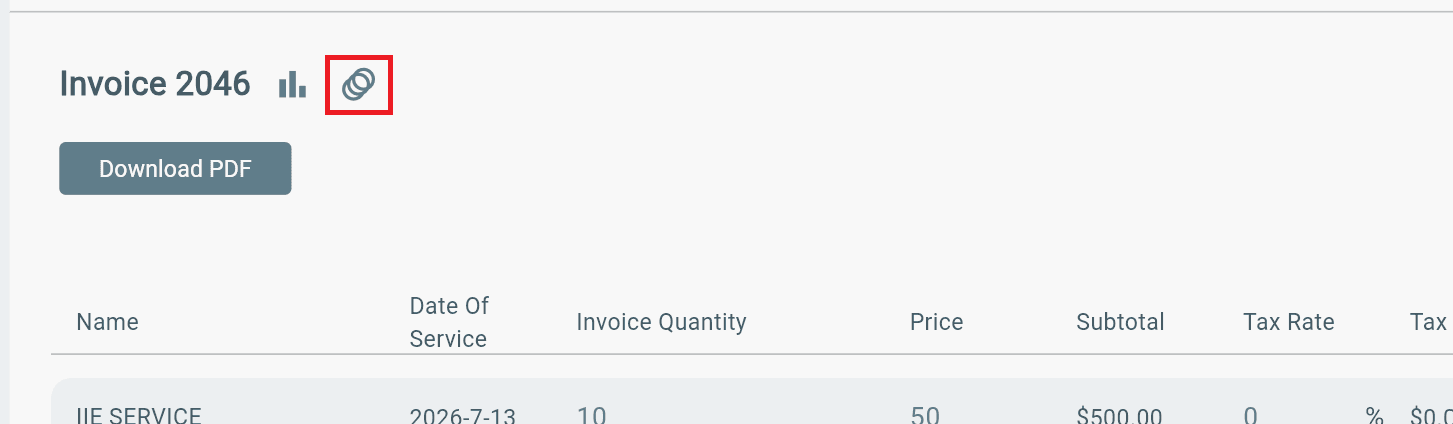
3. Find multiple invoice icon to view all invoices on work order
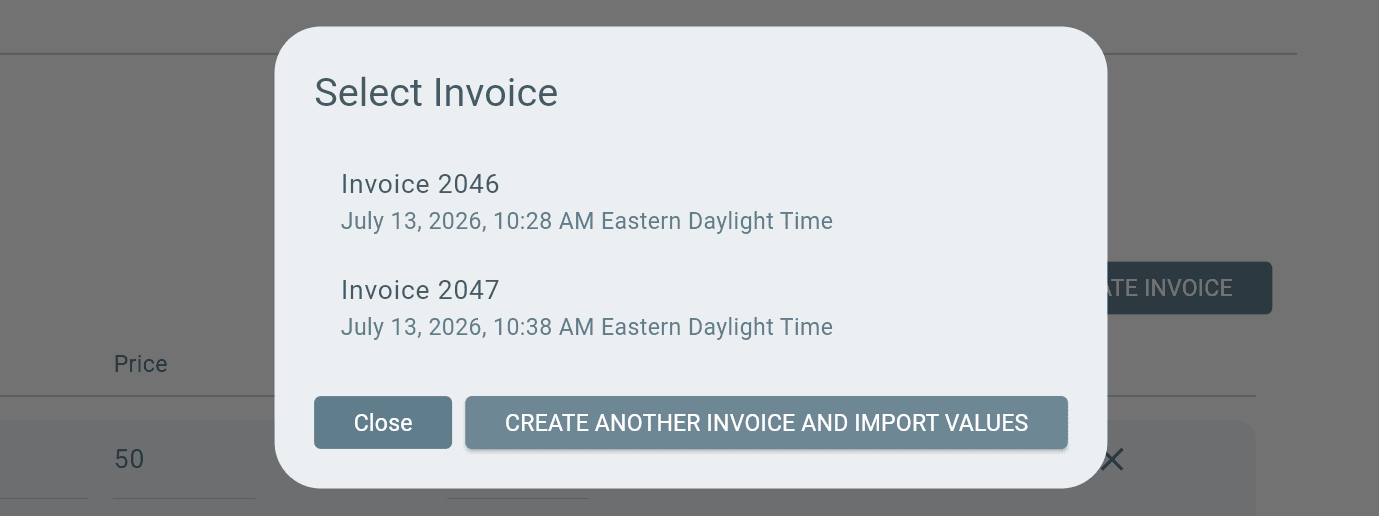
From here, another seperate invoice can be created for the work order:
1. Create another invoice
2. Select option for Time, Materials, or Equipment (If Time, Materials, & Equipment is selected, they will be shown as line items when creating new invoice)
3. Select Cut-off date (The date you want to pull items into the invoice until a specific time)
Changing Invoice Item Prices
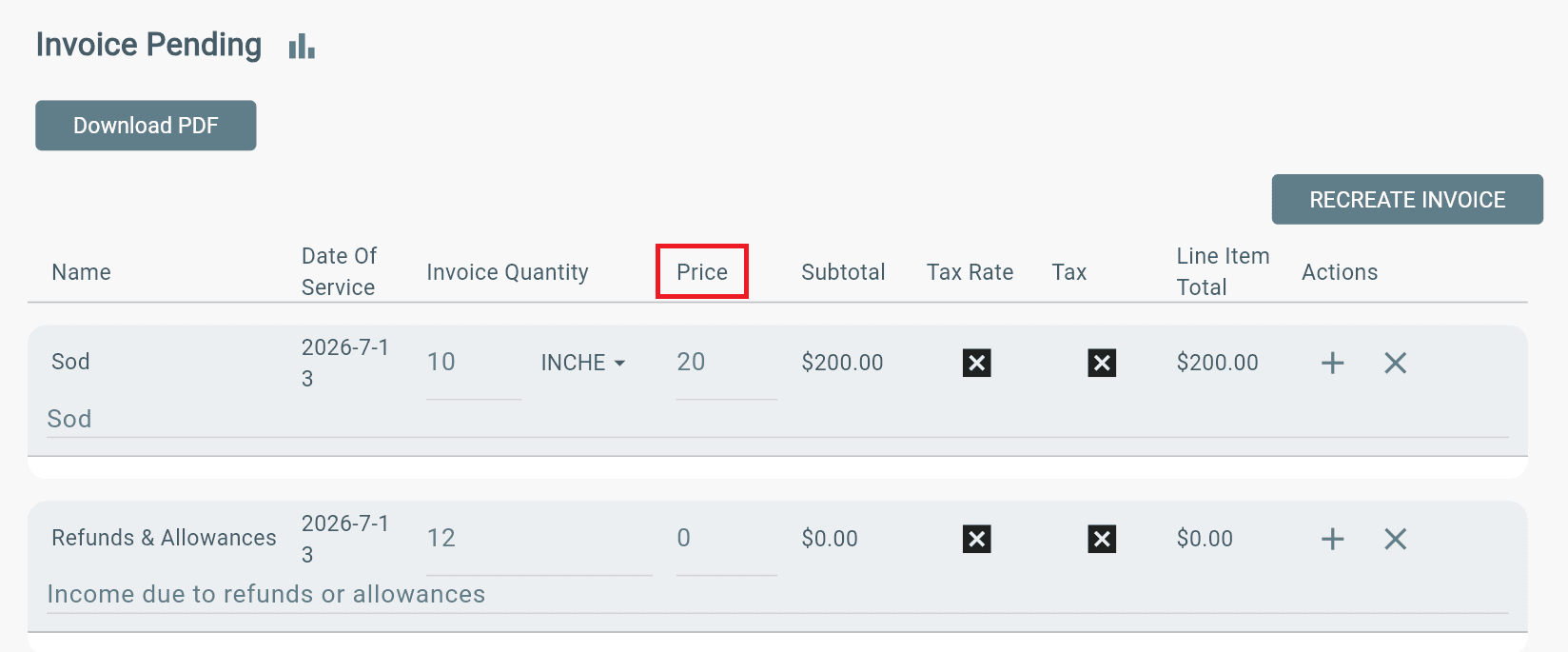
If you need to change item prices on the invoice:
1. Find invoice
2. Find item
3. Change item price under Price column:
Technician Time
The Invoice tab displays the time worked by each technician assigned to the work order.
For each technician, you can view:
- Time Type
- Hours Worked (shown in decimal format)
This information is available for reference when reviewing or creating an invoice.

Additional Info
On the Administration tab of the work order, the PO (purchase order) field and NTE (Not to exceed) field must be filled out in the Admin tab to be on the Invoice tab. Once filled out, they will auto copy to the Invoice field below the invoice line items.