Document Management
How to manage documents in Lexul Field Service
Documents can be added to:
→ Customers → Assets → Contracts → Work Orders
Work Orders will display all documents associated with the related Customer, Asset, and Contract, depending on the document’s Viewable By permissions.
Important
- Documents inherited from a Customer, Asset, or Contract cannot be edited or deleted from the Work Order.
- Only documents added directly to the Work Order can be managed from the Work Order.
Supported File Types
- PNG
- JPG
- MOV
- MP4
- DOC
- DOCX
- XLS
- XLSX
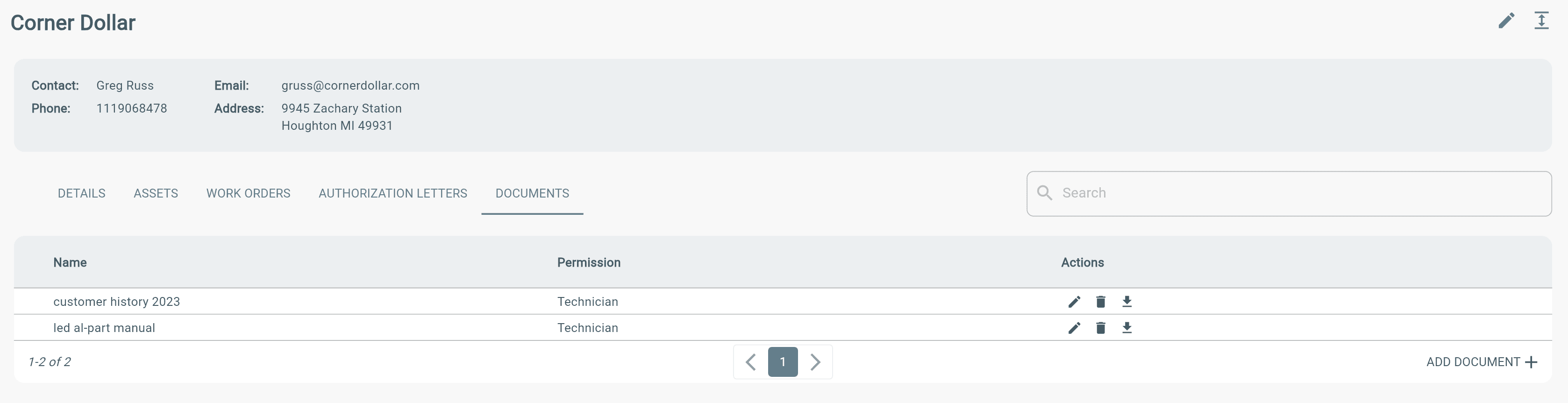
Adding Documents to Customers
- Go to Menu → Customers.
- Select the desired Customer.
- Open the Documents tab.
- Select Add Document.
- Upload the document.
- Choose the Viewable By permissions.
The selected permissions determine which users can view the document throughout the system.
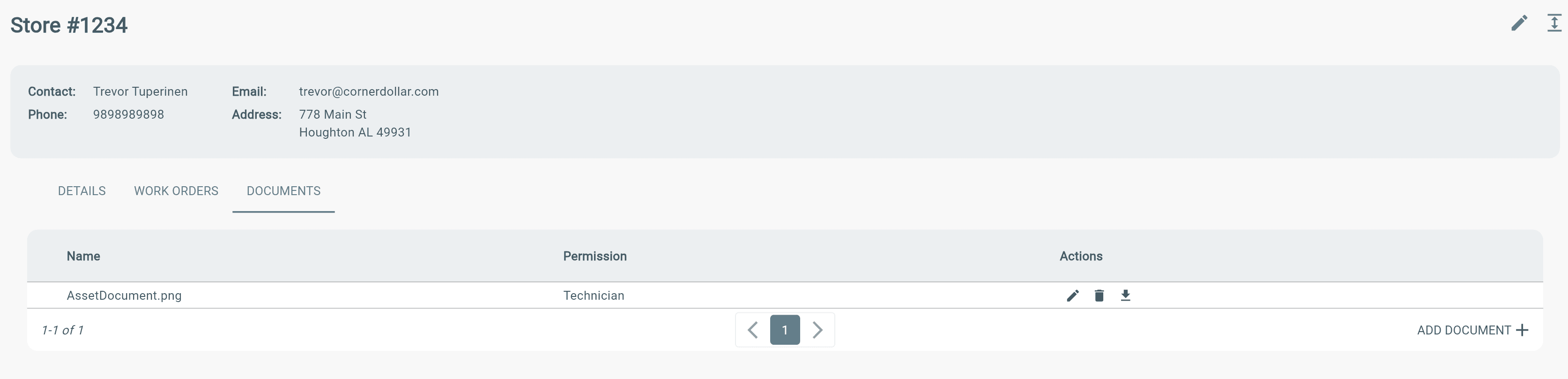
Adding Documents to an Asset
- Go to Menu
- Find Customers
- Choose Customer
- Choose Asset
- Add Document
Add Documents to a Work Order
1. Open the work order from the Dashboard.
2. Go to the Arrival tab.
3. Scroll to Documents.
4. Select Add Document.
5. Upload the file and choose the Viewable By permission.
Note: Documents already attached to the related Customer, Asset, or Contract will automatically appear here. These documents cannot be edited or deleted from the work order.
To delete one of these documents:
→ Go to Customers.
→ Open the appropriate Customer.
→ Go to the Documents tab.
→ Delete the document there.
Add Documents to a Contract
1. Go to Contracts from the menu.
2. Open the desired Contract.
3. Select Add Document.
4. Upload the file and save.
Where Documents Appear
Documents are available throughout Lexul Field Service.
Work Orders
→ Documents from the Customer, Asset, Contract, and Work Order are displayed in the Arrival tab (based on permissions).
Customers
→ Available in the Documents tab.
Assets
→ Available in the Documents tab.
Viewable By Permissions
Choose who can view each document.
Permission levels:
Office Admin → Only Office Admin users can view.
Office Staff → Office Staff and Office Admin users can view.
Technician → All users, including Technicians, can view.
Note: Administrators can also set minimum permission levels for documents.
Note: Technicians can upload and view documents they have permission to access, but cannot delete documents.