Office
Office Dashboard Overview
Need help with Advanced Filter Searching, Work Order Color Coding, or the Dispatch board? Find it here.
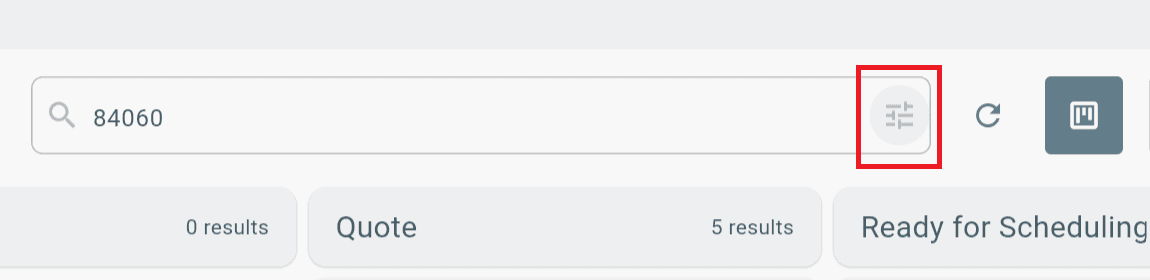
Advanced Filter Search
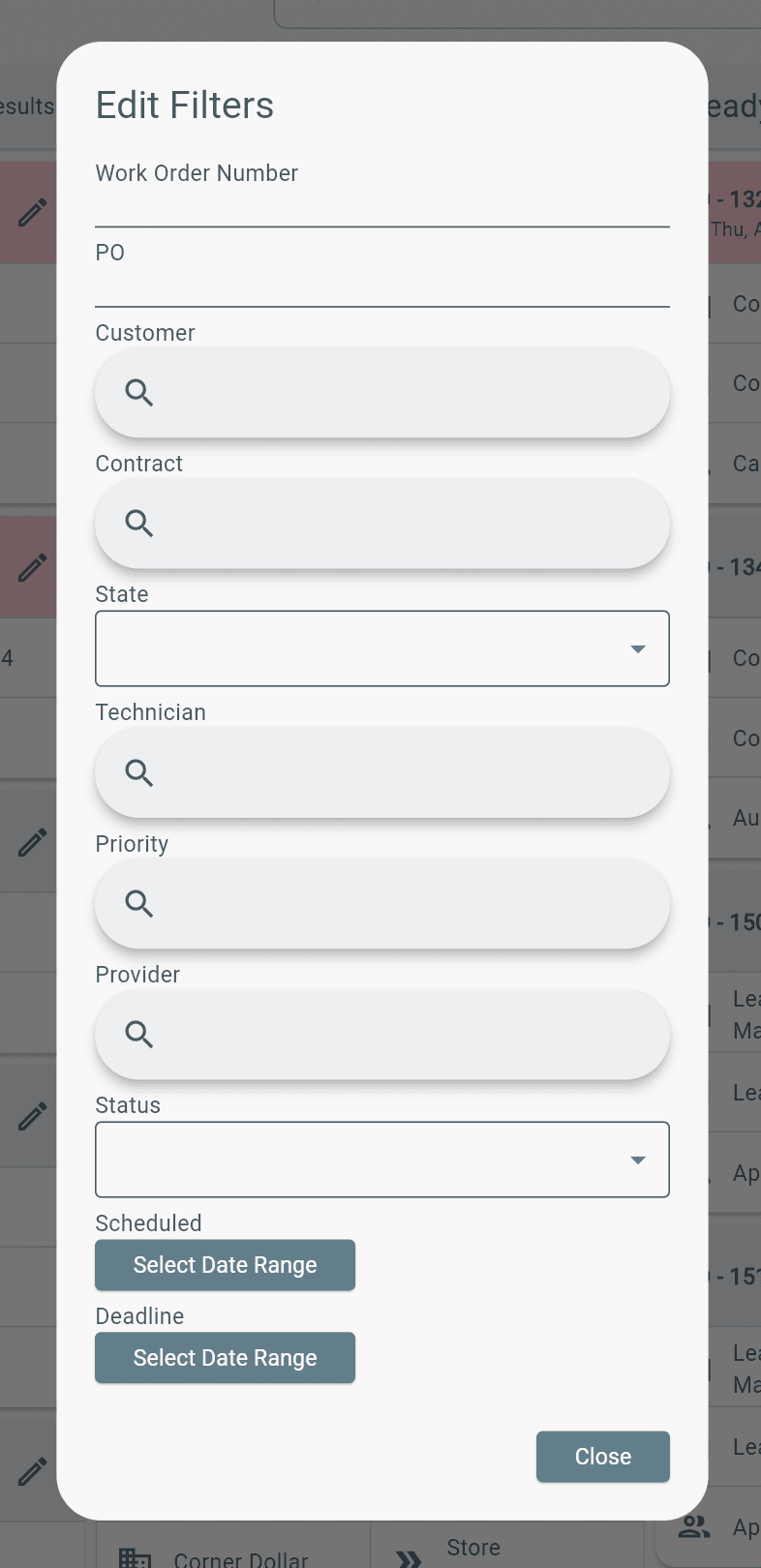
Use Advanced Filters to quickly find work orders.
You can search by:
- Work Order Number
- Asset Name
- Asset Address, City, State, or ZIP Code
- Customer Name or Address
- Assigned User (First Name, Last Name, or Email)
- Contract Name
- PO Number
Tip
- Combine multiple filters to narrow your results.
- Example: Search by ZIP Code, then add a Customer and Assigned Technician filter.

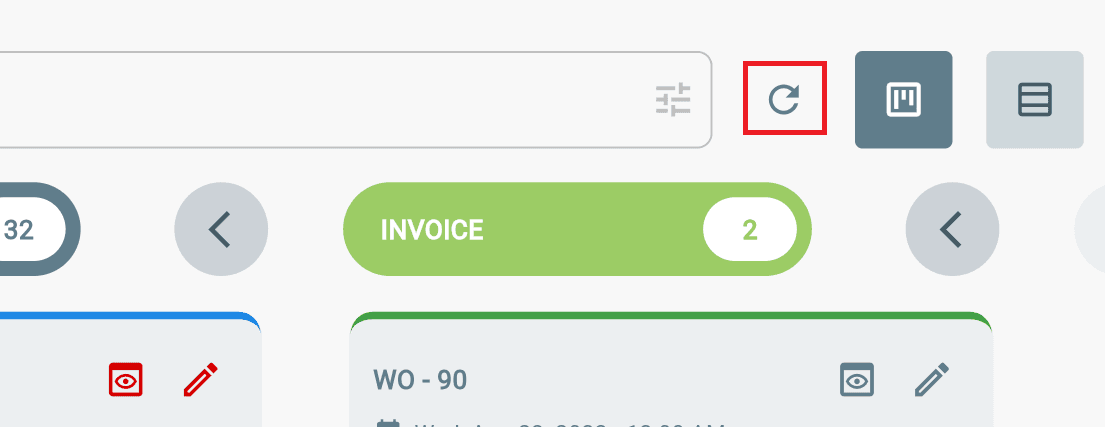
Dashboard Refresh
To refresh the dashboards, find the refresh icon next to the search bar.
Work Order Ticket Colors
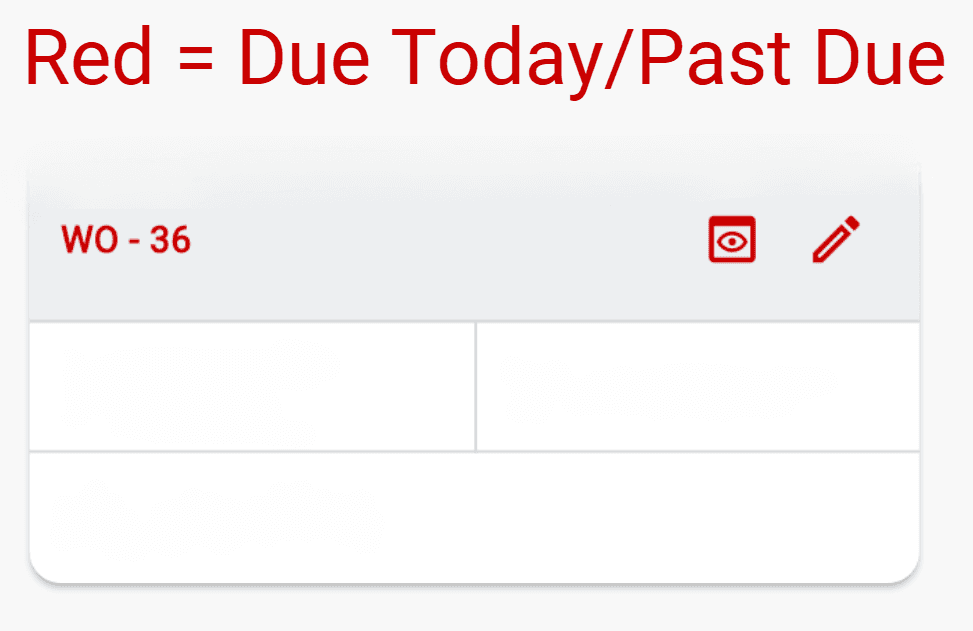
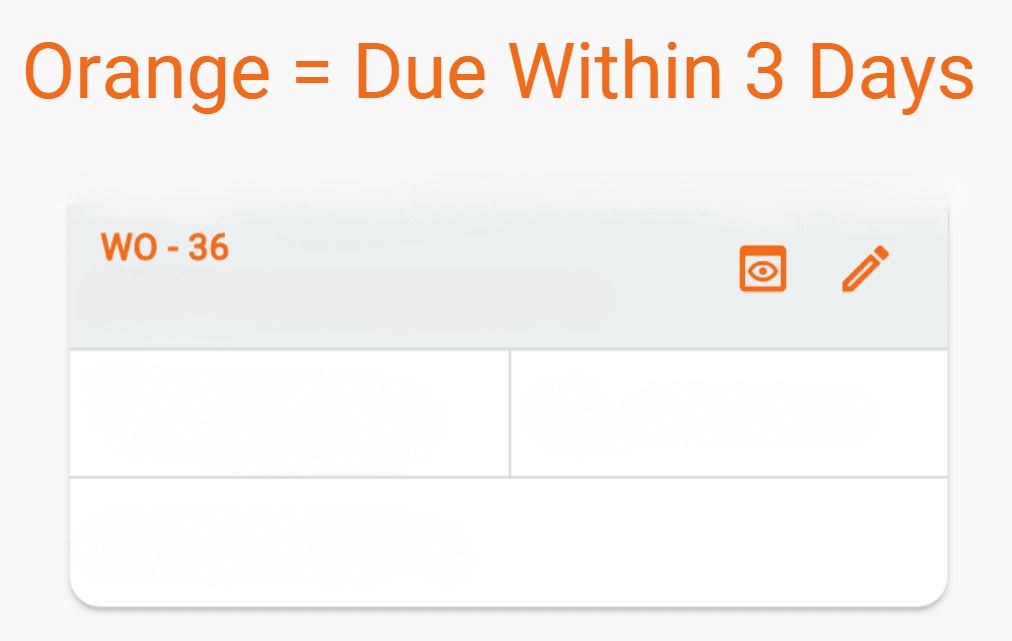
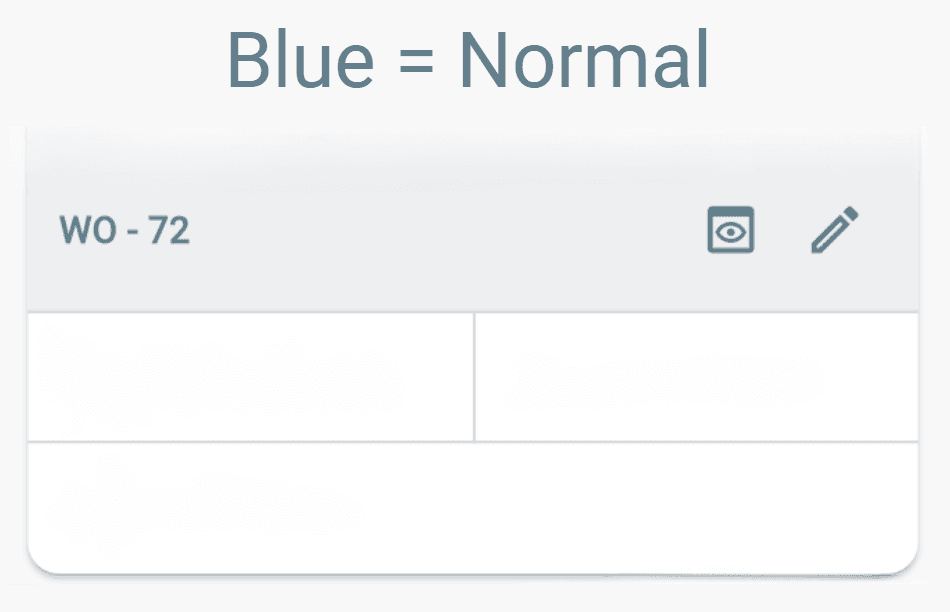
Work order tickets are color-coded based on their deadline.
Note:
- Ticket colors do not appear for work orders in these statuses:
- Invoice
- Complete
- Cancelled
- Ticket colors are not shown in the Calendar view.
Overdue or due today = Red
Due within the next three business days = Orange
Not overdue and not due within three days = Blue
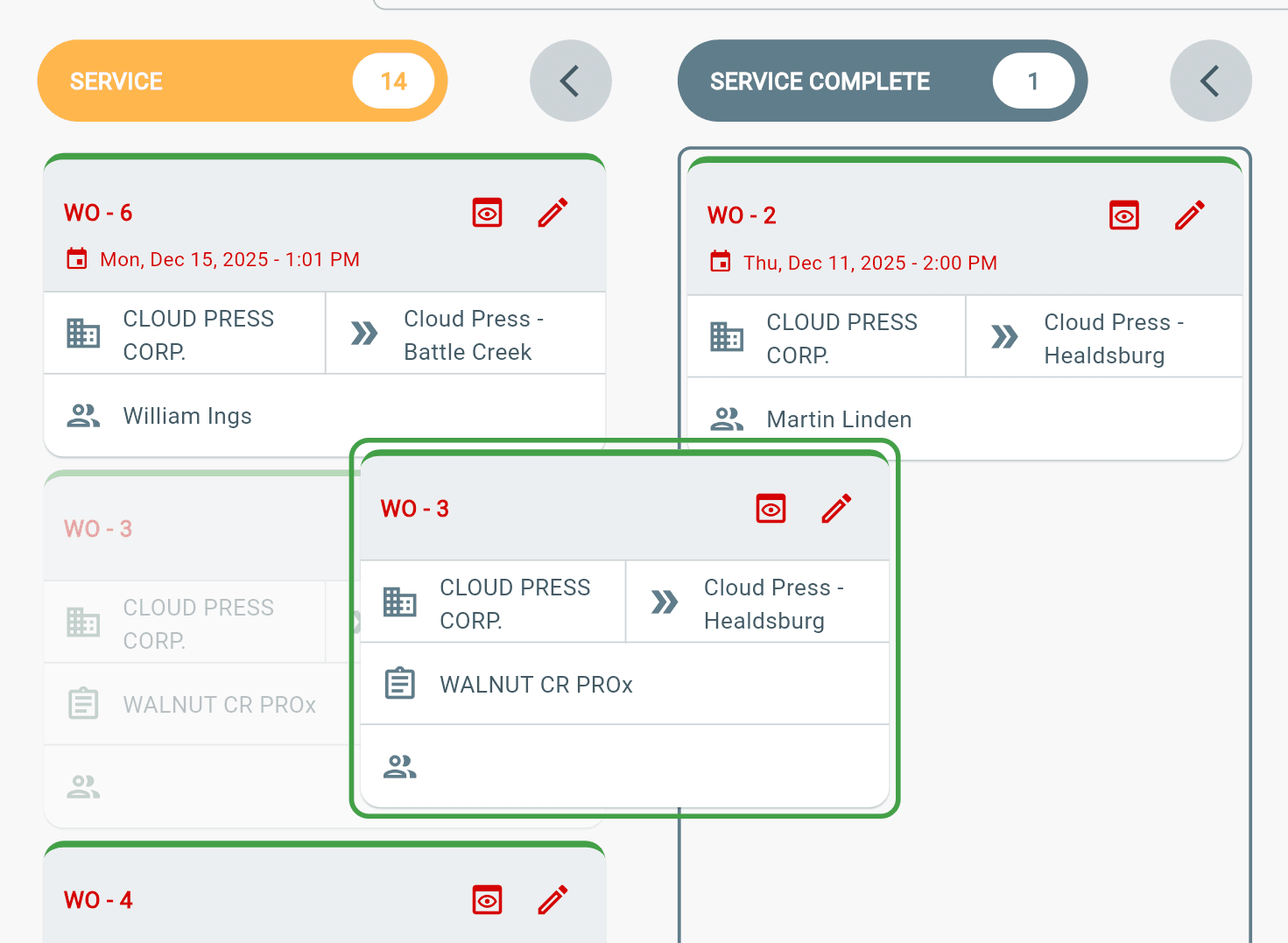
Drag & Drop Work Order Cards
- Long-click a Work Order card.
- Drag and drop it to a new status.
Note
- The destination status must be open (arrow pointing left <).
- Closed statuses cannot be selected.
Dashboard Table
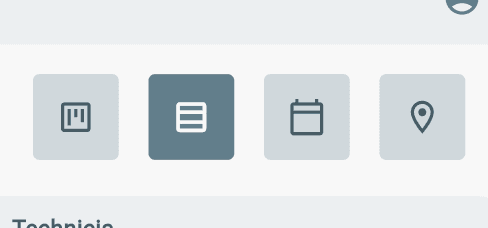
Find the dashboard table by choosing the middle icon in the top right corner of the Dashboard.
Use the drop-down arrow on each column to:
- Sort items alphabetically.
- Change viewing options.

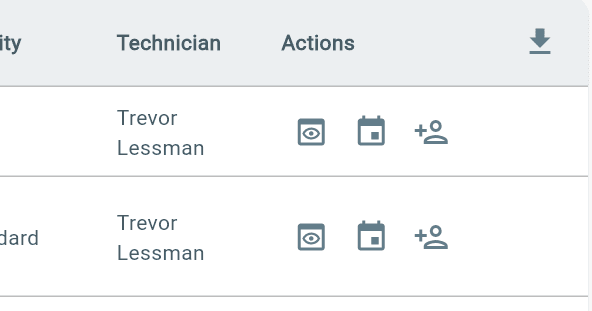
Each work order row has an Actions column.
Use the Actions menu to:
- Open a quick view of the work order.
- Add or change the schedule date.
- Manage assigned technicians.
Downloading Dashboard data
- Go to the dashboard table
- Select download button in the top right corner of the table
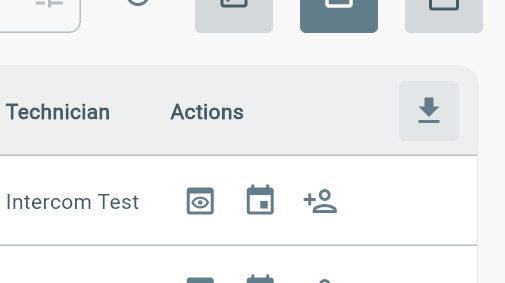
Dashboard table data will be exported to an .xlsx file
Additional Info
- Filters do not automatically carry over when switching between Kanban and Table views.
- To apply the filter:
- Change the filter or search term.
- The updated results will display.
Dispatch Board
Note
- Technician users must be active to appear on the Dispatch Board.
- Admin users can activate technicians from the Users menu.
To view scheduled work orders:
- Open the Dispatch Board from the top-right corner.
- View scheduled work orders on the calendar.
- View a list of all active Technicians available for work order assignment.
- View each technician’s scheduled work times on the board.
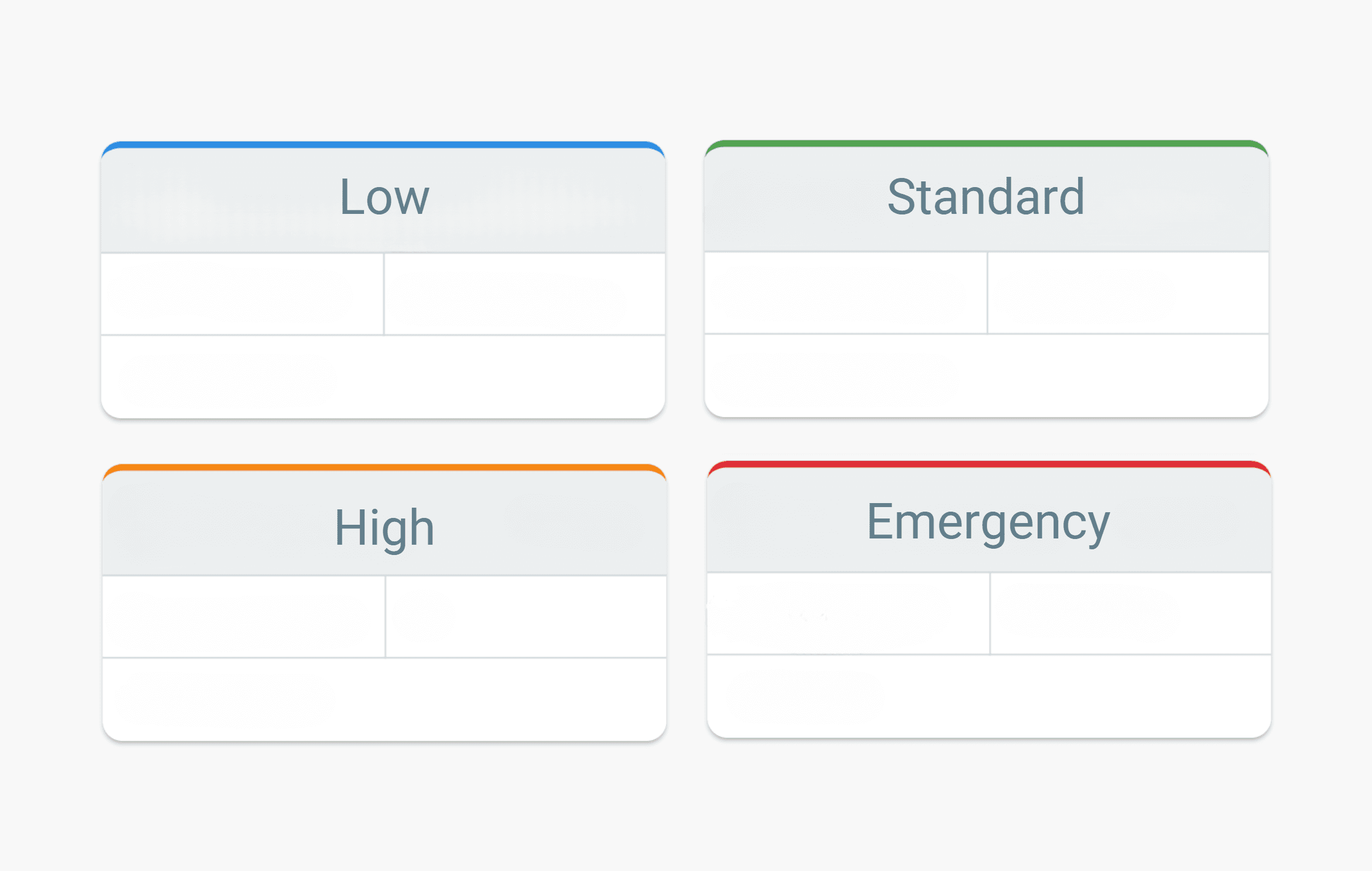
Work Order Priority Colors