Adding Parts & Services (Items)
Add parts and services to the Lexul Field Service parts and services catalog
Overview
The Parts & Services catalog stores all available parts and services in one location.
Users can:
- Search the catalog.
- Select parts and services.
- Add items directly to work orders.
Add a Part
- Go to Menu → Parts & Services.
- Select the Parts tab.
- Select the blue + button in the bottom-right corner.
- Enter the part details.
- Select Submit.
Add a Service
- Go to Menu → Parts & Services.
- Select the Services tab.
- Select the blue + button in the bottom-right corner.
- Enter the service details.
- Select Submit.
Add Parts and Services to Work Orders
After parts or services are added to the catalog:
- Open a work order.
- Go to the Service section.
- Search for the part or service.
- Add it to the work order.
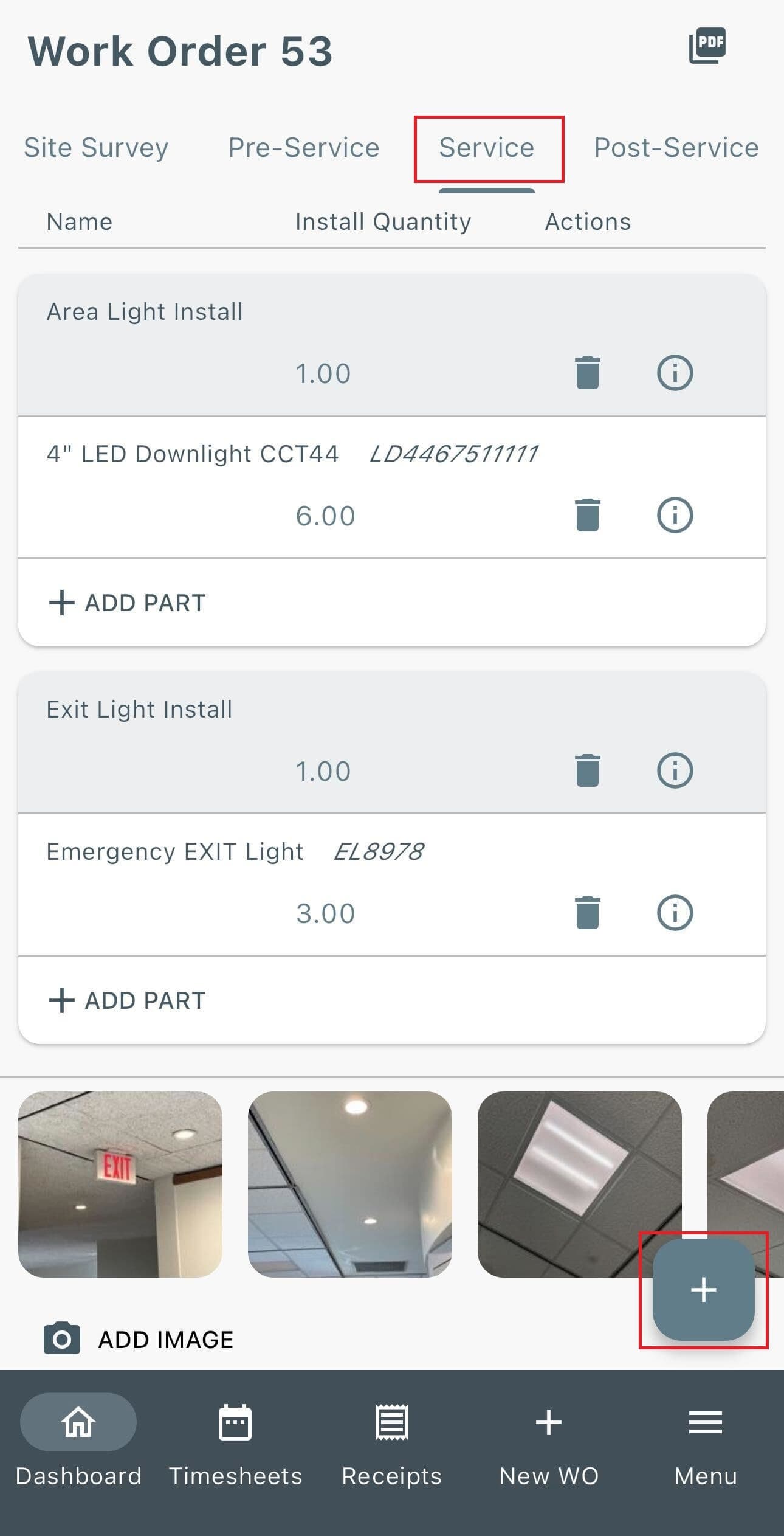
(Image shows adding parts and services from technician perspective)
Editing Parts & Services (Items)
Select the Part or Service > Make an edit to any field
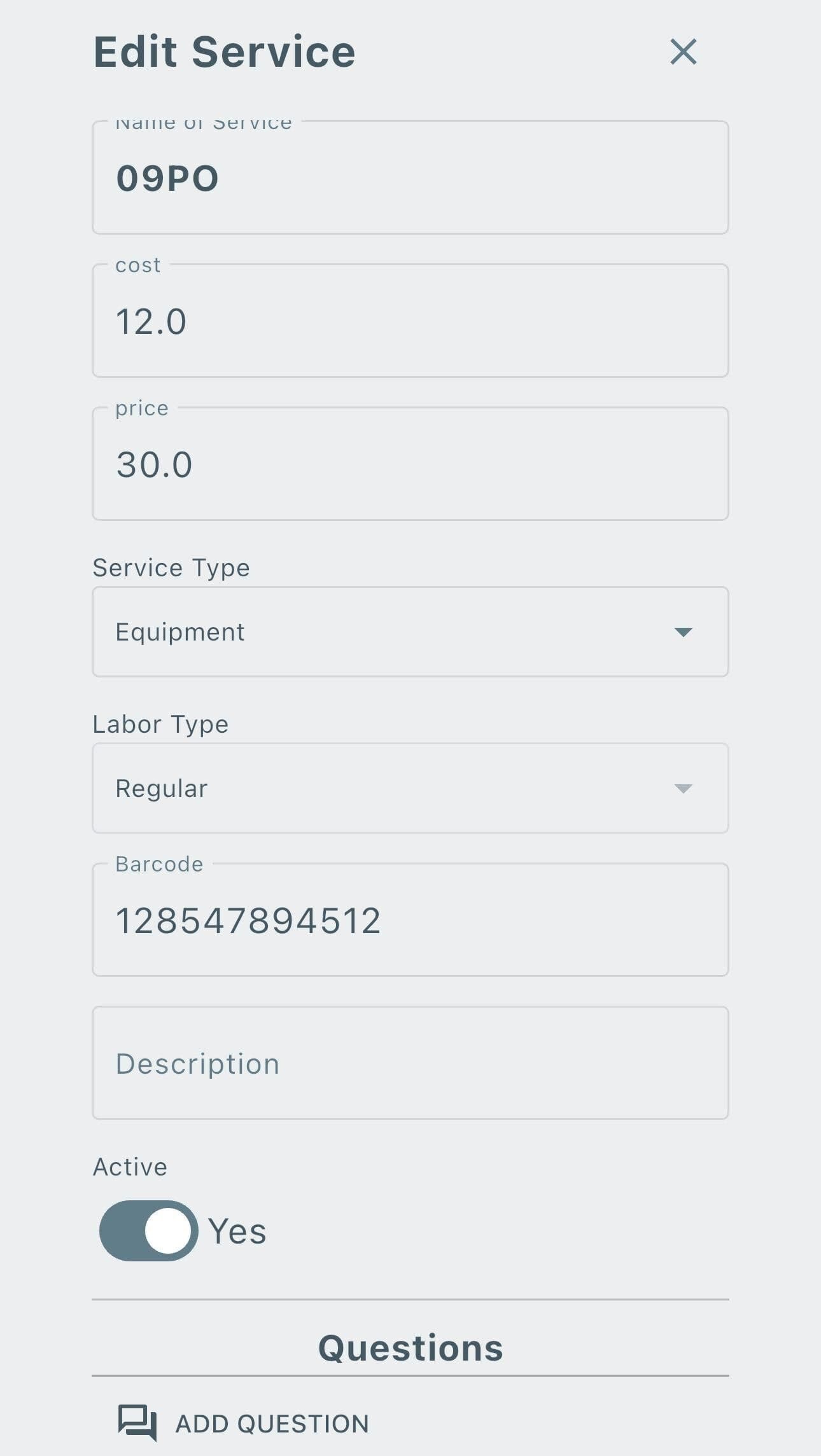
Service Bundles allow multiple parts and services to be grouped together and added as one item.
Create a Bundle with QuickBooks Integration
Before creating a bundle:
- Make sure all bundle items have synced from QuickBooks.
To create a bundle:
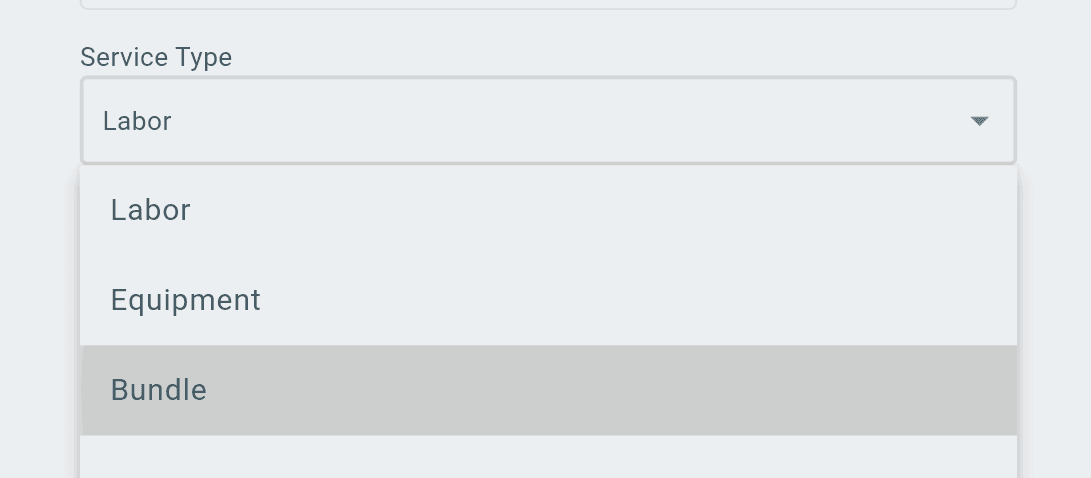
- Go to Inventory → Services.
- Select the service to edit.
- In the Service Type dropdown, select Bundle.
- Select Add New Bundle.
- Add the required items.
Create a Bundle Without QuickBooks Integration
Before creating a bundle:
- Make sure all parts and services included in the bundle have already been added in Lexul.
Then create the bundle from the Services section.
Additional Info
Editable Fields
Parts
The following part fields can be edited:
- Name
- Cost
- Price
- Barcode
- Description
- Active status
- Part Number
Services
The following service fields can be edited:
- Name
- Cost
- Price
- Barcode
- Description
- Active status
Adding Parts and Services
The process for adding parts and services depends on your accounting integration.
QuickBooks Desktop Integration
- Add the item or service in QuickBooks Desktop.
- Sync QuickBooks with Lexul Field Service.
The item or service will appear in Lexul after syncing.
QuickBooks Online Integration
- Add the product or service in QuickBooks Online.
- Sync QuickBooks with Lexul Field Service.
The item or service will appear in Lexul after syncing.
No Accounting Integration
Add parts and services manually in Lexul:
Menu → Parts & Services
Invoice Pricing
Part and service prices appear on the Invoice page when values are imported from the work order.
See the invoice import process for steps on importing values.