Adding Parts & Services to a Work Order
How to add Part's & Service's as an office worker
Overview
Add required services and parts before work begins so technicians have the information and materials needed to complete the job.
Services and parts can be quickly added from the Service and Part Catalogs and will automatically appear in the Service tab of the work order.
Add Services
To add services:
→ Open or create a work order.
→ Go to the Arrival tab.
→ Select the blue + Action button in the bottom-right corner.
→ Search for and select the required Service(s).
→ Select Submit.
Add Parts
To add parts:
→ Open the work order.
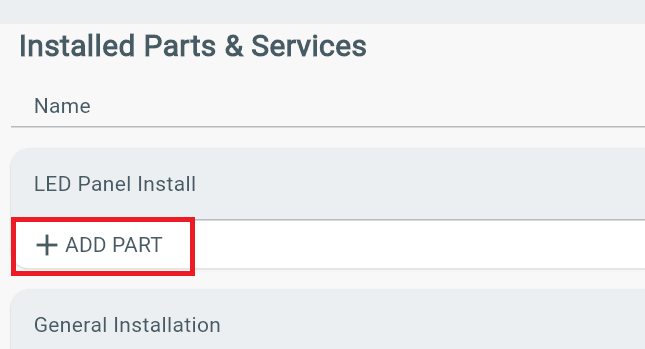
→ Find the desired Service in the Arrival or Service tab.
→ Select Add Part below the service.
→ Search and select the required part.
Add Parts (Continued)
To add a part:
→ Search and select the required part from the list.
→ Select Submit.
Important: Be sure to enter the correct quantities for all Services and Parts, especially when preparing an invoice. See How to Create an Invoice for more information.
Additional Information
- When an Office Admin or Staff adds Services and Parts, they will appear in:
- Scope of Work section in the Arrival tab.
- Service tab of the work order.
- A Service must be added before adding a Part.
- Parts are attached and organized under the related Service.
- If Post-Service Inspection questions do not appear after adding a Service, questions have not been assigned to that Service.
- See How to Add Questions to a Service to set up inspection questions.