Inventory Management
How to manage, add, and edit inventory in Lexul
Managing Warehouses
To create a Warehouse, find Inventory > Warehouses tab > Create Warehouse >
Select the Warehouse after created to Edit the Warehouse.
QuickBooks Online Purchase Orders
Create a purchase order in QuickBooks Online > Save and Close > Wait for automatic sync Lexul, or in Lexul find Configuration > Accounting Integration > Select "Sync to QuickBooks."
Onced synced > Find Inventory in menu > Purchase Orders tab > Find synced purchase order(s) > Receive Inventory into warehouse(s).
Individual items must have Inventory enabled in Lexul to receive into inventory. (Find item > Edit item > Enable Inventory.)
QuickBooks Desktop Purchase Orders
Create a purchase order in QuickBooks Desktop > Save and Close > Sync WebConnector > After sync, find Inventory in Lexul > Find Purchase Orders tab > Select purchase order and begin receiving into inventory.
User Warehouse Permissions
To add user warehouse permissions for specific levels of access, find specific Warehouse > Find Users tab > Create Warehouse User > Select User and what level of access they have.
Adding Inventory Items to Work Orders
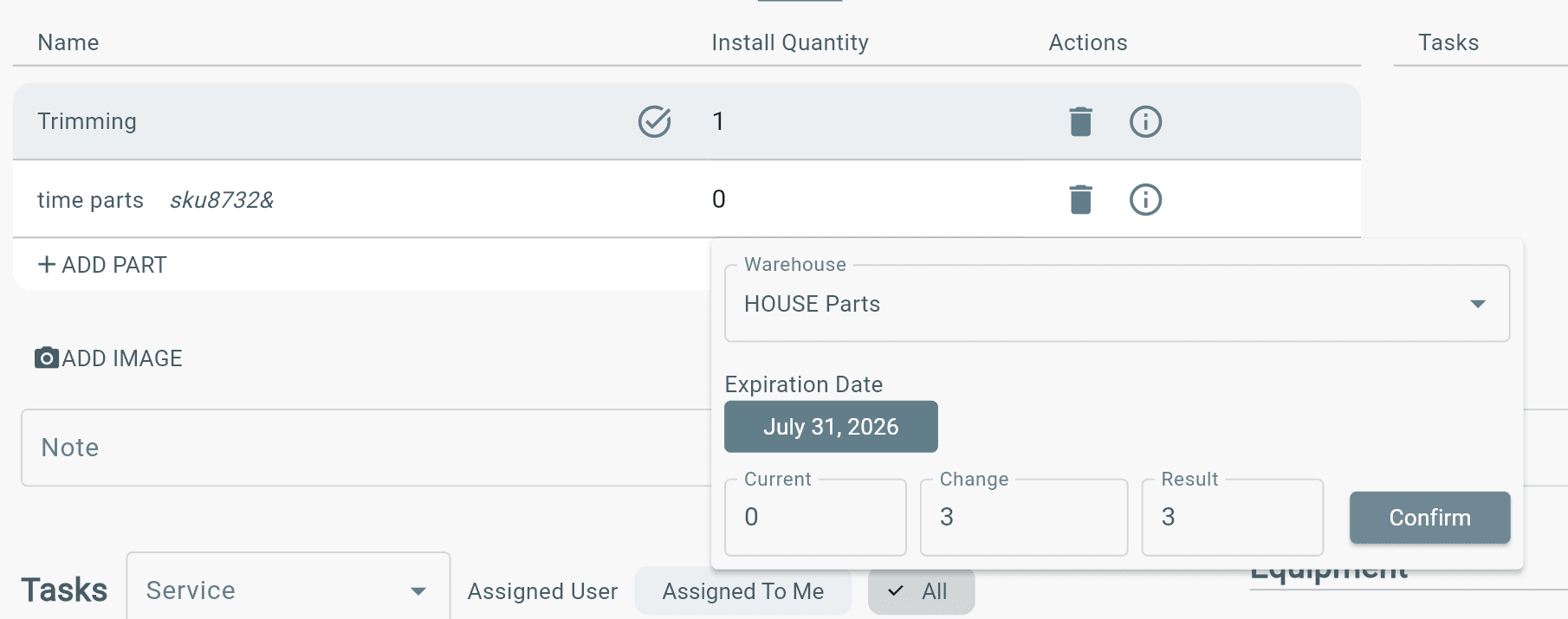
To add inventory items to work orders, go to the Service tab of the proper work order > Add Service(s) and add parts or items to services
> Select inventory items
> Add quantity of each item to pull them from the warehouse
> Select warehouse
How Inventory is Shown
Inventory items are shown in a table view with columns: Name, Barcode, Description, Part Number, Type, Quantity, Cost, Price, Active
Transfer Orders
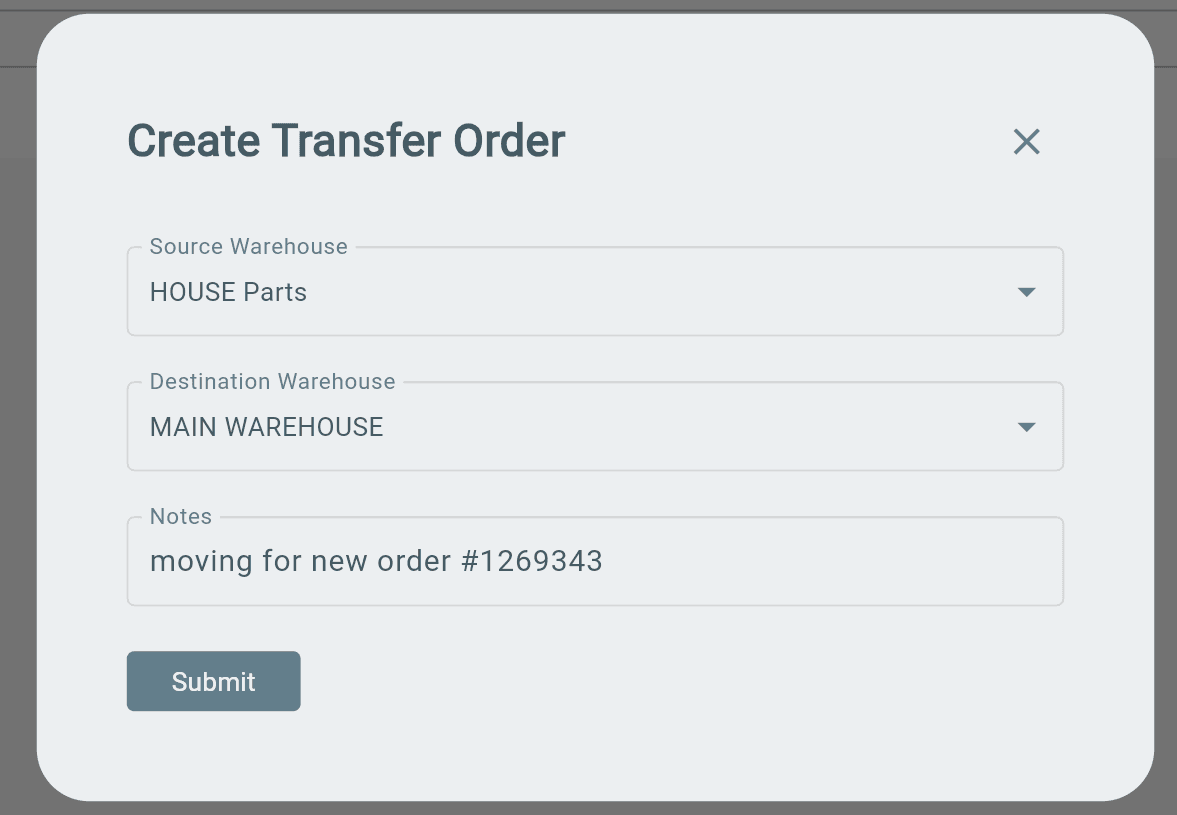
To create a new transfer order, find Inventory in the menu
> Transfer Orders
> Create Transfer Orders
> Select Source Warehouse and Destination Warehouse
> Submit
Inventory Reports
Find Inventory > Find Reports tab > Create Inventory Report
Services & Parts Table
Services are shown in a table view with these columns: Name, Barcode, Description, Cost, Price, Service Type, Labor Type, Active
Parts are shown in a table view with these columns: Name, Barcode, Description, Part Number, Type, Quantity, Cost, Price, Active