Office
Map Dashboard
Overview
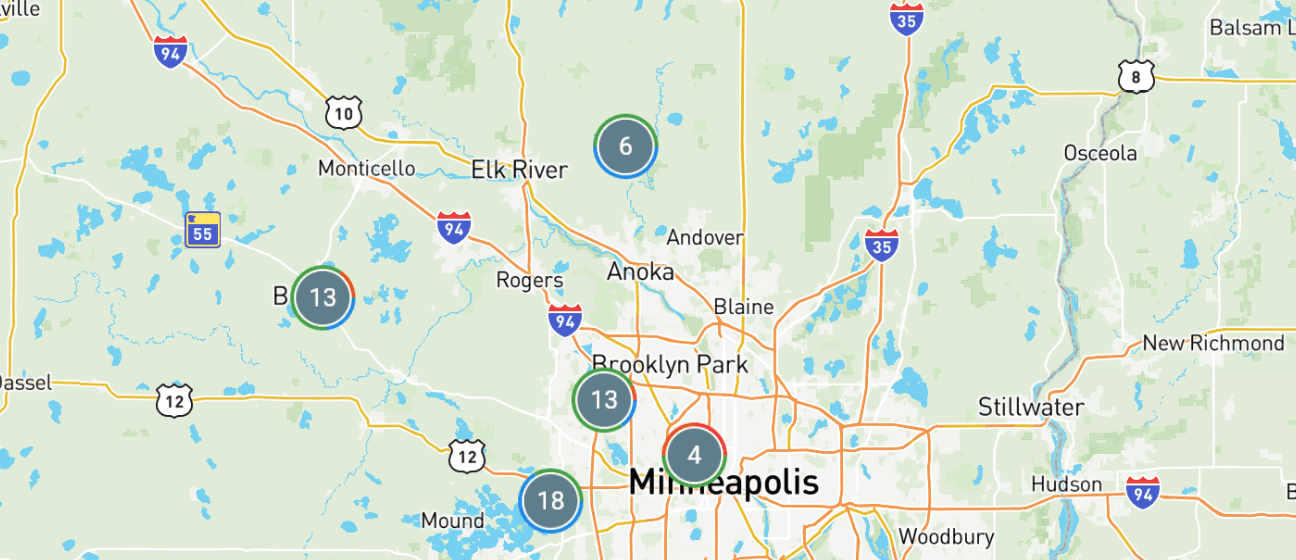
The Map Dashboard gives teams a visual view of work orders, technicians, and job locations. Easily find, filter, and manage service activity from one centralized map to improve scheduling and field visibility.
Advanced Map Search
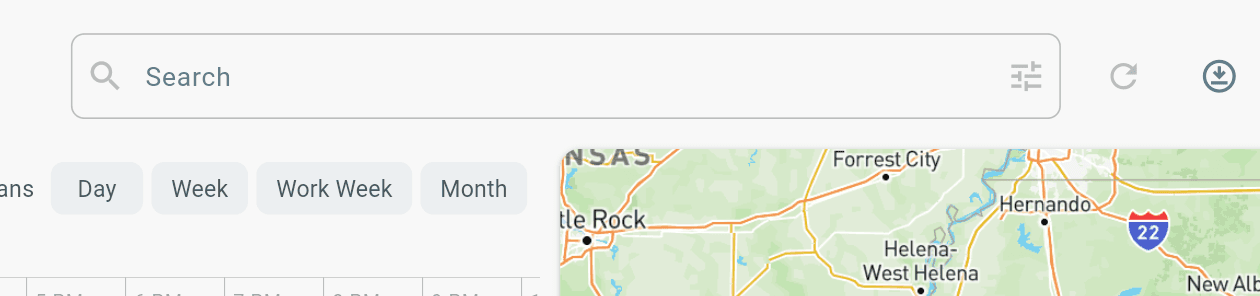
Use Advanced Filters to quickly find work orders.
Search by:
- Work Order Number
- Asset Name
- Asset Address, City, State, or ZIP Code
- Customer Name or Address
- Assigned User (First Name, Last Name, or Email)
- Contract Name
- PO Number
Tip:
- Combine multiple filters to narrow your results.
- Example: Search by ZIP Code, then add a Customer and Assigned Technician filter.
View Work at Any Location
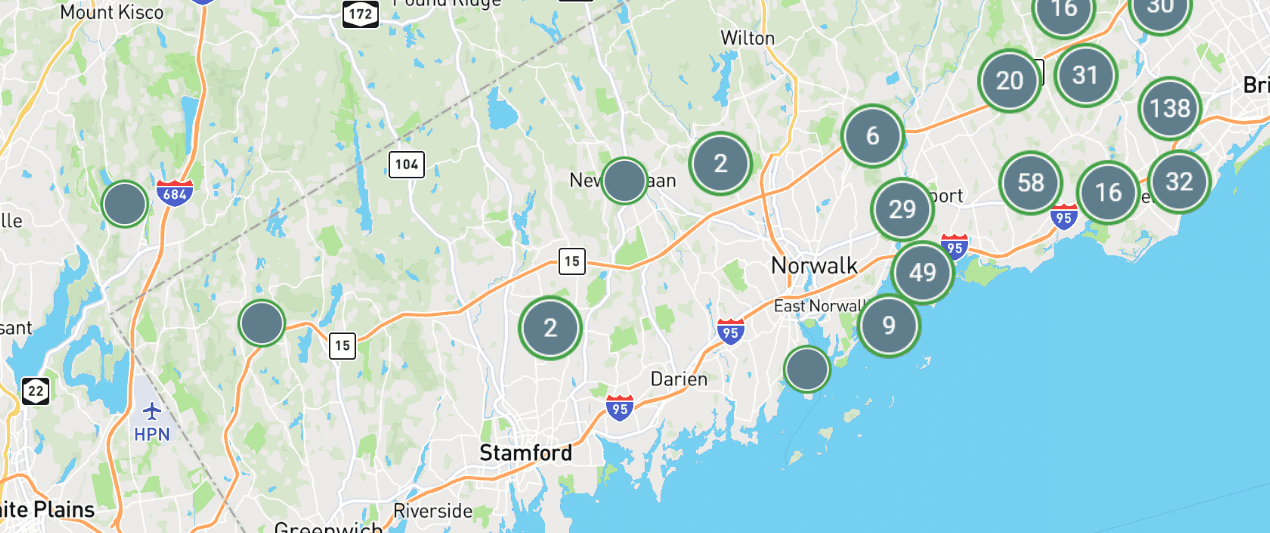
See any work at any job location:
- View work order at each location
- Zoom in (+) to view individual work orders, Zoom out (-) to view clusters
Map Work Order Quickview
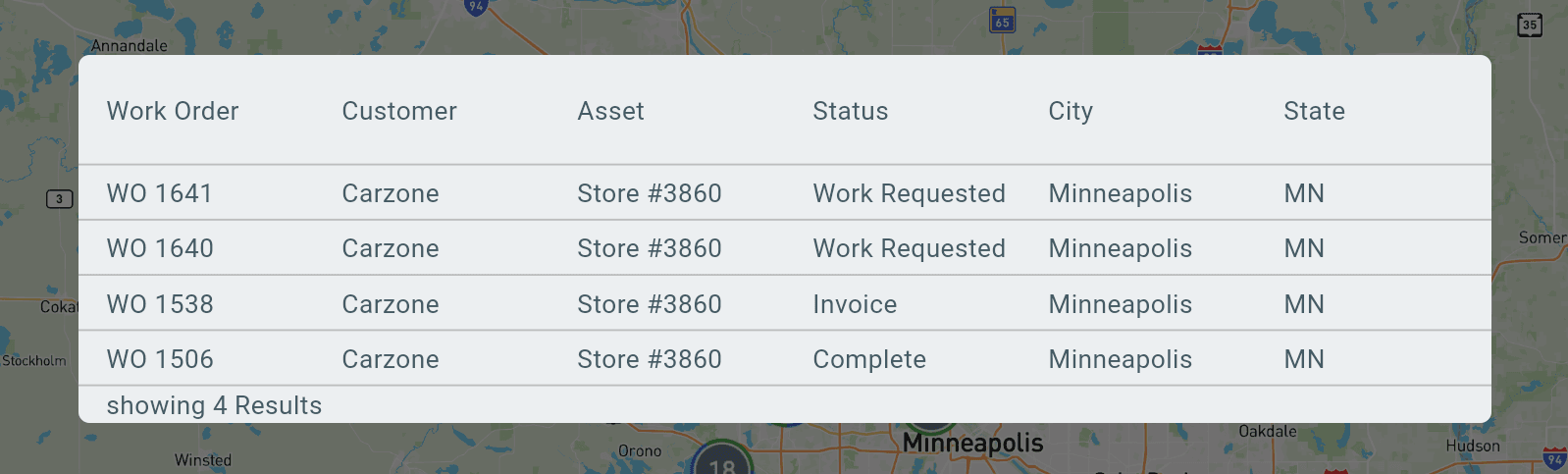
Create New Work Order with a customer that has a real address to view on Map Dashboard.
- Select work order on map to view quickview pop up.
- Click work order to enter work order
Work Order Priority Colors
Blue → Low Priority
Green → Standard Priority
Orange → High Priority
Red → Emergency