Office
Creating a New Work Order
How to create a new work order as an office worker
Create a New Work Order
- Go to Menu → New Work Order.
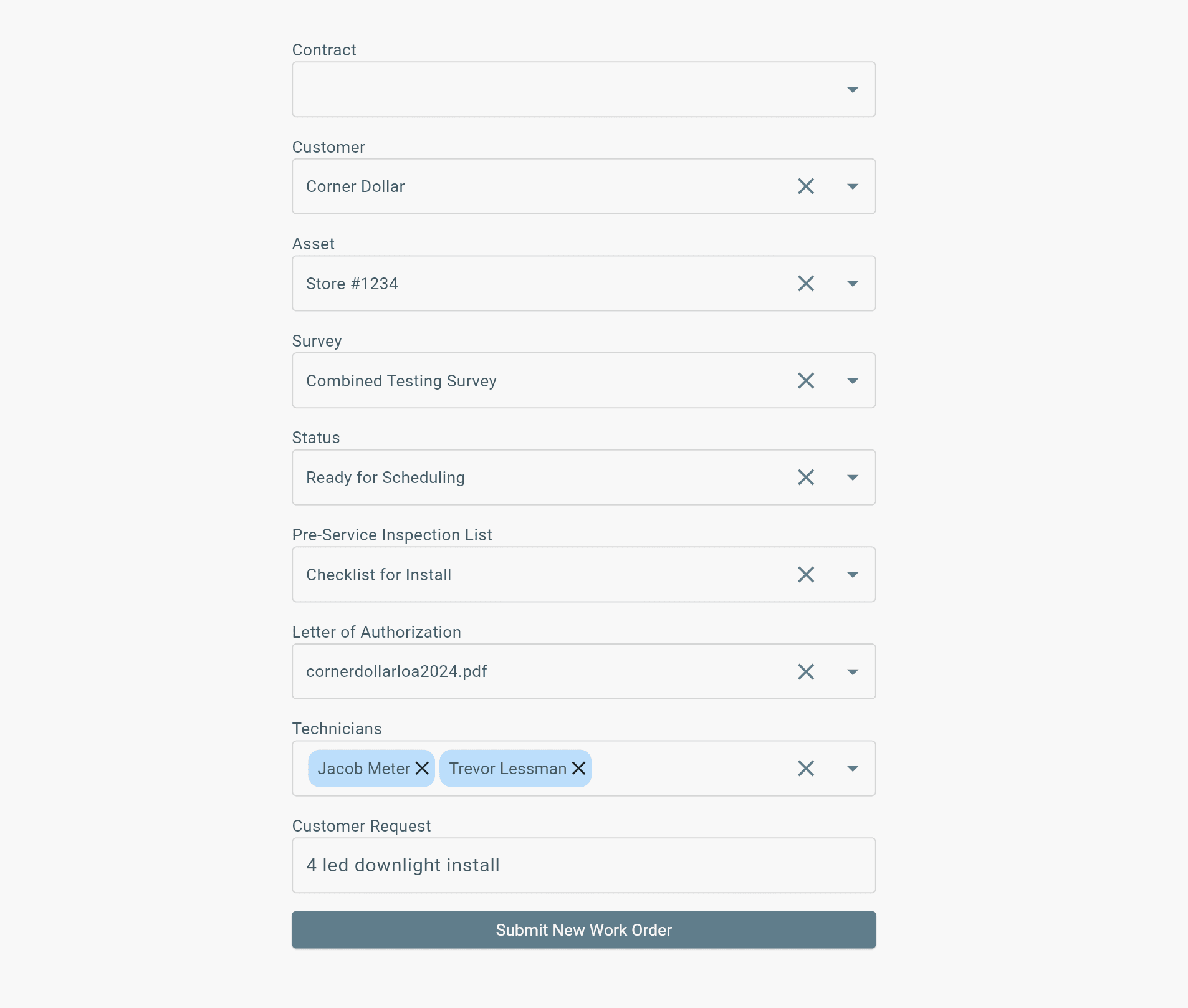
- Complete the work order details, including:
- Customer
- Asset
- Survey (optional)
- Status
- Inspection List
- Letter of Authorization (optional)
- Assigned Technician(s)
- Save the work order.
Choose the Correct Status
If technicians should begin work immediately, set the status to Service.
Otherwise, select the status that matches your workflow.
Note: Assigned technicians will only see the work order on their dashboard when the work order is in the Service status. Unless you have different workspace settings for tech sto see more statuses.
After creating the work order, you'll be taken to the Administration tab.
Next:
- Open the Arrival tab.
- Enter the Scope of Work.
- Complete any remaining job details.
- Save your changes.
Cancelling a Work Order
To cancel work order:
→ Change status to Cancelled