Office
Equipment Tracking , Scheduling & Categories
How to add, view, and use equipment categories and equipment in Lexul.
Overview
Equipment Categories help organize equipment into groups based on their function or industry.
Using Equipment Categories
- Identify the type of equipment.
- Select the category that best matches its function or industry.
- Save the equipment with the selected category.
Example
- Equipment: Bulldozer
- Category: Earthmoving Equipment
Using Equipment Categories makes it easier to organize, search, and manage equipment.
Adding/Locating Equipment Categories
- Find Configuration
- General Config
- Equipment Categories
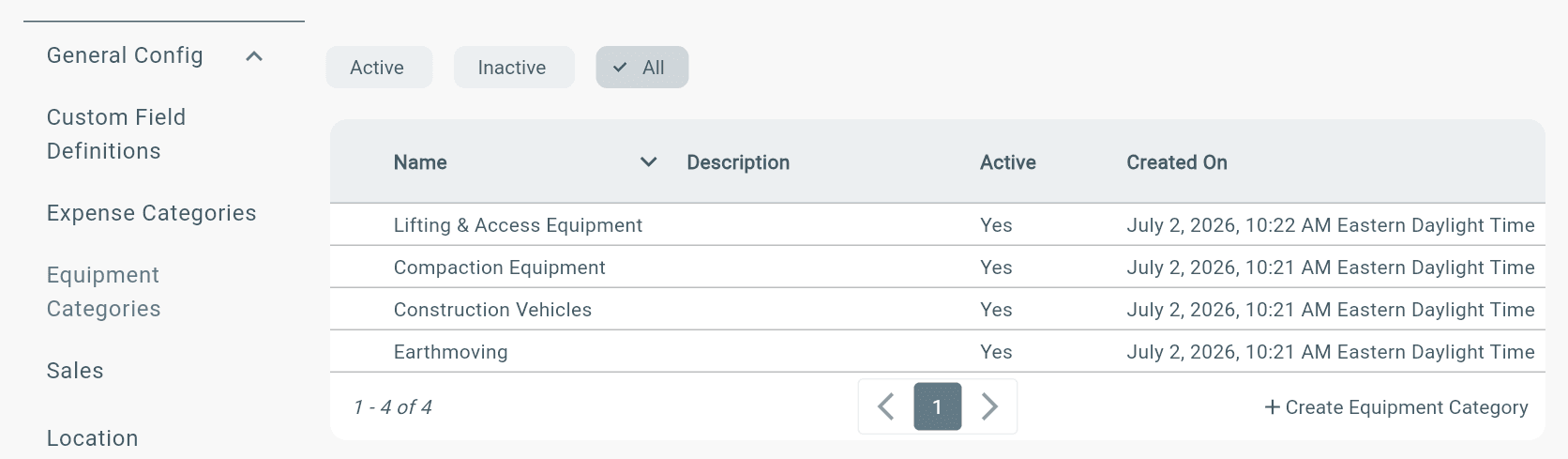
NOTE: These must be added before adding specific equipment to each category. Equipment Categories are classifications used to organize, define, and manage equipment items.
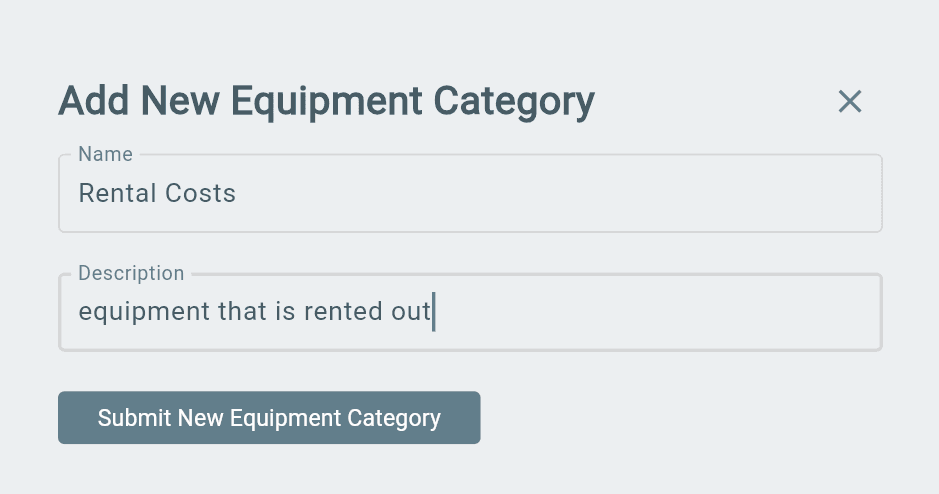
Adding Equipment
- Open the Equipment page from the sidebar menu.
- Select Create Equipment in the bottom-right corner of the table to add new equipment.
- To edit existing equipment, select it from the list.
**Note:**All added equipment will appear in the equipment list (or under its assigned category) when assigning equipment to a work order.
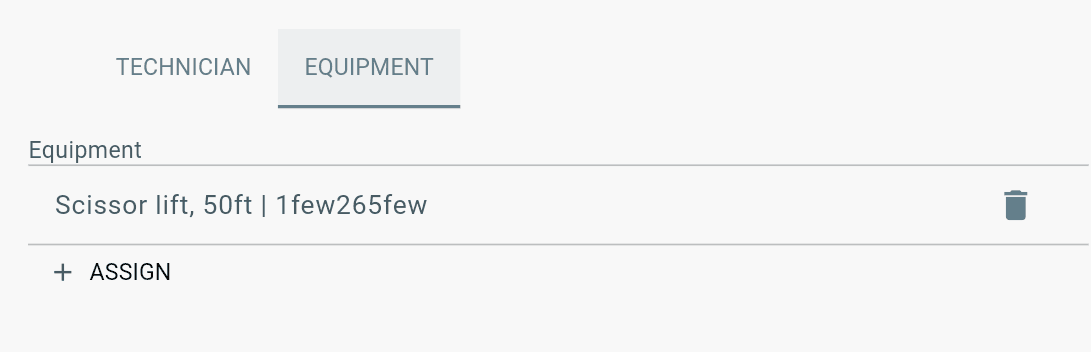
Assigning Equipment
- Open the Work Order.
- Go to the Administration tab.
- Open the Equipment tab.
- Select Assign.
- Choose the equipment you want to assign.
- Save your changes.
Scheduling Equipment
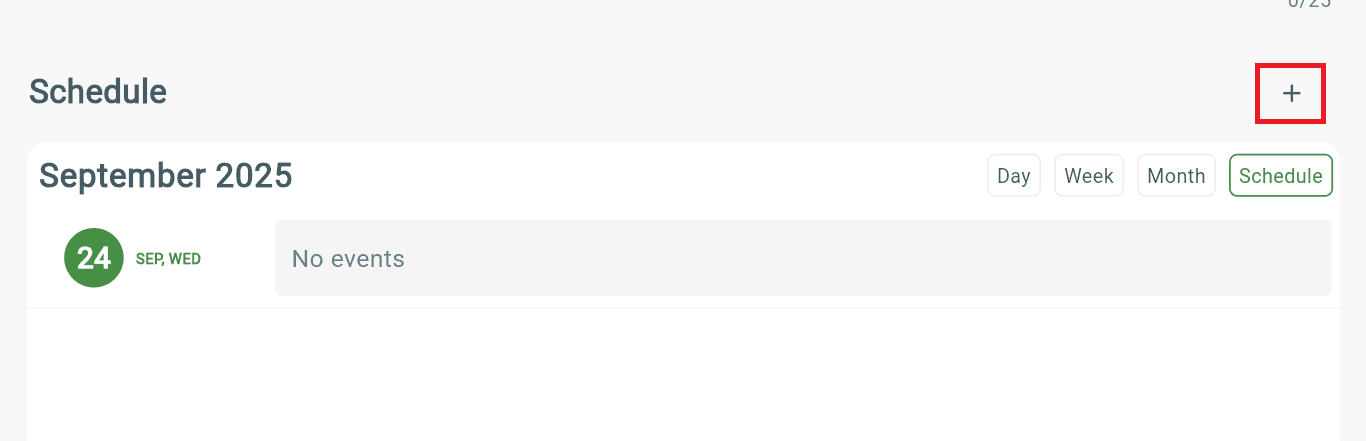
- Open the Work Order.
- Go to the Administration page.
- Select the + (Add) button in the Scheduling section.
- Switch to the Equipment Schedule tab.
- Add a time slot for the equipment.
- Save your changes.
Note: The scheduled equipment time will appear in the Calendar.
Notes:
- You can also select the equipment time slot from the Calendar to edit or remove it from the schedule.
- Technicians assigned to the work order can view all scheduled equipment.
How to Check Equipment In or Out
- Open the Work Order.
- Go to the Service tab.
- Find the Equipment section.
- Select Check In or Check Out for the equipment.
- Save your changes.
Note: All Check In and Check Out actions are recorded in the Equipment page under the Log tab.
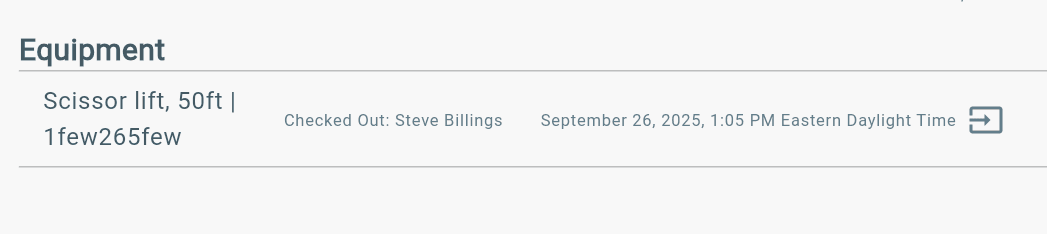
Equipment Management
View Equipment Activity
- Open the Equipment page from the menu.
- Select the equipment you want to view.
- Review the available tabs:
- Log – View all Check In and Check Out activity.
- Schedule – View when the equipment is scheduled on the Calendar and the associated work order.
- Work Orders – View all work orders the equipment is assigned to.