Service Work Orders
Overview
Service Work Orders help organize and manage work orders by grouping them under a specific Contract.
This makes it easier to:
→ Search for work orders.
→ Organize recurring work.
→ Manage service history from the dashboard.
Template Contracts
Templates attached to a Contract are not applied when creating a new work order.
→ Templates are only used for organization and categorization.
→ They do not automatically add information or requirements to the work order.
→ Contract Assets cannot be added to these work orders.
Create a Service Work Order Contract
To create a new Contract:
→ Open Contracts from the menu.
→ Select the blue + Action button in the bottom-right corner.
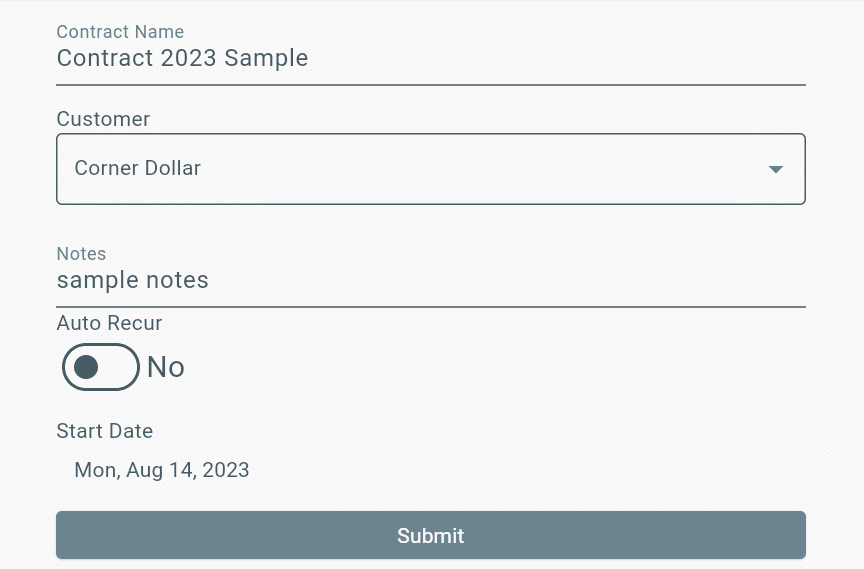
→ Enter the required Contract details:
- Contract name
- Customer
- Notes (optional)
- Auto Recurring setting (optional)
- Auto Recurring start date (if enabled)
→ Select Submit to create the Contract.
The Contract can now be used to organize and manage related Service Work Orders.
Add Work Orders to a Contract
To connect a work order to a Contract:
→ Open New Work Order from the menu.
→ Create the work order.
→ Select the correct Contract.
→ Submit the work order.
Once created:
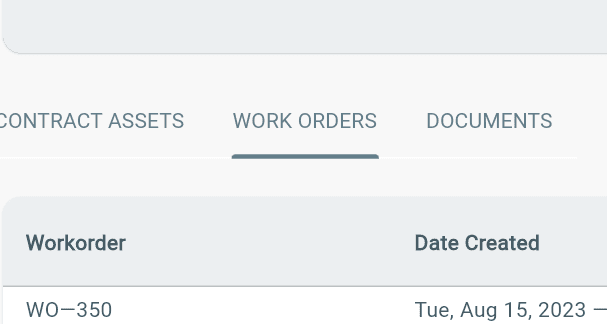
→ The work order will appear in the Contract page under the Work Orders tab.
Note: Always select the correct Contract when creating a Service Work Order to keep work organized and easy to find.
Adding New Work to Existing Contract
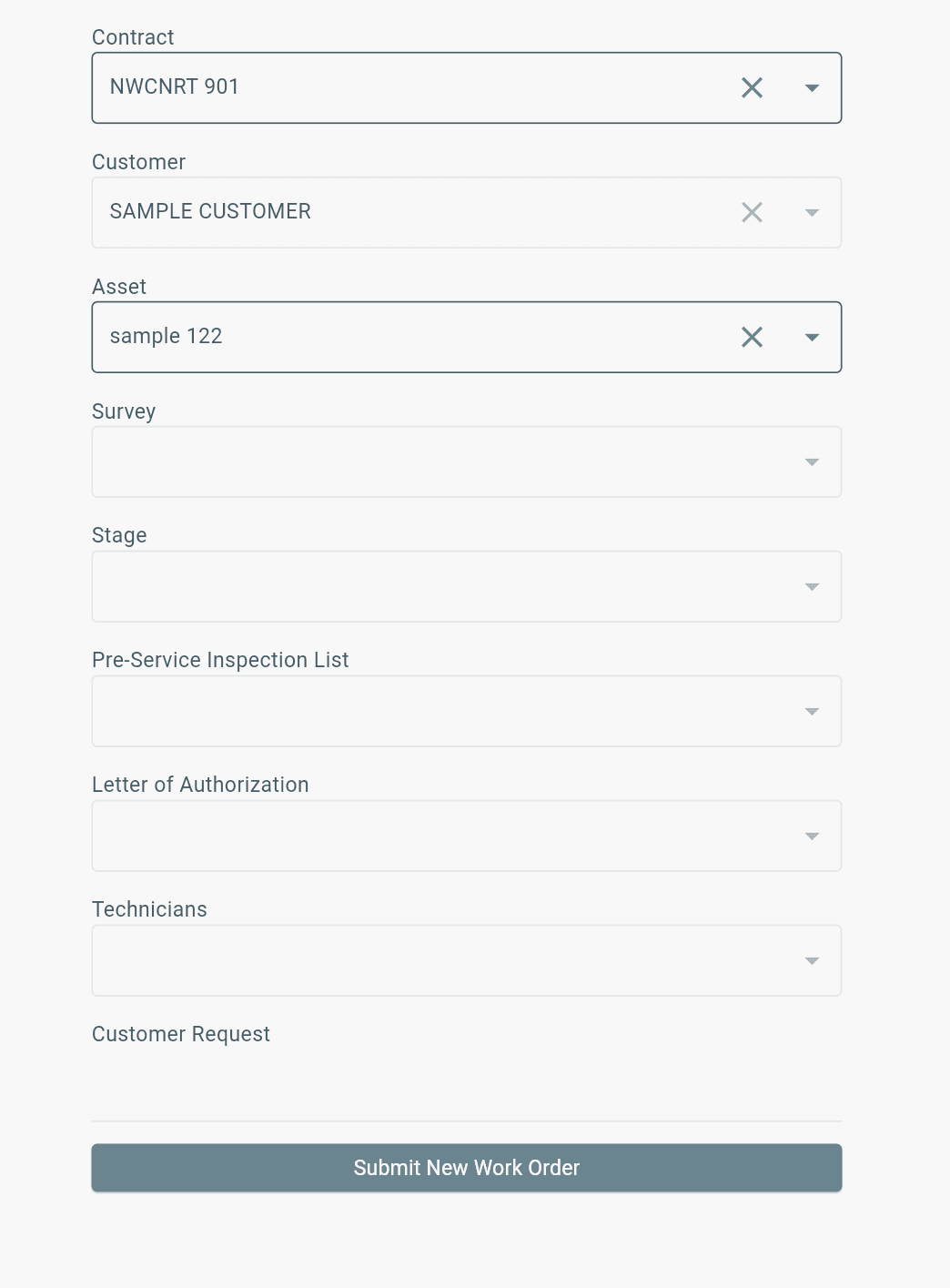
1. Go to New Work Order from the menu.
2. Select the correct Contract from the dropdown.
3. Choose the related Asset.
4. Complete and submit the work order.
The work order will now:
→ Be labeled with the selected Contract.
→ Appear in the Work Orders tab within that Contract page.
Note: Once a Contract is selected, some fields may become unavailable (grayed out). This happens because the existing Contract Template settings are automatically applied to the work order.
Clone a Contract Template
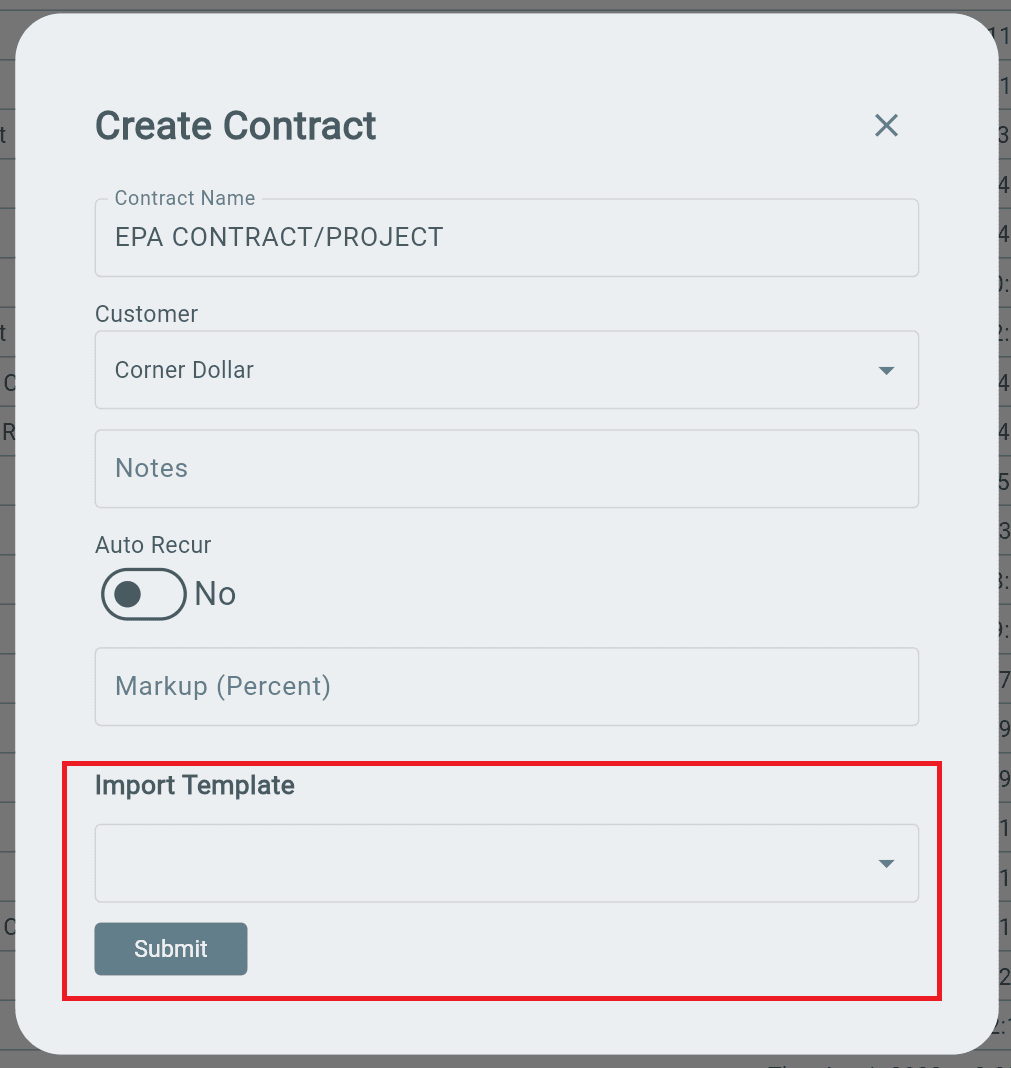
Use an existing Contract Template to quickly create a new Contract with the same setup.
1. Go to Contracts from the menu.
2. Select Create Contract.
3. Find Import Template.
4. Select the previously created Contract Template you want to use.
5. Complete the remaining Contract details and submit.
The new Contract will be created using the selected template.