Creating Invoices in QuickBooks Desktop
How to create an invoice to sync to QuickBooks Desktop
Creating Invoices for QuickBooks Desktop
Before you get to the invoice stage of the work order, you want to make sure that an office staff or technician properly fills out the Service and Parts quantities in the Service tab. You also want to make sure the price is accurate for each Part & Service in the Parts & Services menu. These are what will be transferred directly to the invoice.
1 Find and click the "Create Invoice" button on the Invoice tab of the Work Order. If Services and Parts have been added to the Work Order, they will show on the Invoice. If nothing has been added, they will not show.
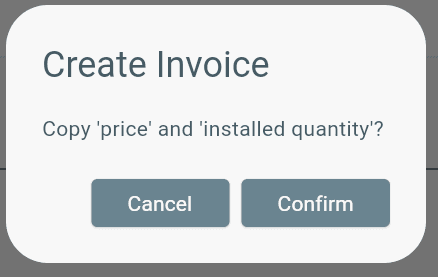
2 A pop up will then show; click “Confirm”
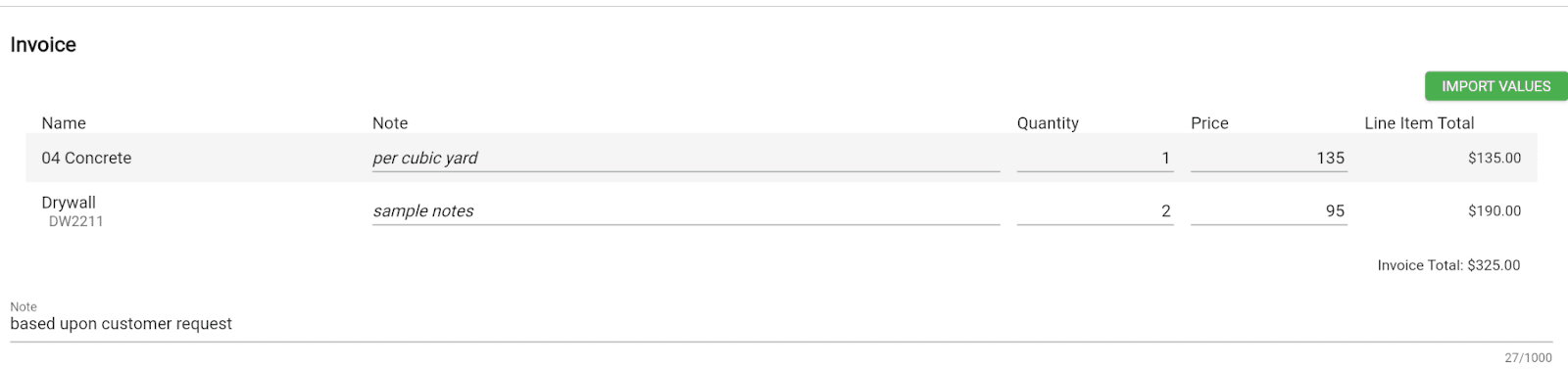
3 Your Quantity and Price will now show on the invoice. The Invoice is now ready to be synced to QuickBooks.

4 Click the “Send to QuickBooks” green button below “QuickBooks Sync”, read the pop up and then confirm.
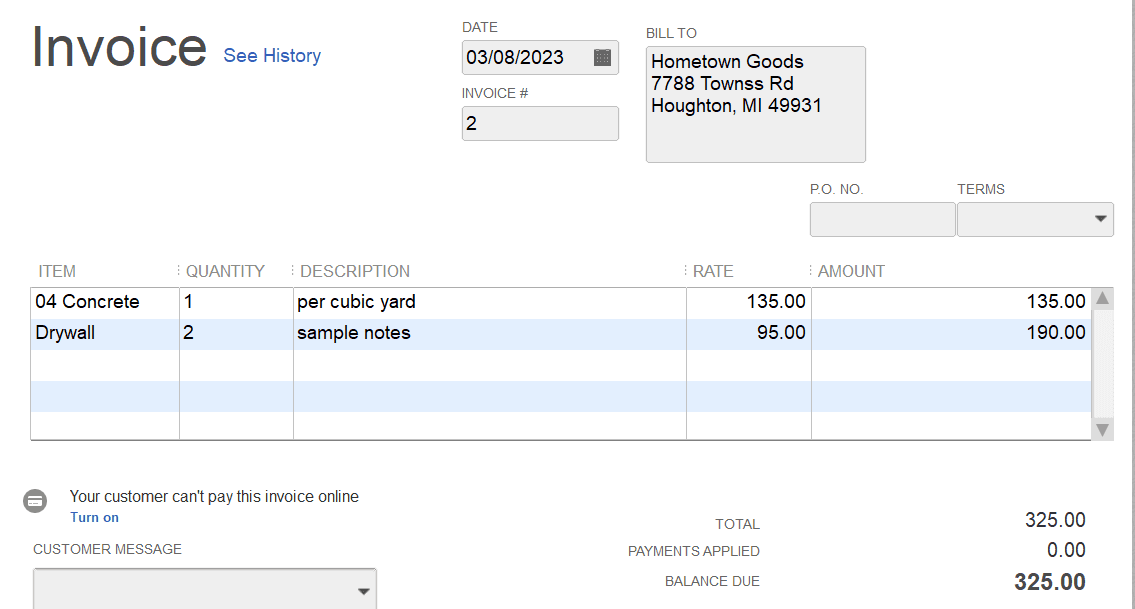
5 Depending on the sync time of your web connector, it will then sync to QuickBooks. After sync, the invoice will show under the Customer and its Asset, which is a QuickBooks customer Job.
How will the invoice show in Lexul Field Service versus QuickBooks?
Lexul Field Service
QuickBooks Desktop
Tax Settings on Inovices
Tax is not added on invoice line items and will not display in Lexul Field Service. You must use QuickBooks Desktop tax settings after the invoice has been synced from Lexul Field Service to QuickBooks.
Invoicing in Lexul Field Service Network
If you are looking to invoice to a Service company in our Lexul Field Service Network, see this article.