Office
Adding Documents to a Contract
How to Add Documents to a Contract
Upload a Document
- Go to Menu → Contracts.
- Select the contract.
- Open the Documents tab.
- Select Add Document.
- Choose a file and upload it.
Supported File Types
PDF
JPG
JPEG
PNG
GIF
MP4
MOV
DOC
DOCX
XLSX
PPTX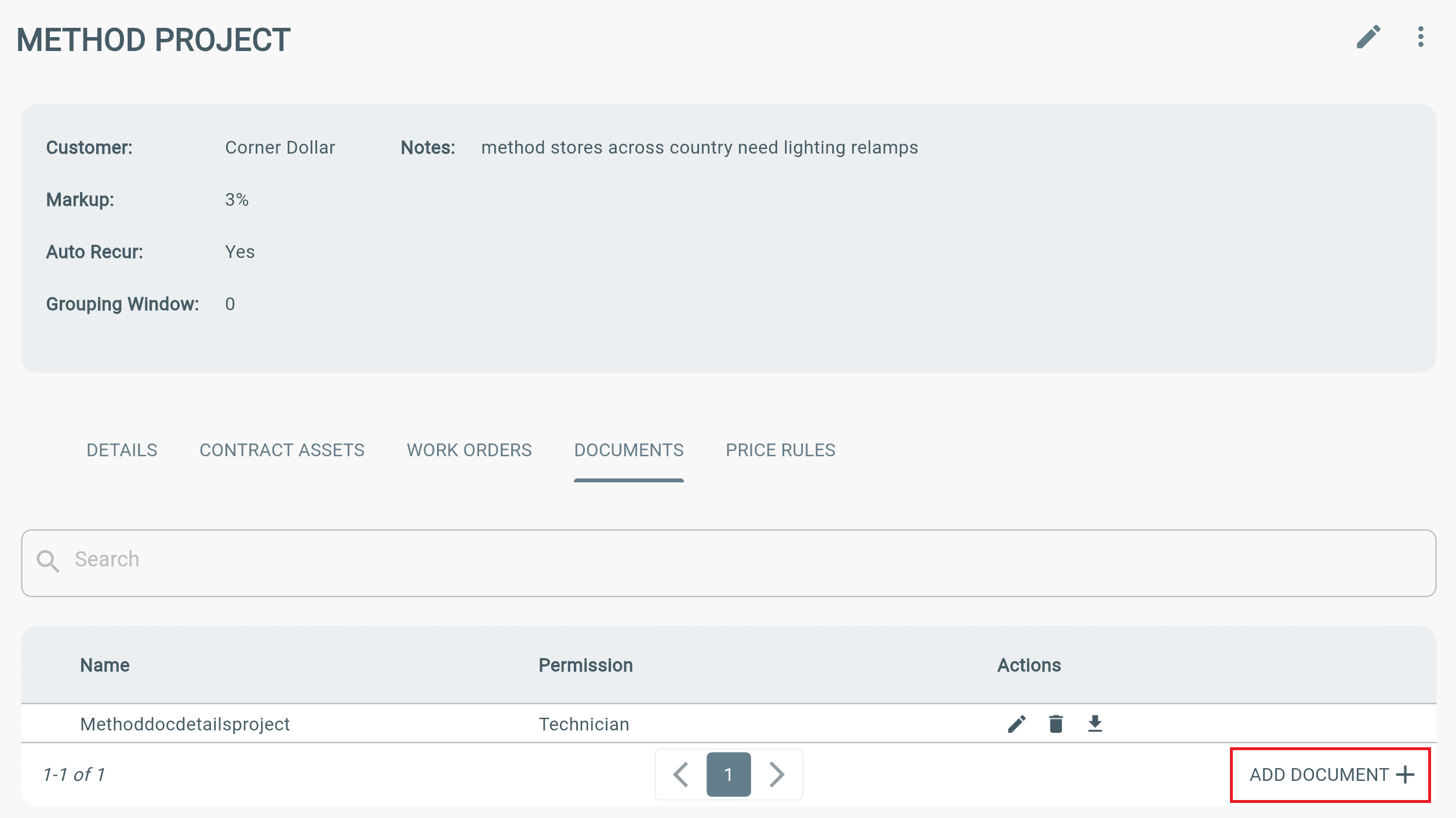
Add a Contract Template Document
Documents added to a contract can also be added to the contract template.
Note
- Template documents are applied only to newly created Contract Assets.
- Existing work orders are not updated.
To upload a document:
- Select the file.
- Rename it if needed.
- Choose a Viewable By permission.
- Select Submit.
Viewable By Permissions
The selected permission determines who can view the document on the work order.
- Office Admin — Only Office Admin users can view the document.
- Office Staff — Office Admin and Office Staff users can view the document.
- Technician — Office Admin, Office Staff, and Technician users can view the document.
This permission structure applies to all documents in Lexul.