Office
Notifications (Office)
How to create, recieve, and manage notifications in Lexul
Lexul can send notifications based on your selected preferences.
You can control:
- What updates trigger notifications.
- Who receives notifications.
- How notifications are sent.
Notification Subscriptions
Notifications are available for all Lexul users, including:
- Owners
- Admins
- Staff
- Technicians
Creating Notification Subs
To create a notification subscription:
Profile Icon → Profile → Manage Notifications
Then:
- Add a new notification subscription.
- Select the notification settings.
- Save the subscription.
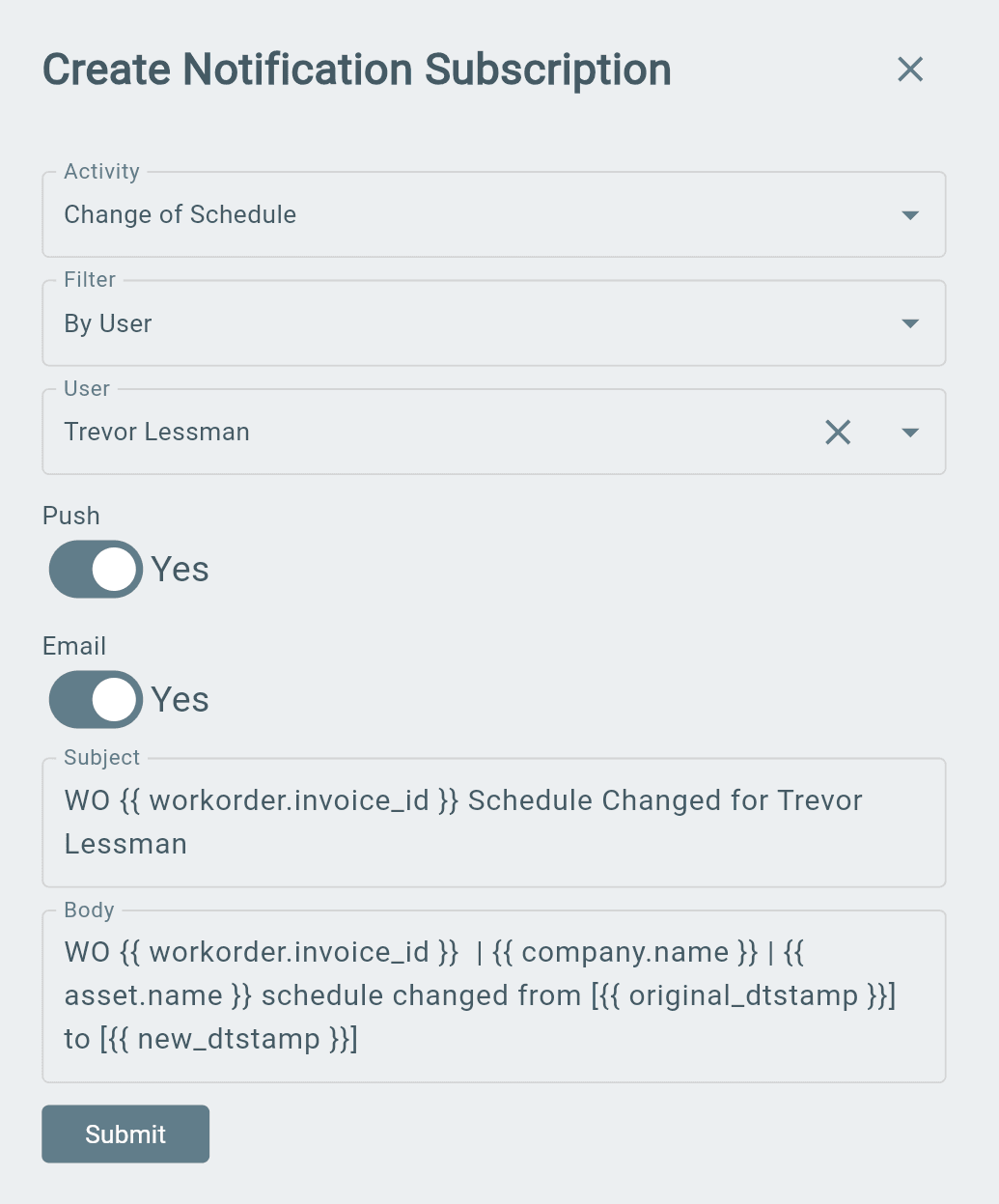
Notification Fields
Activity
- The action that triggers the notification.
Filter
- Determines when the notification is sent.
Examples:
- Work orders created by me.
- Work orders assigned to me.
- Work orders created by a specific user.
Email Notifications
- Sends notifications to the user’s email.
Push Notifications
- Sends pop-up notifications to a web browser or mobile device.
Subject
- The notification title.
- Can be customized.
Body
- The message included with the notification.
- Can be customized.
Example:
- "Work Order #124 schedule changed for for Trevor."
Notification Feed
The Notification Feed shows a history of notifications sent to the user.
To view notifications:
Profile → Notification Feed
The feed shows:
- When the notification was sent.
- What the notification was for.
Use the page controls at the bottom to view older notifications.