Deal Stages
Tracking prospective customers with leads, quotes, activities, and stages of deals.
Overview
Deals allow you to track potential sales opportunities from initial lead to completed work.
Use Deals to:
- Track leads and quotes.
- Organize prospects by stage.
- Track sales activity.
- Move opportunities from leads to new work and customers.
Access Deals
Go to:
Sales → Deals
Adding Deal Stages
Deal Stages define the steps an opportunity moves through.
To add or manage stages:
Configuration → Deal Stages → Add New
Create stages that match your sales process, such as:
- New Lead
- Quote Sent
- Approved
- New Work
- Customer
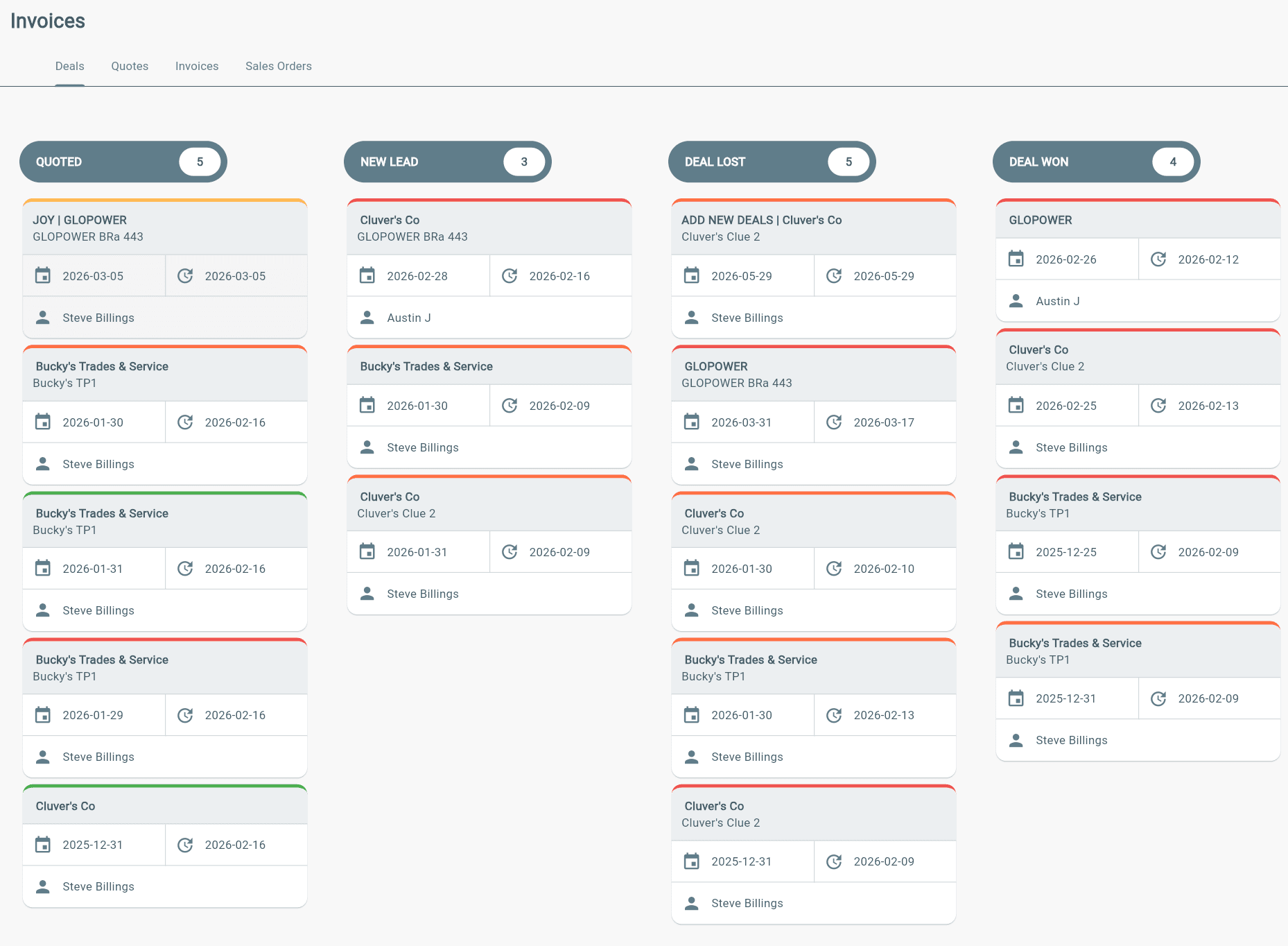
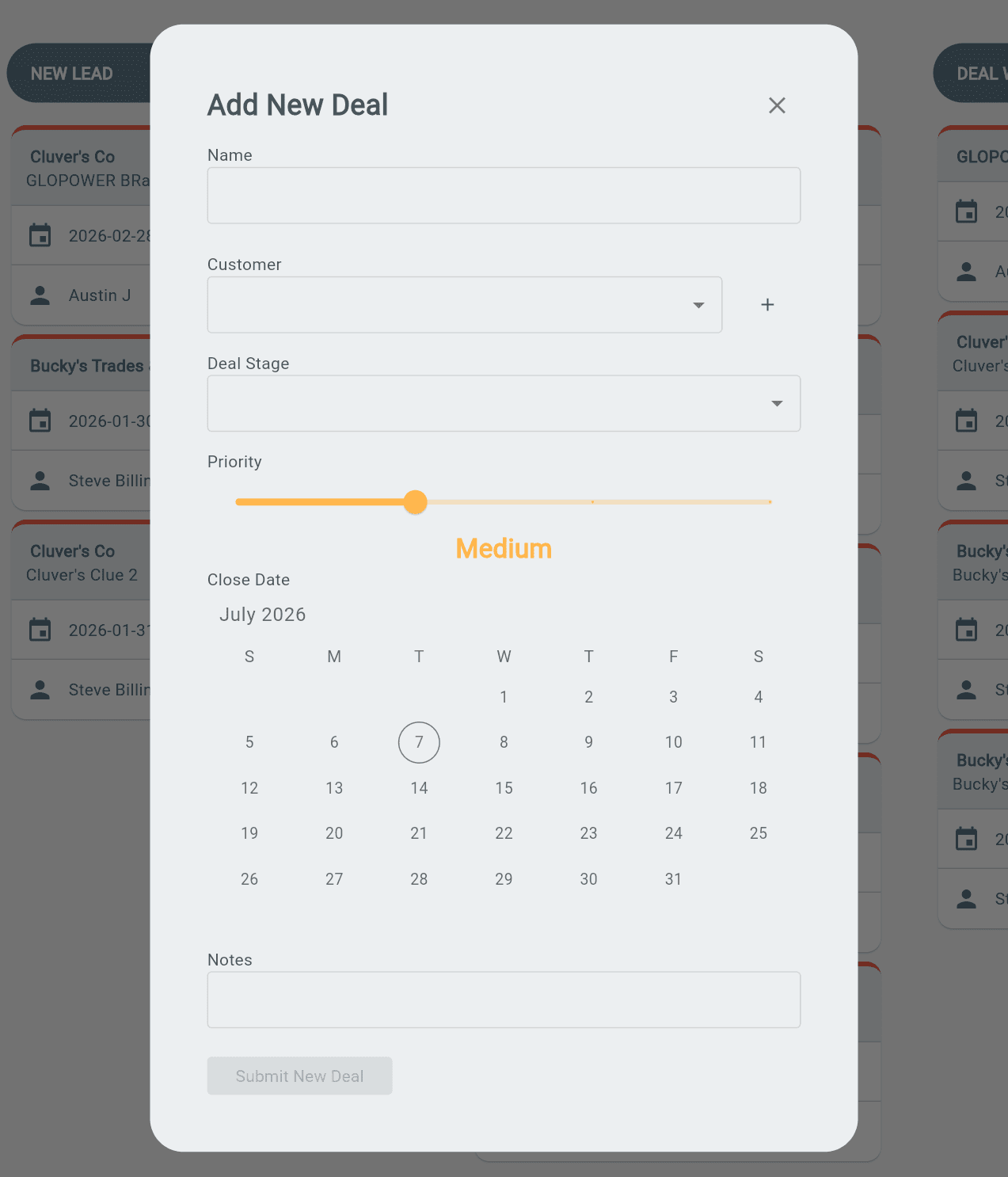
Adding New Deal
To create a deal:
- Go to Sales → Deals.
- Select the Add (+) button in the bottom-right corner.
- Complete the required deal fields.
- Save the deal.
Create a New Lead Customer
If the deal is for a new lead:
- Select Add Customer next to the Customer field.
- Enter the customer details.
- Save the new customer.
The new customer will be linked to the deal.
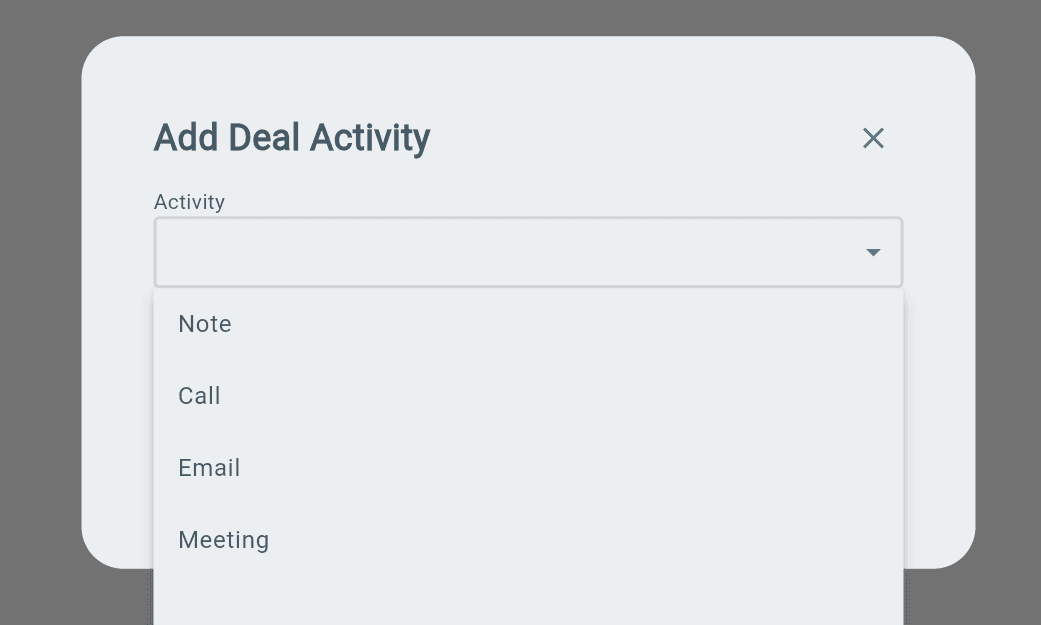
Adding Deal Activites
Deal Activities allow you to track interactions and updates related to a deal.
Available activity types:
- Notes
- Calls
- Emails
- Meetings
Add an Activity
- Open the Deal.
- Go to the Activity section.
- Select the Add (+) action.
- Choose the activity type.
- Enter the activity details and save.
Create a Quote from a Deal
Add a Quote
After creating a Deal:
- Open the Deal.
- Select Quote.
- Select Create Quote.
Internal Quote vs. Customer Quote
Quotes can be used to compare costs, pricing, and profitability.
Add quote items to:
- Internal Quote — Used to view internal costs and margins.
- Customer Quote — Used for the proposed customer pricing.
Use the profitability report to:
- Review margins.
- Compare costs vs. pricing.
Copy Quote to Work Order
After the quote is approved:
- Open the Deal Quote page.
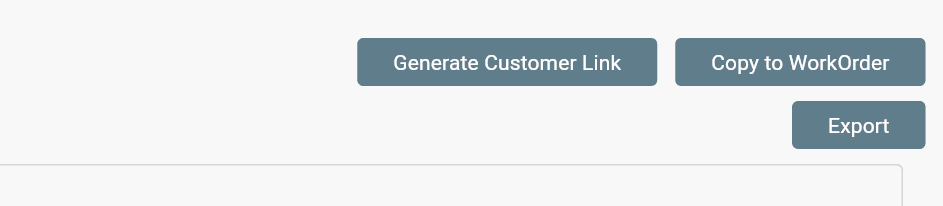
- Select Copy To Work Order.
The quote items will be copied into a new work order.
Customer Quote Link for Digital Approval
Customers can review and approve quotes online using a customer approval link.
To create a customer approval link:
- Open the Deal Quote page.
- Select Generate Customer Link.
- Send the generated link to the lead customer.
The customer can open the link from a:
- Phone.
- Computer.
They can then review and approve the quote.
Copy Quote to Invoice
To move customer quote items to a new work order invoice:
- Open the Deal Quote page.
- Select Copy To Invoice.
The customer quote items will be copied to the invoice on the new work order.
Deal Stages
Deals can be viewed in a table format with each deal stage displayed.
Go to:
Sales → Deals
From the Deals page, you can:
- View deals by stage.
- Search for specific deals.
Work Orders Created from Deals
When a work order is created from a Deal, it will appear across all work order dashboards:
- Kanban view.
- Table view.
- Map view.
The work order can also be searched using the dashboard search tools.