Creating Invoices in QuickBooks Online
Create an Invoice
1. Complete the work order and make sure all Services, Parts, and quantities have been entered.
2. Go to the Invoice tab.
3. Select Import Values.
→ Services, Parts, quantities, and prices from the Service tab will be added to the invoice.
4. Add invoice notes or make any final changes, if needed.
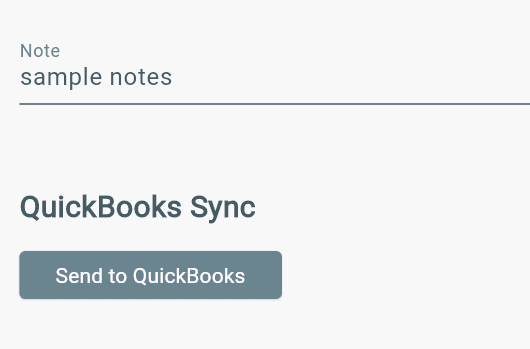
5. Select Send to QuickBooks.
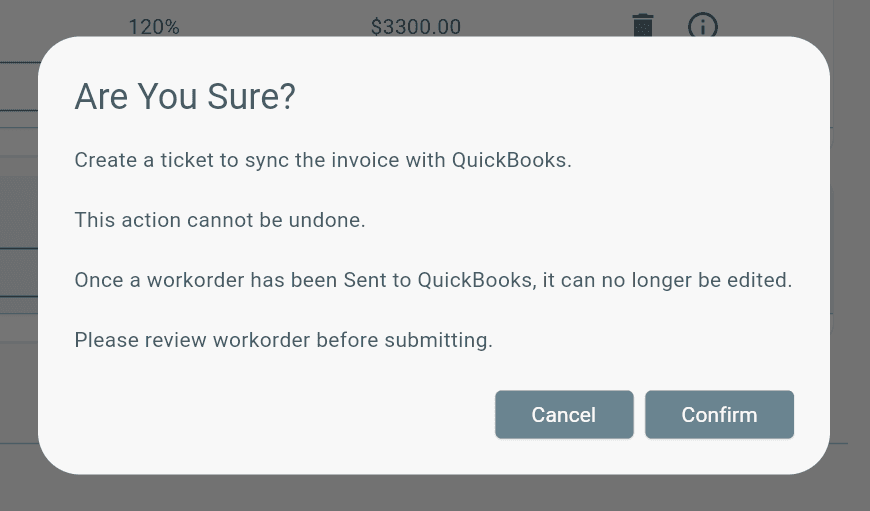
6. Review the confirmation message and select Confirm to send the invoice to QuickBooks Desktop.
After the sync is complete, a "Successfully Synced" message will appear, confirming the invoice was sent to QuickBooks Desktop successfully.

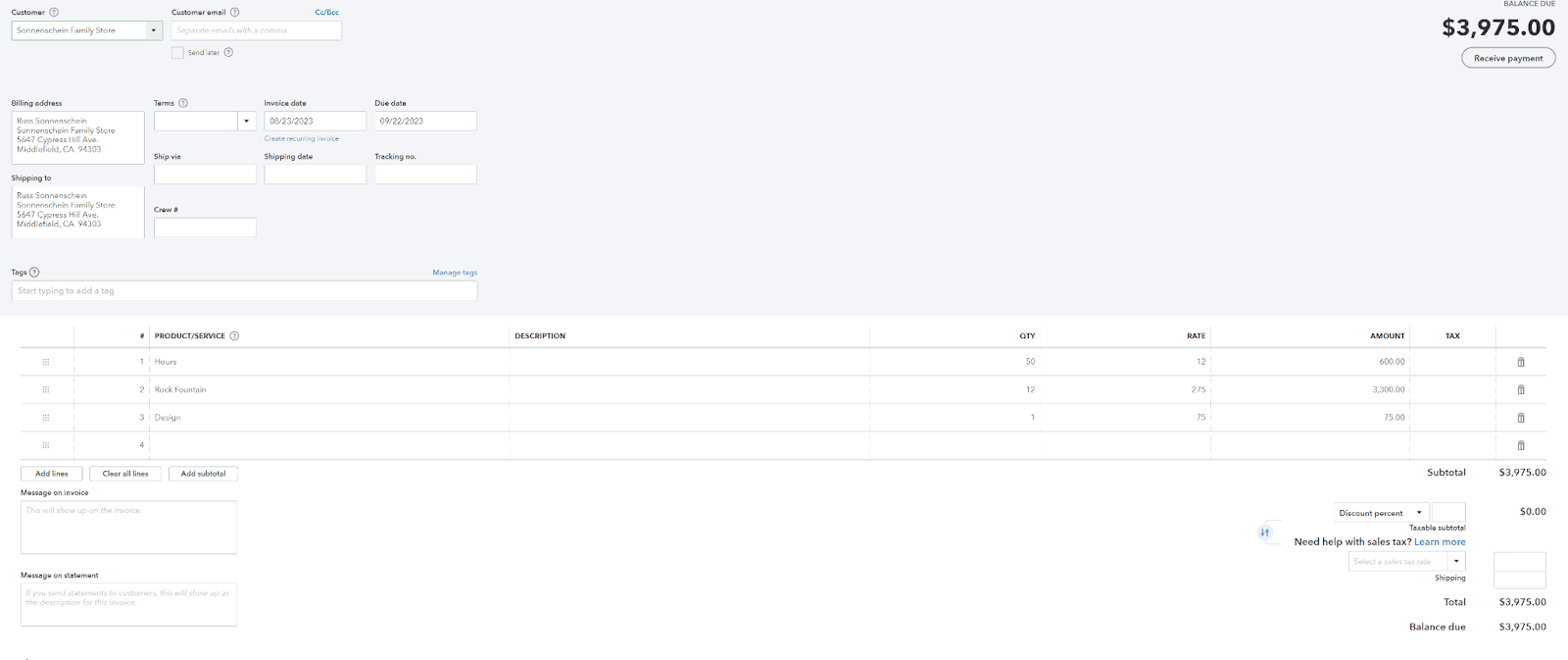
Then, See invoice in QuickBooks Online
Invoicing in Lexul Service Network
If you are looking to invoice to a Service company in our Lexul Field Service Network, see this article.
Additional Info
Integration settings only show in the menu for LexulClient and OfficeAdmin permissions. A QuickBooks Integration can only be initially added by a LexulClient user.