Creating & Managing Crews
Learn how to create and manage crews in Lexul Field Service for simple time keeping.
Overview
OfficeAdmin accounts can create and manage crews.
Creating Crews
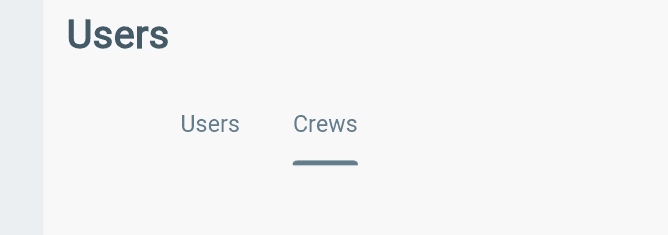
1. Go to Users from the menu.
2. Select the Crews tab.
3. Create and manage crews from this section.
Then:
Select the Action (+) button in the bottom-right corner.
→ This opens the Create New Crew page where you can add crew details and members.
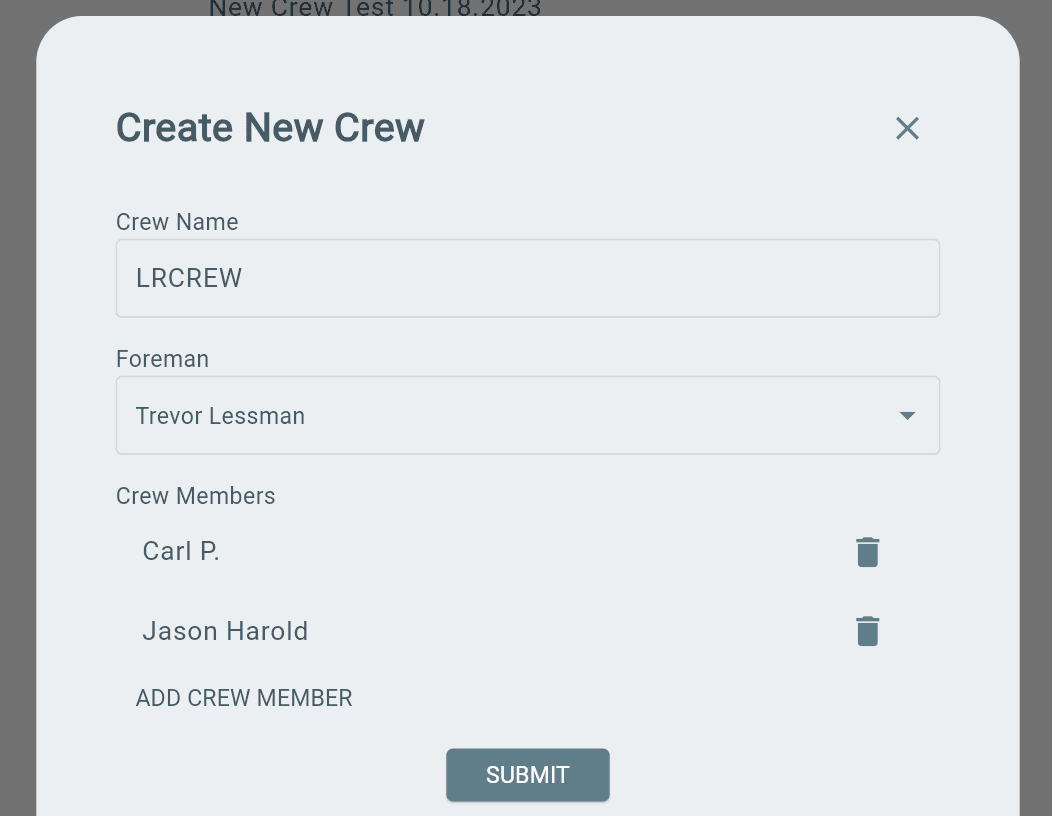
Add crew details:
→ Enter the Crew Name.
→ Select a Foreman.
→ Add Crew Members.
Select Submit to create the crew.
A Foreman with assigned technicians can:
→ Track time for the entire crew.
→ Track time by job/work order.
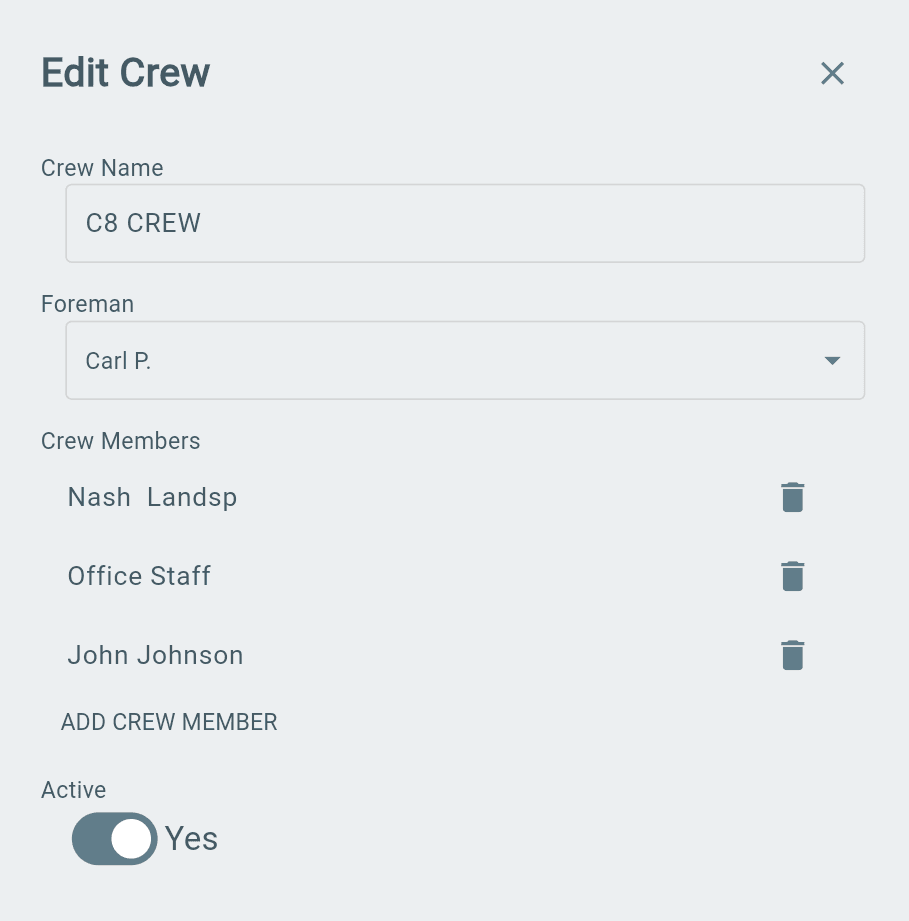
Your new crews will appear on the Crews page.
→ Select any crew to view or update crew details.
Filter Crews
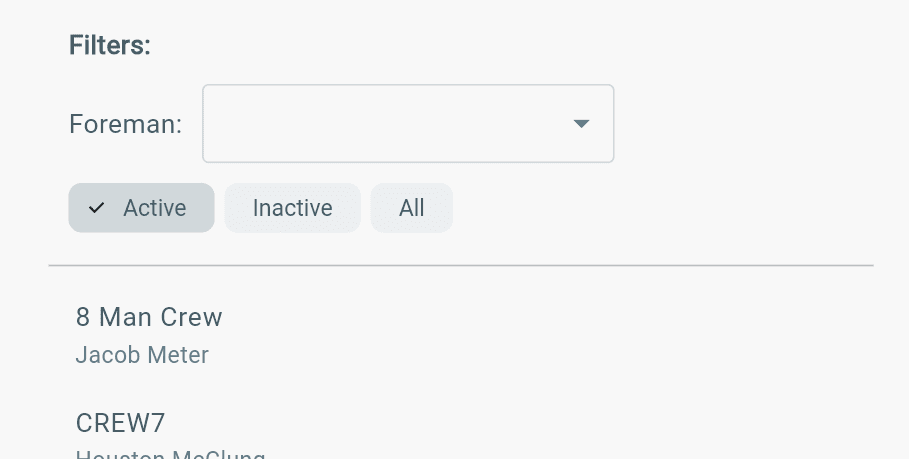
Use the filter options to quickly find crews:
→ Active — View active crews.
→ Inactive — View inactive crews.
→ All — View all crews.
Additional Info
→ A crew must have more than one member before a crew member can be removed.
→ A Foreman can only have one active crew assigned at a time.
→ A Technician can only belong to one crew at a time.
Do not make crew changes if they are actively logging time.