Contract Price Rules
How to add, change, view, and manage price rules on a contract/project.
Overview
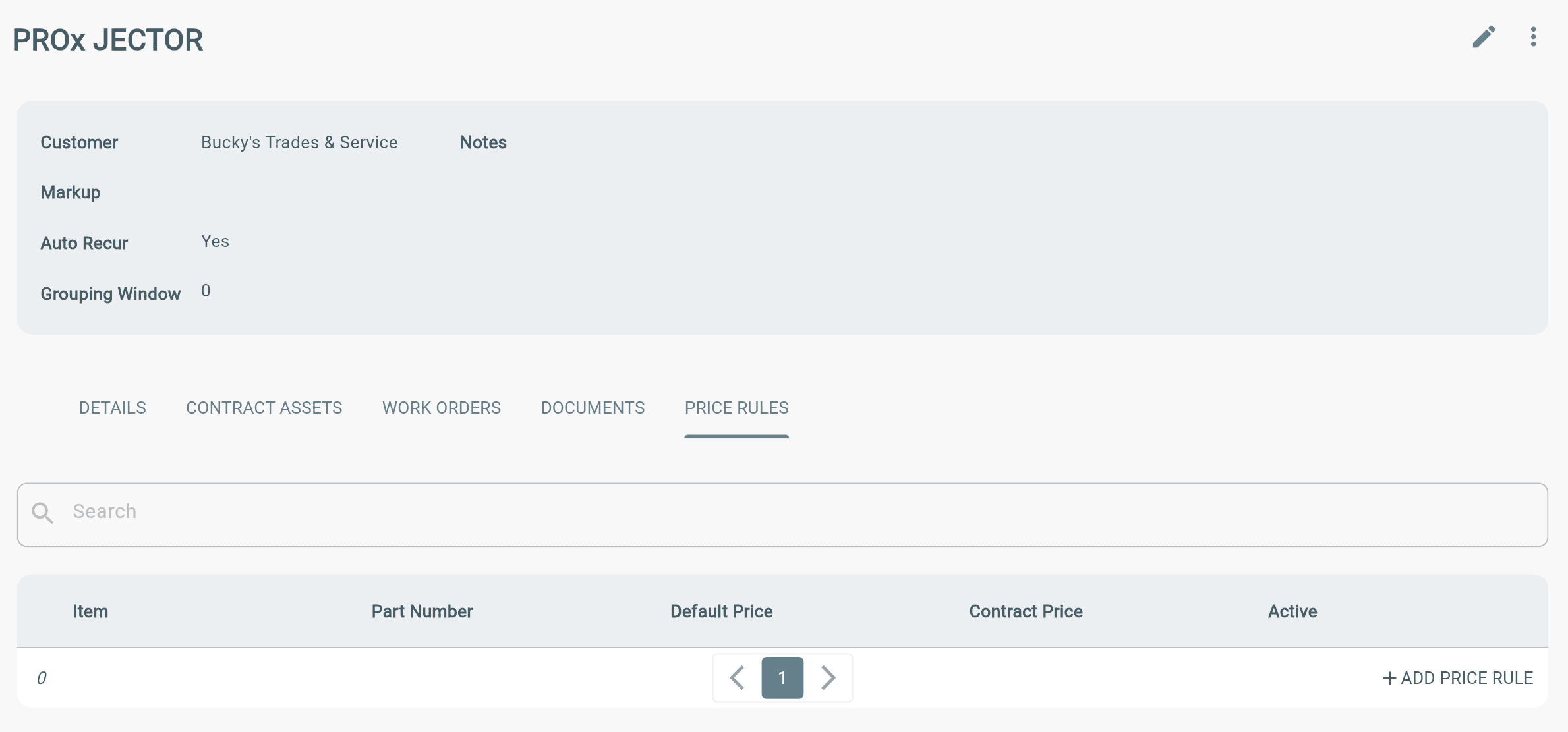
Price Rules allow you to set custom prices for specific Contract items.
→ Contract pricing overrides the inventory item price.
→ Custom prices only apply to that Contract and its work orders.
Add Price Rules
1. Create a new Contract or open an existing Contract.
2. Go to Price Rules.
3. Select Add New Price Rule.
4. Choose the item and enter the Contract-specific price.
→ Work orders created from the Contract will automatically use the Price Rule price for that item.
How Price Rules Work
Price Rules override the default item price for a specific Contract.
Example:
→ Inventory price for LED Area Lights 50W/500K = $50.99
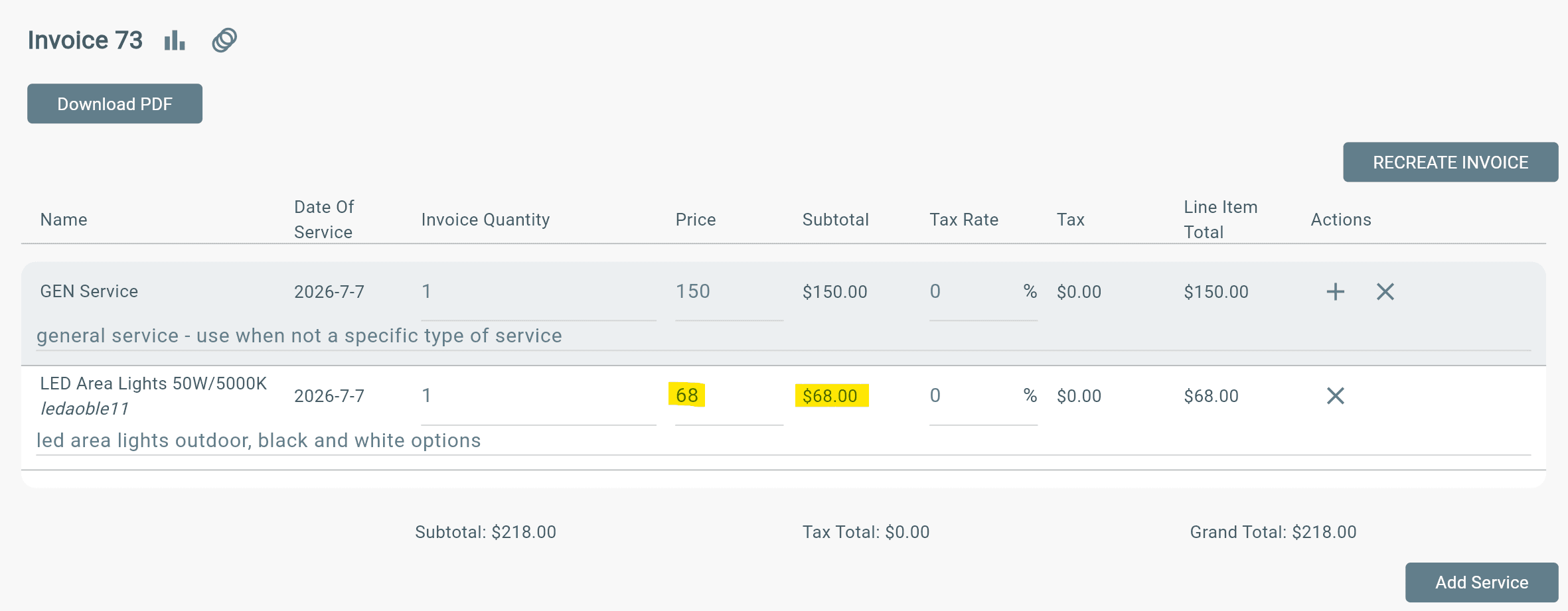
→ Contract Price Rule changes the price to $68.00
When this item is added to a work order under that Contract:
→ The invoice will use the Contract Price Rule price of $68.00 instead of the original inventory price.