Office
Changing Work Order Status
Changing the status of the work order
Overview
Work Order Statuses track the progress of a job from start to finish.
Statuses help you:
- Organize work orders.
- Track job progress.
- Filter work orders on the dashboard.
- Keep technicians and office staff up to date.
Statuses are displayed on:
- The Dashboard.
- The Administration tab of the work order.
Change a Work Order Status
Option 1: From the Work Order
- Open the work order.
- Go to the Administration tab.
- Under Work Order Details, select a new status from the Status dropdown.
- Save your changes.
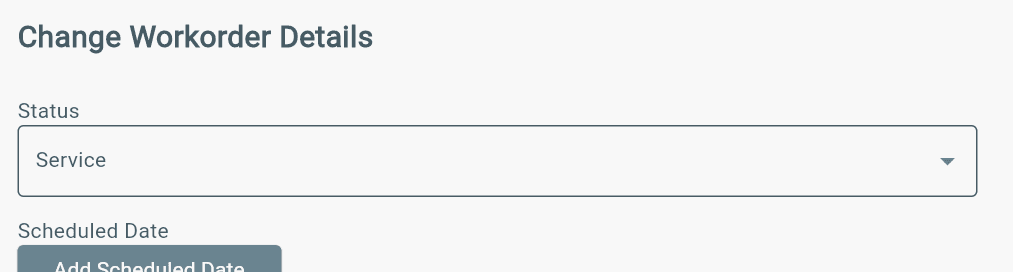
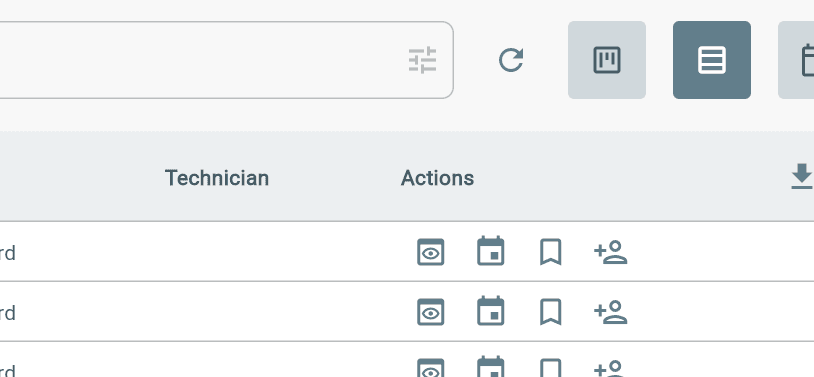
Option 2: Dashboard Schedule Icon
- In the Dashboard Table, find the status icon for each work order under
- Actions > Select and change
Option 3: Work Order Quickview Pop-up
- Find a work order on the Dashboard Table view or Kanban view
- Click work order preview icon
- Select the status icon to change status

Select from list of statuses:
- Work Requested
- Site Survey
- Quote
- Ready for Scheduling
- Waiting for Parts
- Service
- Service Complete
- Invoice
- Complete
- Cancelled.
Additional Info
When a technician submits a work order, the status will automatically update to Service Complete on the work order and in the dashboard under that status.