Office
Adding Barcodes to Parts & Services (Items)
How to add barcodes to work orders in Lexul Field Service
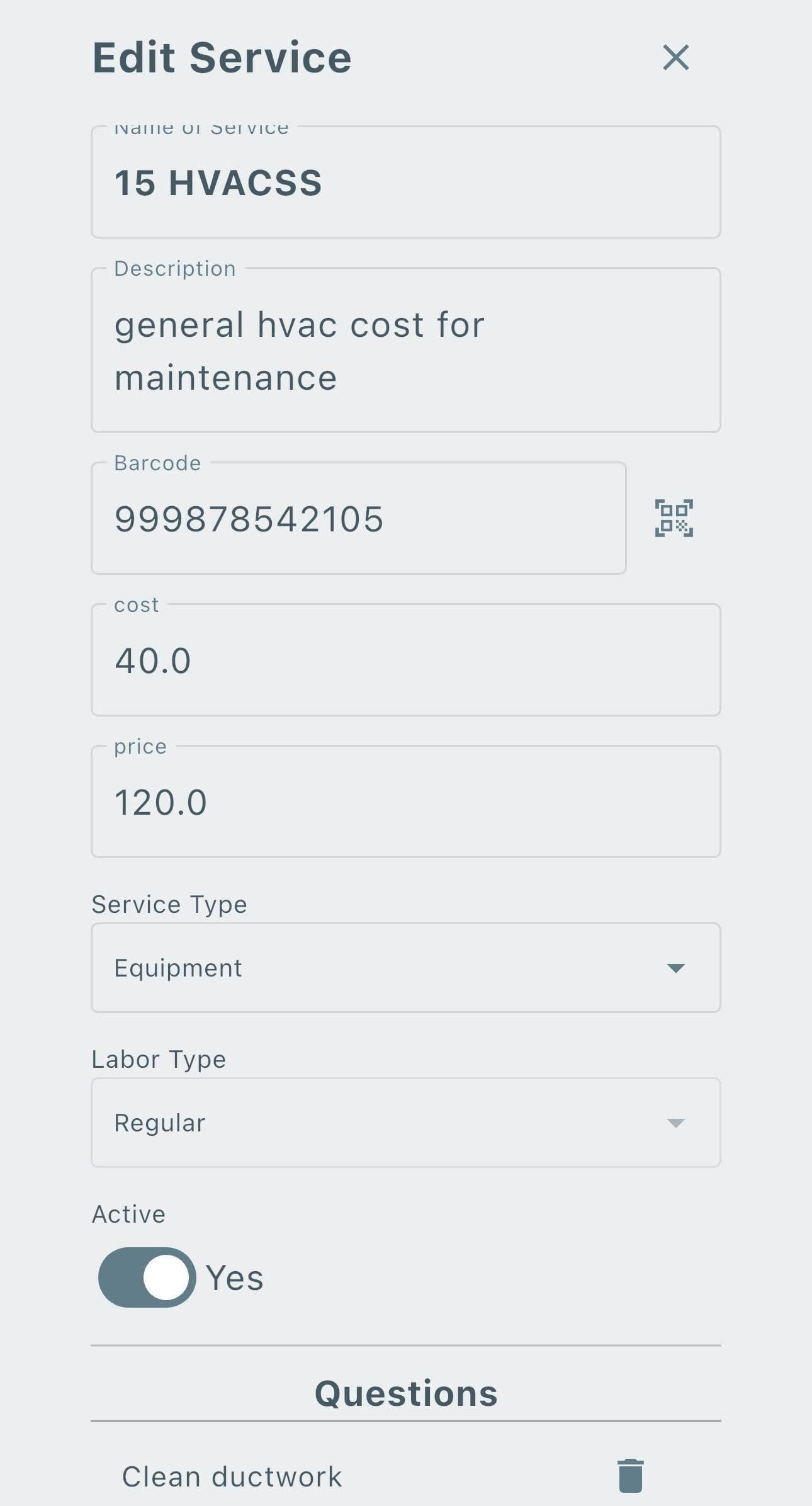
Add a Barcode to a Part or Service
Barcodes allow technicians to quickly find and add parts or services to a work order.
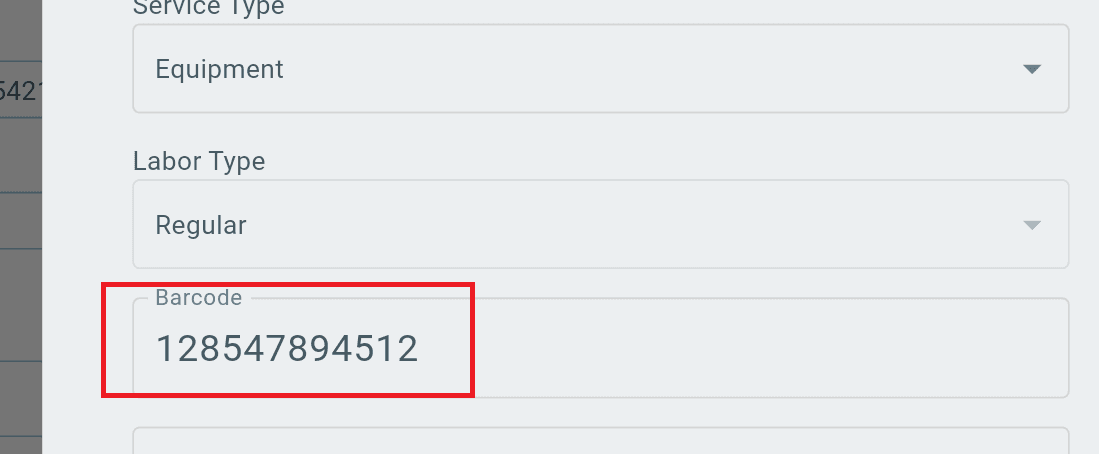
Add a Barcode
Go to:
Menu → Parts and Services
- Select the part or service.
- Add the barcode value in the Barcode field.
- Save changes.
Scan Barcode to Add a Part or Service
After barcodes are added:
- Open a work order.
- Use the barcode scanner when adding parts or services.
- Scan the item barcode.
- Select the item from inventory to add it to the work order.
Result
- The scanned part or service is quickly added to the work order.
Printed Barcodes
Barcodes can be printed using:
- Office label printers (example: Brother QL-800).
- Third-party label printing companies (example: Maverick Label).
Supported Barcode Types
The most common barcode type is:
- UPCA (12-digit UPC)
Supported barcode types include:
- Code128
- Code39
- Code93
- Codabar
- DataMatrix
- EAN13
- EAN8
- ITF
- QR Code
- UPC-A
- UPC-E
- PDF417
- Aztec
Barcode Numbers
- Existing UPC codes can be used for products.
- Custom UPC codes can be created using:
200000000001 - 299999999999
This range is for internal use and avoids duplicate UPCs with existing products.
Barcode Support
- Barcodes can be used for both Parts and Services.
- Services can have barcodes assigned to equipment so technicians can scan items while performing work.
Adding Barcodes by Integration Type
No Accounting Integration or QuickBooks Online
- Add barcode values directly on the Parts and Services page.
QuickBooks Desktop
- Add the barcode value in the item’s Barcode field in QuickBooks.