Adding Tasks to Work Orders
Looking to add, assign, or edit a Work Order Task?
Overview
Work Order Tasks help track work that needs to be completed during a job.
Tasks can be:
→ Assigned to a specific technician.
→ Added as general tasks for the work order.
All tasks are managed from the Service tab.
Create a Task
1. Open the work order.
2. Go to the Service tab.
3. Scroll down to the Tasks section.
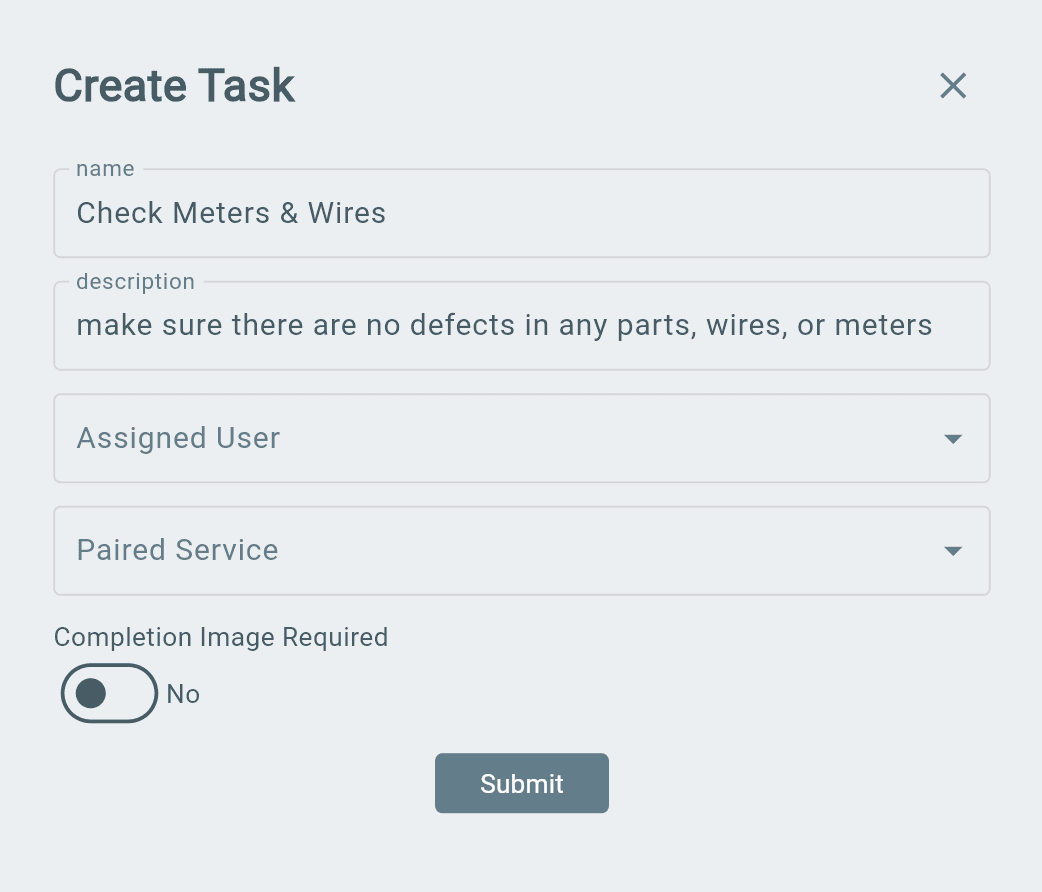
4. Select Add Task.
5. Fill in the required fields.
6. Select Submit or Save.
The task will now appear in the work order and can be tracked until completed.
Add Item Tasks
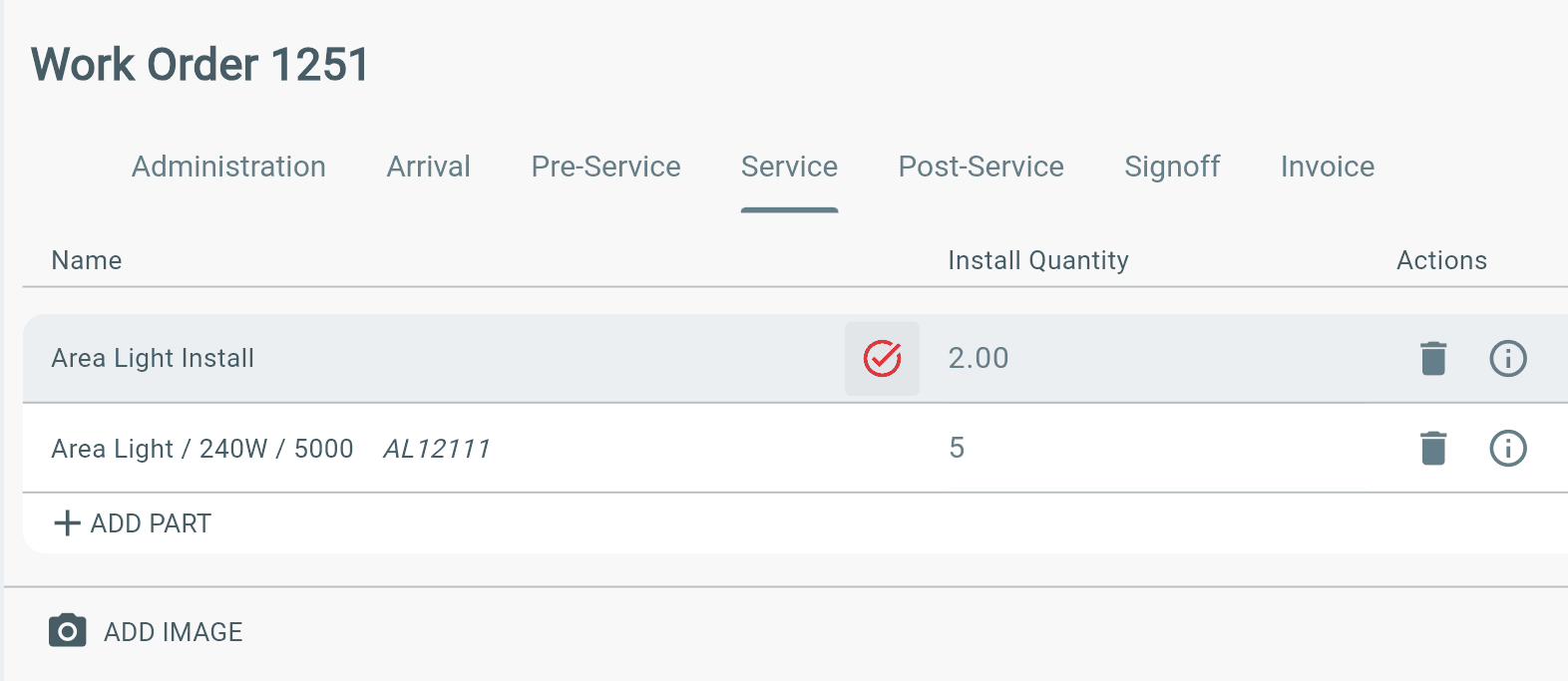
Attach tasks directly to a specific Item in the Service tab.
1. Open the work order.
2. Go to the Service tab.
3. Find the Item you want to assign a task to.
4. Choose either:
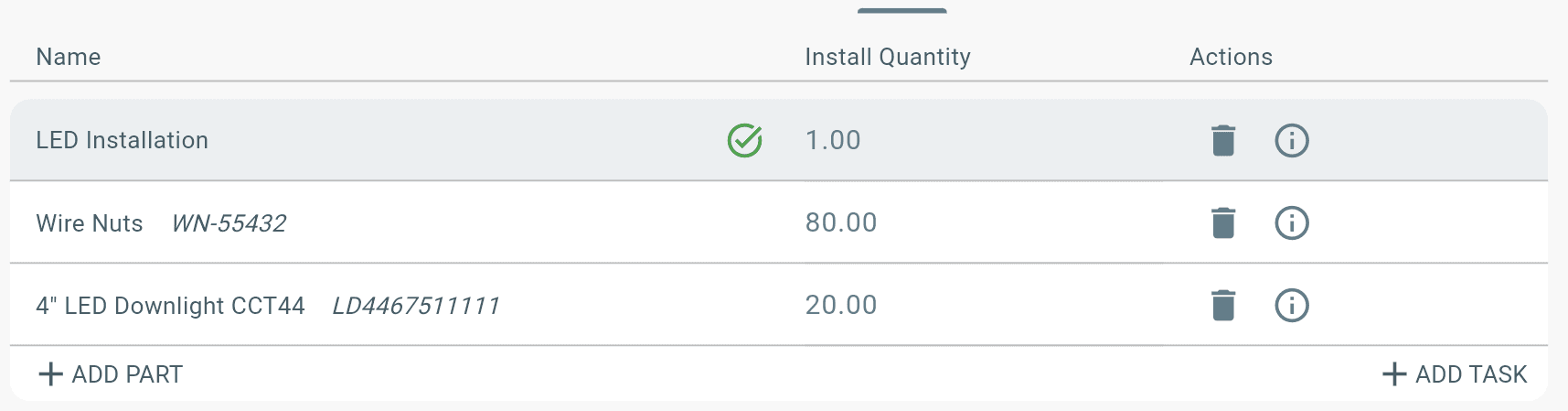
→ Select the ✓ next to the Install Quantity, or
→ Select Add Task below the Item.
5. Assign the related Service to the new task.
6. Save the task.
Note: The Item must be added to the work order before a task can be attached to it.
Work Order Task Filters
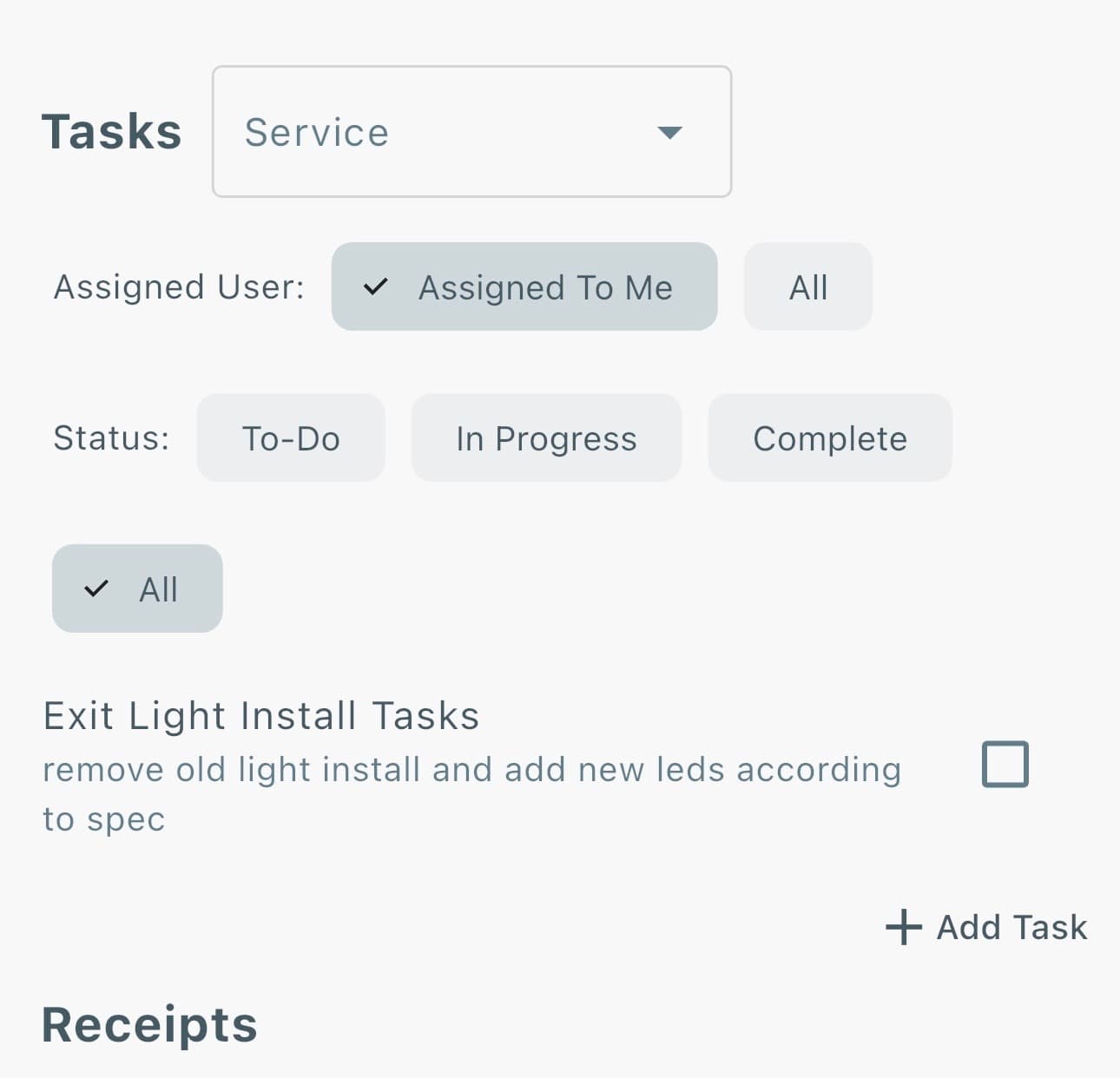
Any work order user can filter by their own tasks, or filter by the progress of each task.
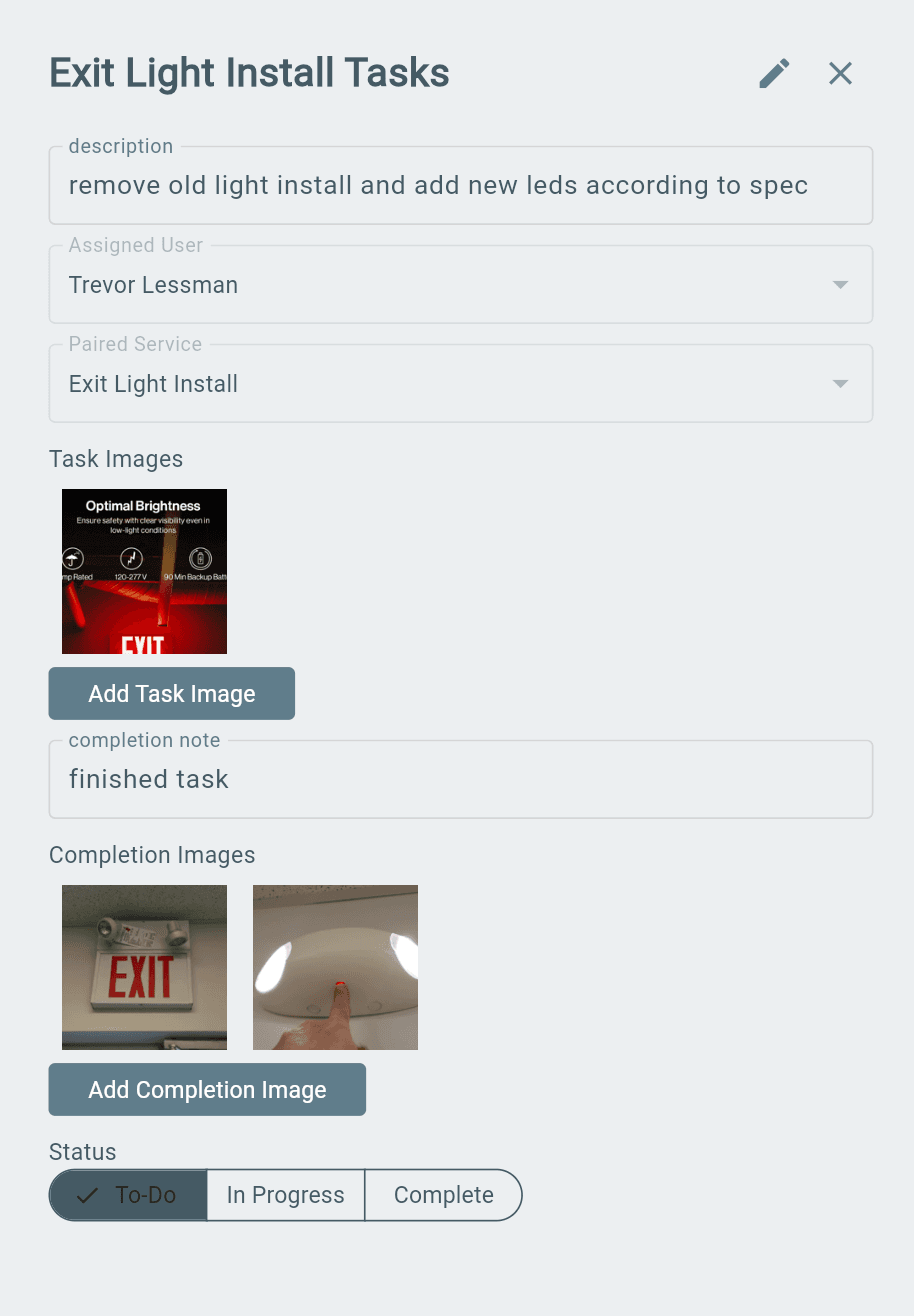
Add Images After Creating Task
After creating a task, you can add images and notes to help technicians complete the work.
1. Create a new Work Order Task.
2. Open the task from the Tasks section.
3. Upload any task images or reference photos, if needed.
Technicians can then:
→ Add completion notes.
→ Upload completion images.
→ Mark the task as completed after the work is finished.
Additional Info
→ Work Order Tasks are visible to all users who have access to the work order.
→ When a task is completed, a blue check mark (✓) is displayed next to the task.
Note: Task completion images are not included when exporting the work order as a PDF.