Office
How to Schedule Technicians (& Users)
How to schedule & dispatch technicians (users)
How to Schedule a Technician
Option 1 – From the Work Order
- Open the Work Order.
- Go to the Admin tab.
- Select the + button in the Schedule section.
- Add a schedule time.
Option 2 – From the Dashboard
- Open the Kanban or Table dashboard.
- Select the Schedule quick action for the work order.
- Add a schedule time.
Note
- Assigning a technician adds them to the work order.
- Scheduling a technician sets the date and time they will work.
- Scheduled work orders appear on the calendar.
- Technicians can only see scheduled work orders that are in the Service status. (Unless workspace settings allow additional statuses.)
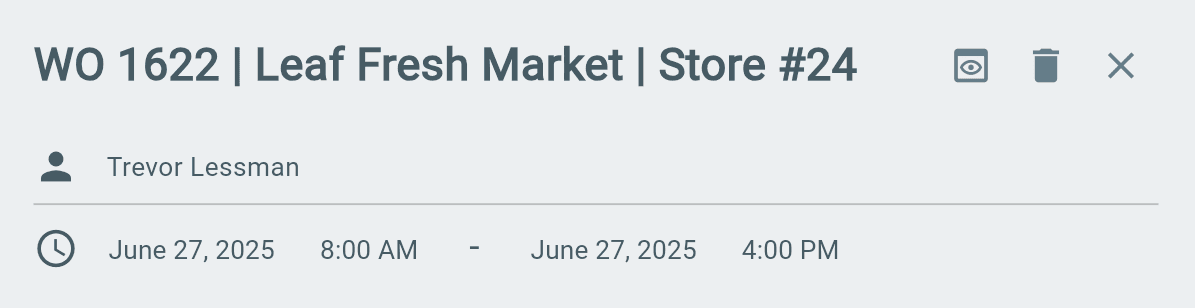
After Scheduling a Technician
- Make sure the work order is in the Service status. (unless your workspace allows additional statuses for techs)
- The assigned technician can then view the work order on their dashboard.
- The scheduled time will also appear:
- On the work order card.
- In the technician's calendar.
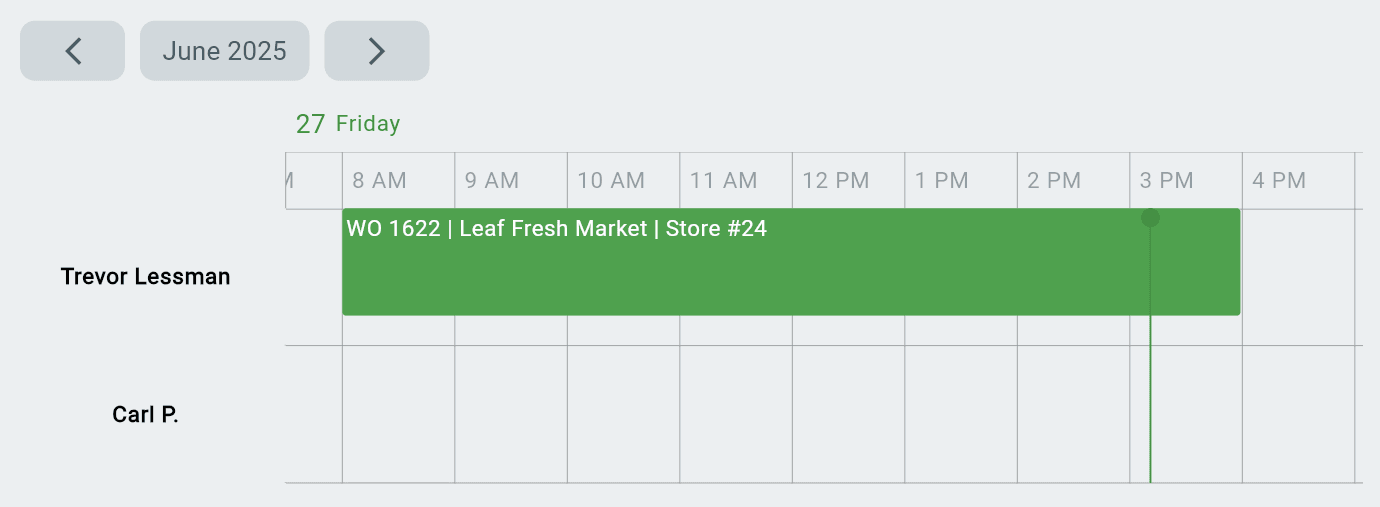

Calendar Schedule View
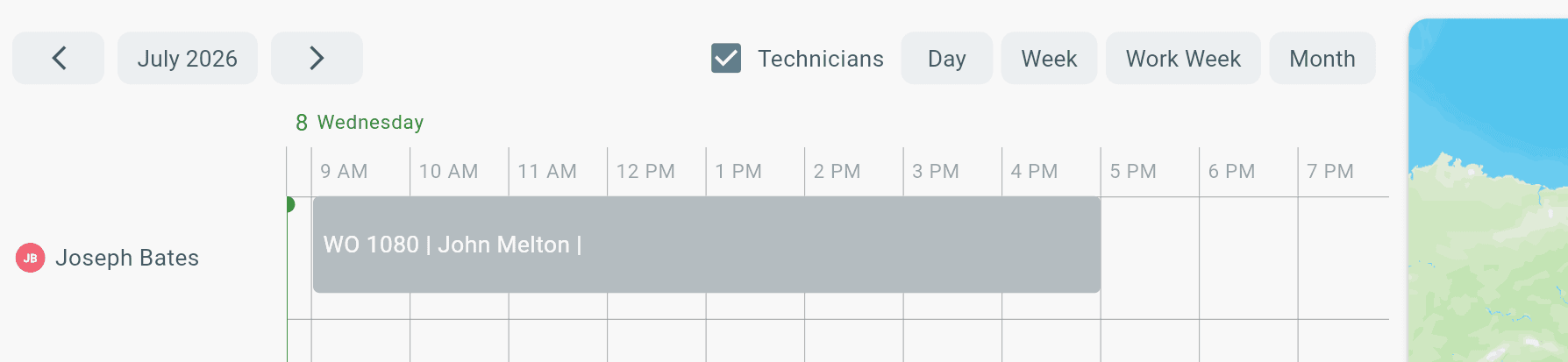
View schedule by:
- Day, Week, Work Week, Month
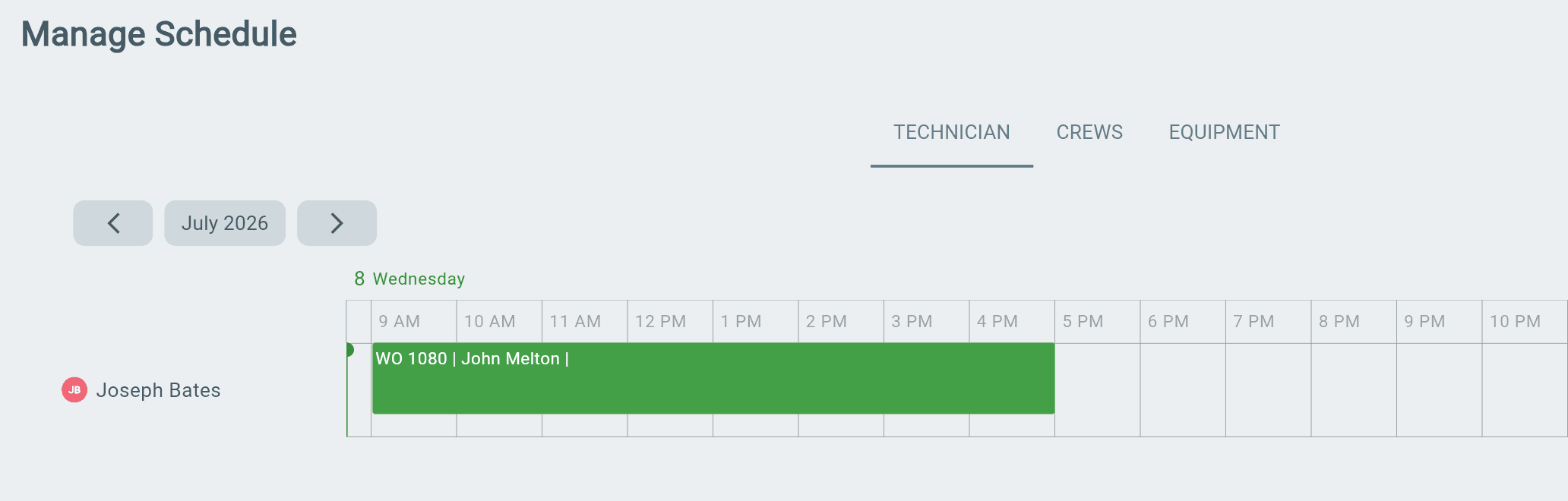
Drag & Drop Schedule Slots
Drag & Drop functionality for schedule time slots is available on:
- Manage Schedule page (find on work order)
- Calendar Dashboard view (for single tech user)
Schedule Travel Time
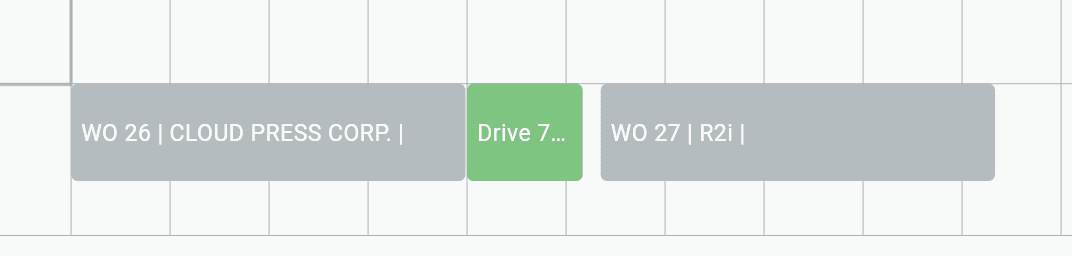
A green travel time slot = there is enough time to travel between job locations.
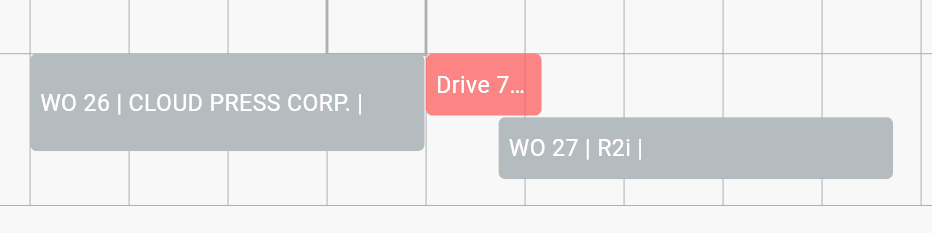
A red travel time slot = there is not enough time to travel between job locations.
Where to See Schedule Time
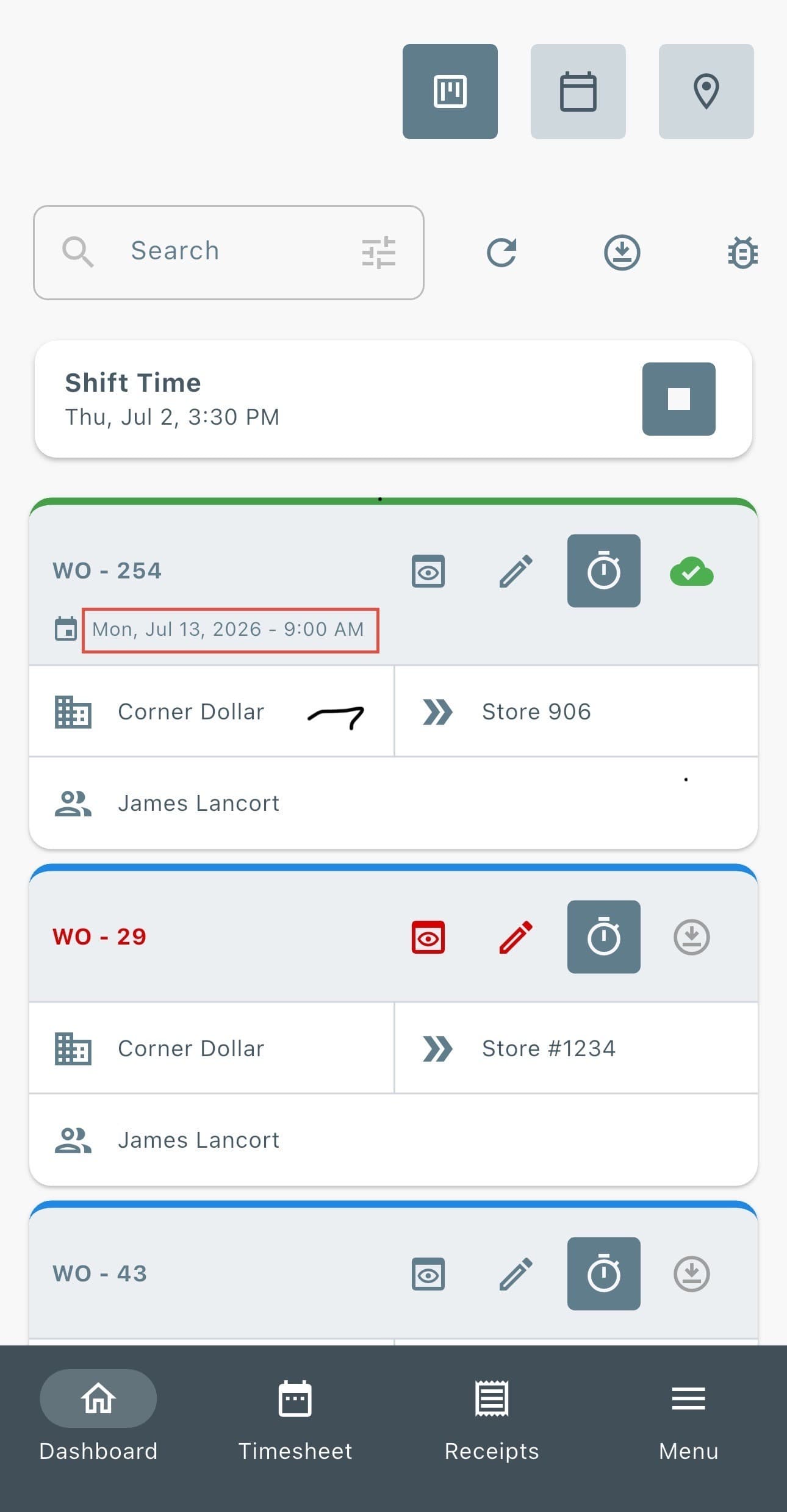
Technician schedule times for jobs will show on the work order card:
1. Find work order
-
Look for calendar icon
-
See schedule time
Additional Information
Staff permissions and higher—including staff, admin, and workspace owner—have the ability to assign and schedule technicians. Technicians cannot schedule their own time.