Units of Measure
Using and syncing U/M through QuickBooks Desktop with Lexul Field Service and how it works
Overview
Lexul Field Service supports Unit of Measure (U/M) in work orders through QuickBooks Desktop integration.
Using Unit of Measure allows you to:
- Sync multiple units of measurement from QuickBooks Desktop.
- Maintain U/M settings directly in QuickBooks Desktop.
- Use existing measurement workflows without changing your process.
U/M in QuickBooks Desktop
To turn on Unit of Measure:
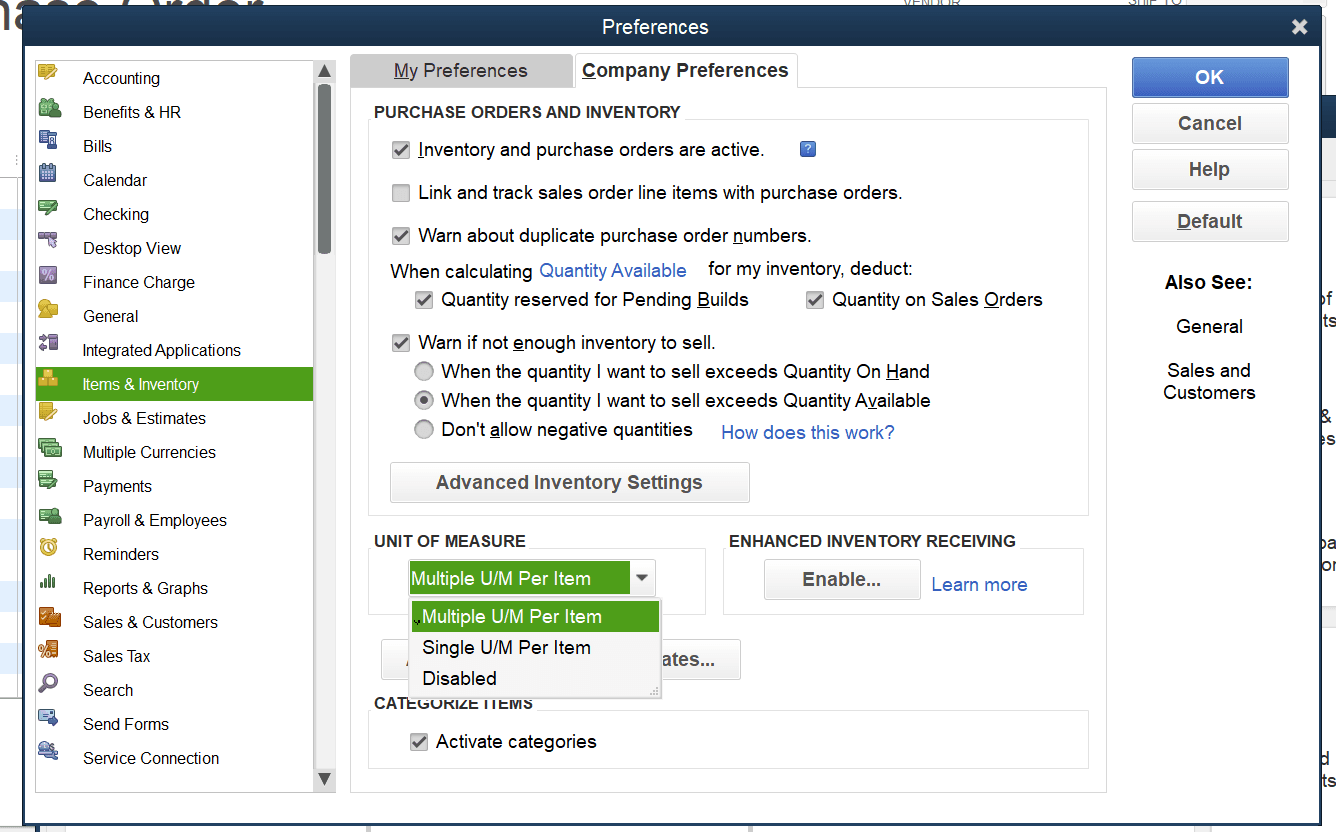
- Go to Edit → Preferences.
- Select Items & Inventory.
- Open the Company Preferences tab.
- Find Unit of Measure.
- Select one of the options:
- Single U/M per Item
- Multiple U/M per Item
After enabling U/M in QuickBooks Desktop, sync with Lexul Field Service.
How U/M works with Lexul Field Service
When QuickBooks Desktop is integrated with Lexul Field Service, Unit of Measure (U/M) automatically syncs with inventory items.
Unit of Measure on Work Orders
After syncing:
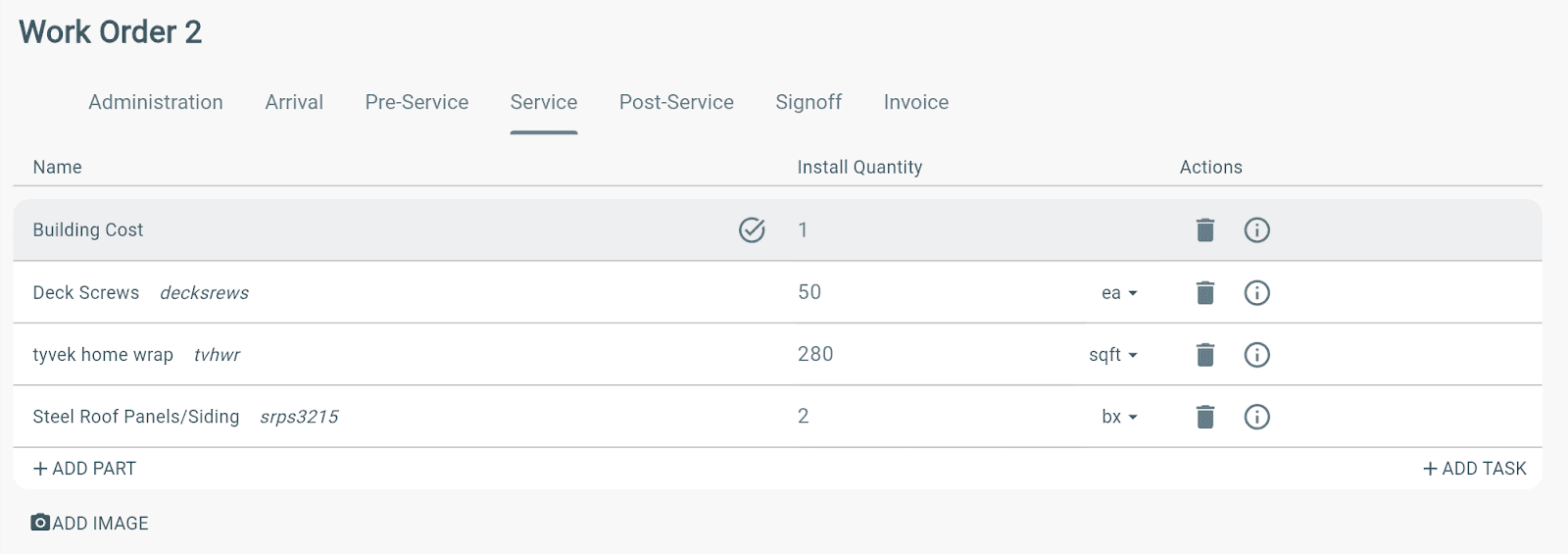
- Add an inventory item to a work order.
- Open the Service tab.
The Unit of Measure will display:
- Next to the line item on the work order.
- On the invoice line item.
When the work order is completed, the invoice can be synced directly back to
QuickBooks Desktop with all U/M included on the invoice.
U/M with QuickBooks Online
Lexul Field Service supports Units of Measure (U/M) with QuickBooks Online.
Note
- QuickBooks Online only syncs the base unit to invoices.
- Related units will be converted to the base unit before syncing.
Example:
- Base unit: Yards
- Related units: Feet, Inches
- Invoice sync: Shows Yards with the correct converted quantity.
Add Unit of Measure in QuickBooks Online
Step 1: Create Unit of Measure Sets
Go to:
Sidebar Menu → Configuration → Units of Measure
- Select Create Unit of Measure Set.
- Add the base unit.
- Select the created unit set.
- Select Create Related Unit to add additional units.
Note
The Ratio field is the conversion amount from the related unit to the base unit.
Example:
- Base unit: Feet
- Related unit: Yard
- Ratio: 3
(1 yard = 3 feet)
Step 2: Add Unit of Measure to Parts
After creating Unit of Measure sets:
- Add products in QuickBooks Online.
- Sync products to Lexul Field Service.
- Go to Parts & Services in Lexul.
- Find the synced product (shown as a Part).
- Select Edit Part.
- Add the Unit of Measure set.
- Save changes.
Parts with Unit of Measure can now be added to work orders.
Using U/M Unit on Work Orders
To use a Unit of Measure part:
- Open a work order.
- Add the part from Parts & Services.
- The selected Unit of Measure will apply to the item.
Learn More
For additional details on Unit of Measure, refer to the QuickBooks Unit of Measure documentation.