Integrations
Managing Invoice Numbers w/ QuickBooks Online
How to switch between invoice numbers for QuickBooks Online in Lexul
Invoice Number Settings (QuickBooks Online)
Available for:
- Workspaces with QuickBooks Online integration only.
Find Invoice Number Settings
Go to:
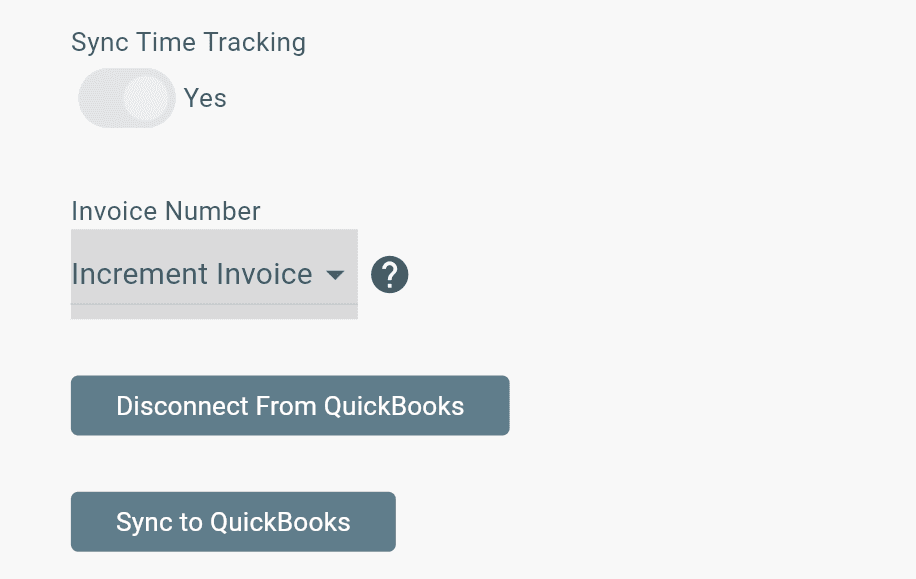
Side Menu → Configuration → Accounting Integration → Invoice Number
Choose one of the following options:
Increment Invoice
- Lexul automatically assigns invoice numbers.
- Each invoice number increases by 1.
- The number appears on both the Lexul invoice and the synced QuickBooks invoice.
Returned Invoice
- Lexul creates a temporary invoice number.
- QuickBooks Online assigns the final invoice number after syncing.
- Use this option if you create invoices in both Lexul and QuickBooks Online.
Note
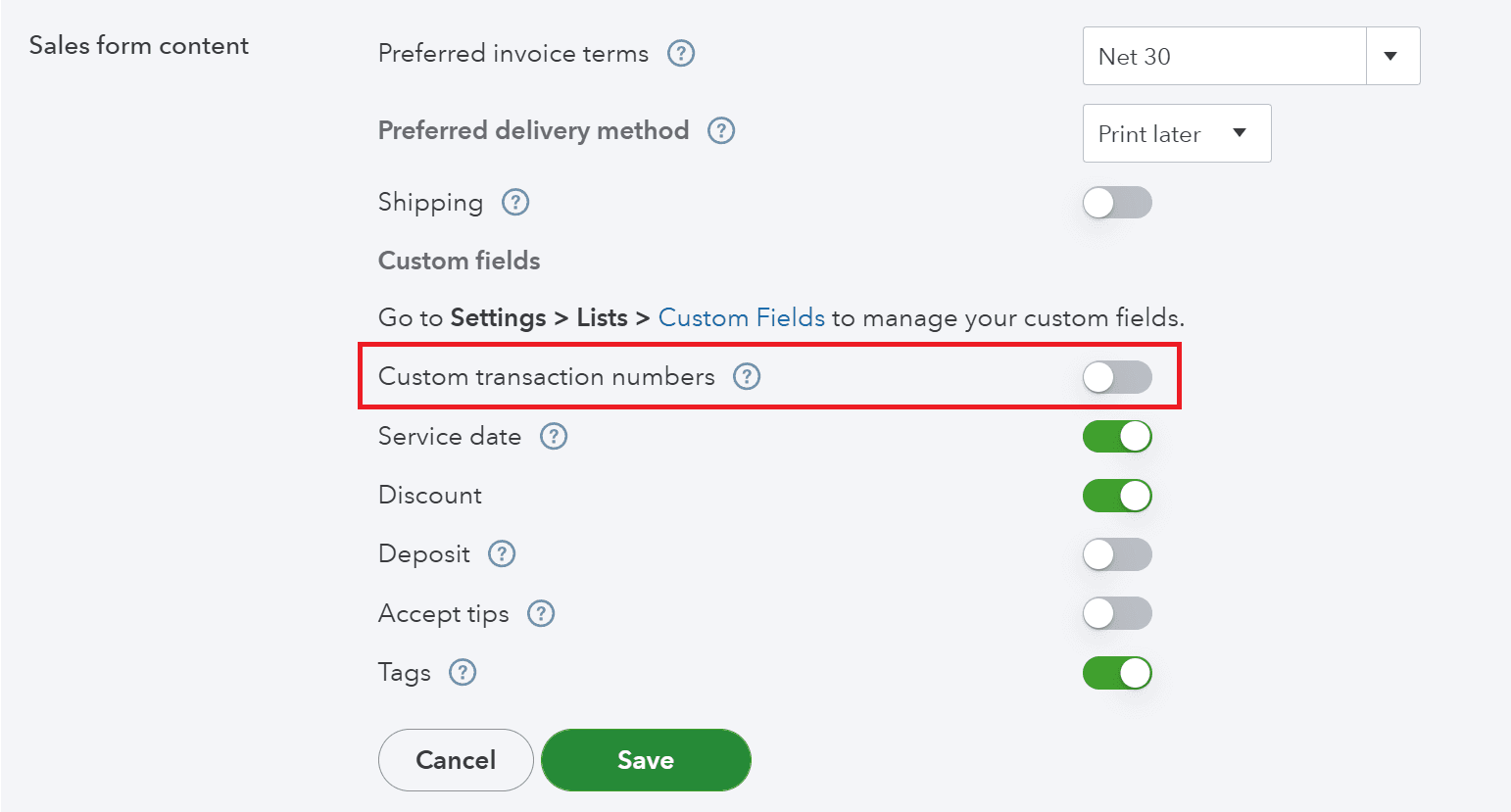
- Turn OFF Custom Transaction Numbers in QuickBooks Online for Returned Invoice numbers to work.
Custom Transactions (OFF) For Returned Invoices
Go to:
Settings (gear icon) → Accounts & Settings → Sales → Sales Form Content
Then:
- Turn Custom Transaction Numbers to OFF.