Summary Invoicing
Looking to create summary invoices? Hang out here.
How to Create Summary Invoices
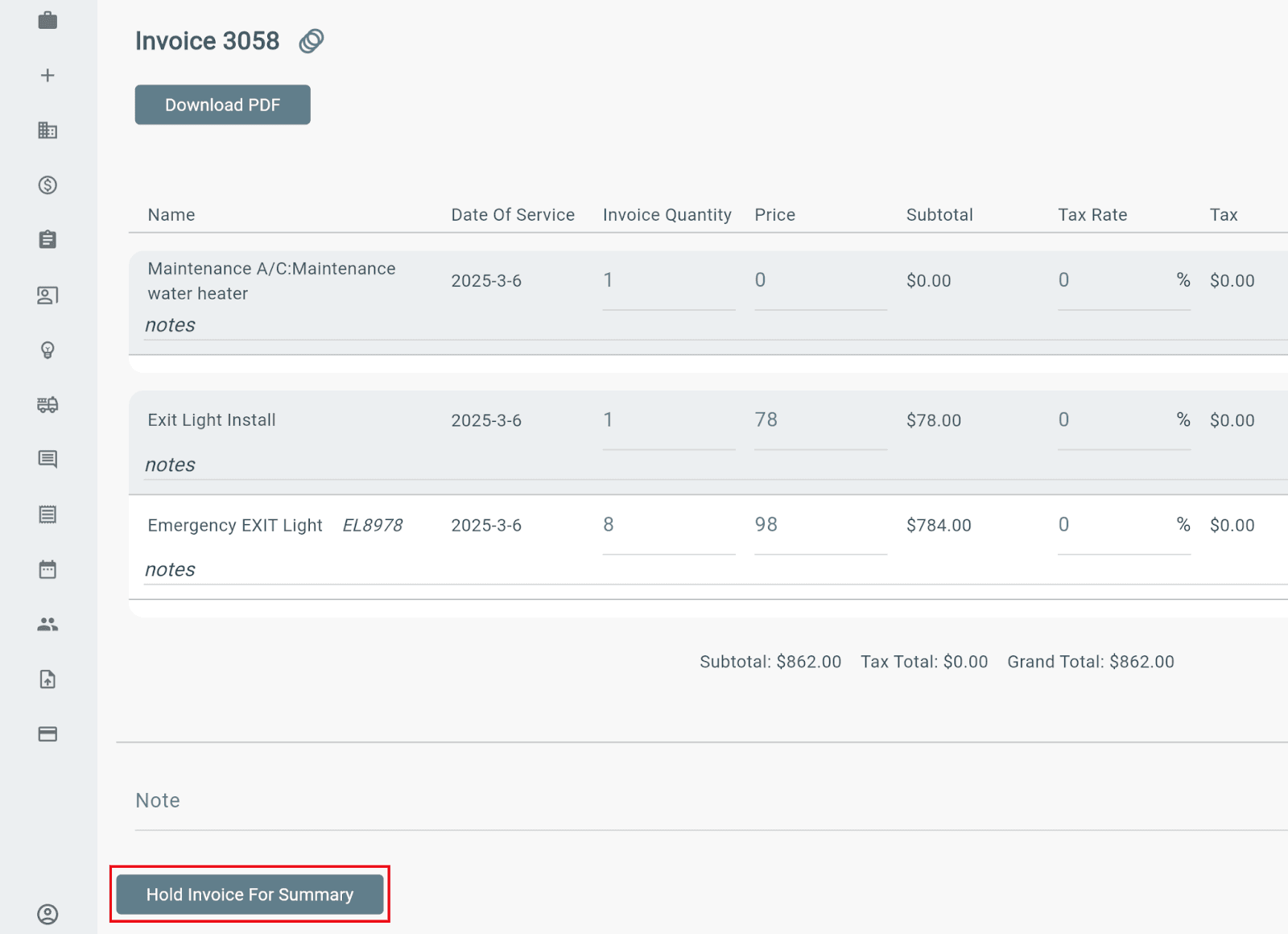
To hold an invoice:
→ Create the invoice as usual.
→ Open the Invoice tab.
→ Select Hold Invoice for Summary below the invoice items and notes.
The invoice will be held until it is included in a summary invoice.
Note: An invoice that has already been sent to a customer or synced to QuickBooks cannot be added to a summary invoice.
Once invoices have been placed on hold:
→ Go to Invoices from the main menu.
→ Click Create Summary Invoice.
→ Choose the Customer or Asset tab.
→ Select the desired customer (or customer and asset), then choose a cut-off date.
Lexul will combine all eligible held invoices into a single summary invoice.
Note: Every invoice on hold that matches the selected Customer or Customer & Asset combination and falls within the chosen cut-off date will be included in the summary invoice.
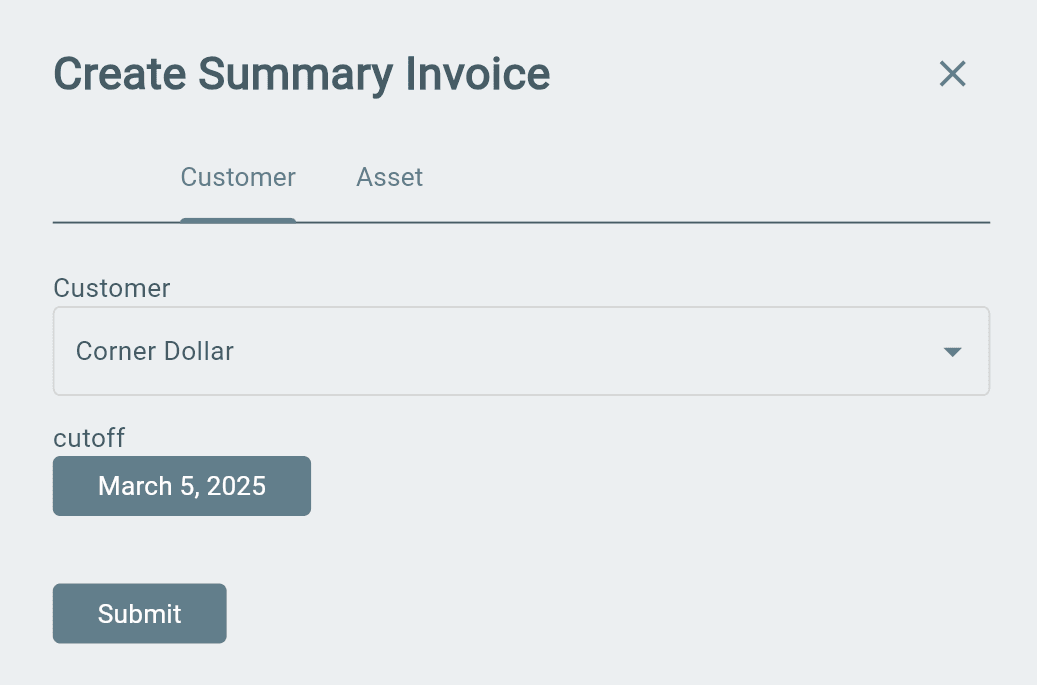
This will grab all of the invoices that have been held for summary before the selected cutoff date.
Downloading Summary Invoice
To download an invoice as a PDF:
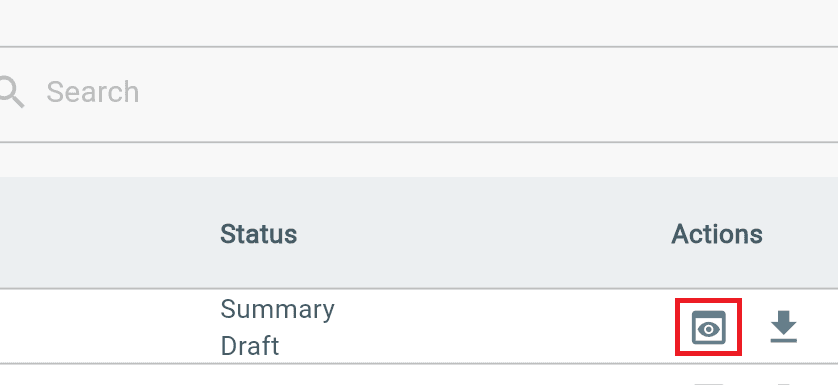
→ Find the invoice.
→ Select the View icon under Actions.
→ Click Download PDF in the top-right corner.
→ Select the desired export options and download.
Additional Info
No additional info at the moment.