Creating Invoices in QuickBooks Desktop
Overview
Create invoices directly from completed work orders and sync them to QuickBooks Desktop.
Before creating an invoice, make sure all Services, Parts, and quantities have been completed in the Service tab.
Creating Invoice (Import Invoice Values)
1. Open the work order and go to the Invoice tab.
2. Select CREATE INVOICE.
→ Any Services and Parts added to the Service tab will be imported into the invoice.
Note: If no Services or Parts have been added to the work order, nothing will be imported.
3. When the confirmation window appears, select Confirm.
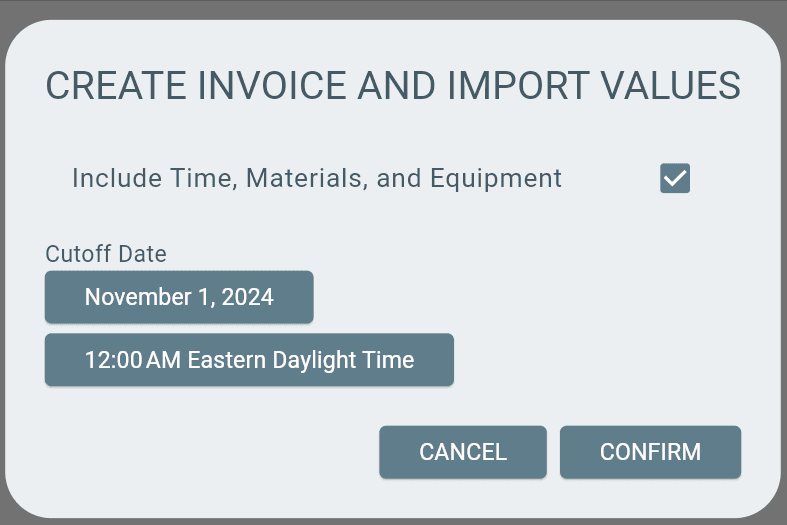
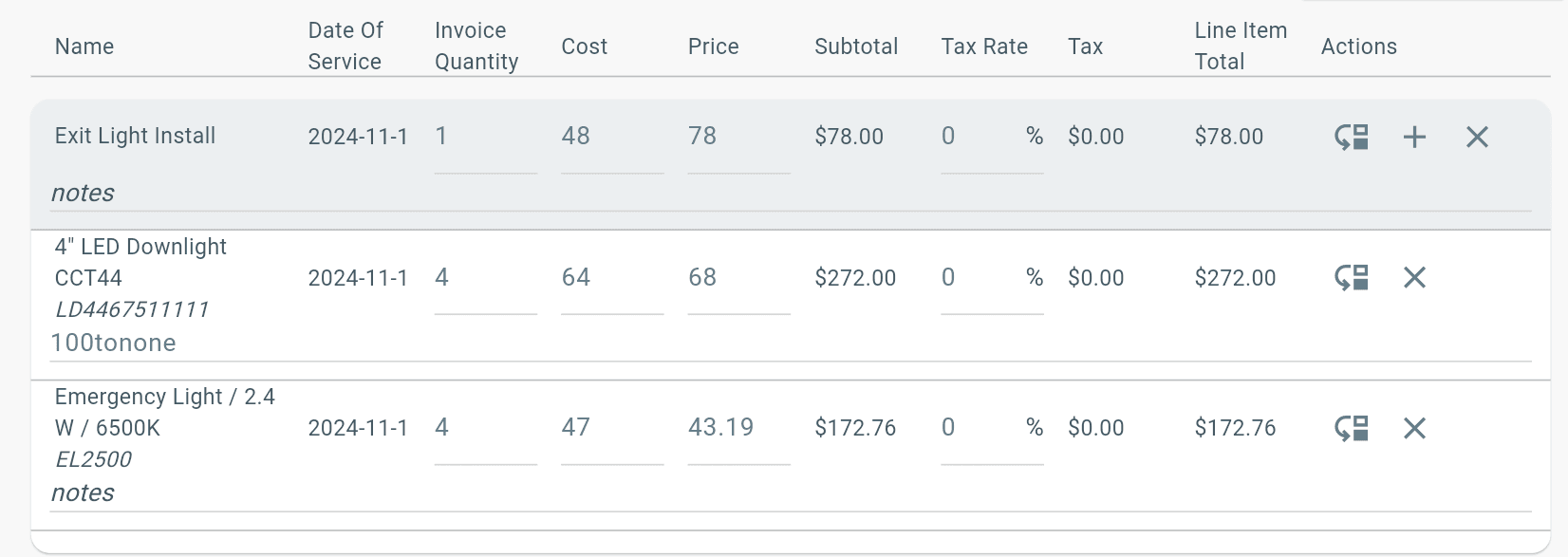
→ The Quantity and Price for each Service and Part will now be displayed.
The invoice is now ready to sync to QuickBooks Desktop.
Select Send to QuickBooks under QuickBooks Sync.
→ Review the confirmation message.
→ Select Confirm to sync the invoice to QuickBooks Desktop.
The invoice will sync to QuickBooks Desktop based on your Web Connector sync schedule.
→ Most invoices sync in under 5 minutes.
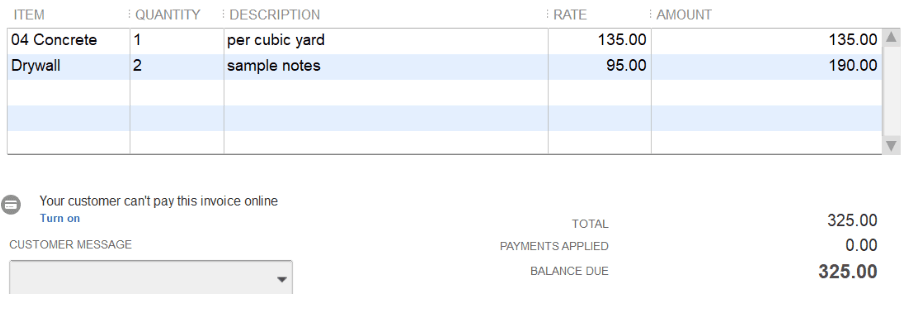
Once synced, the invoice will appear under the correct Customer and Job in QuickBooks Desktop.
The example below shows how the invoice appears in Lexul Field Service compared to QuickBooks Desktop.
Lexul Field Service
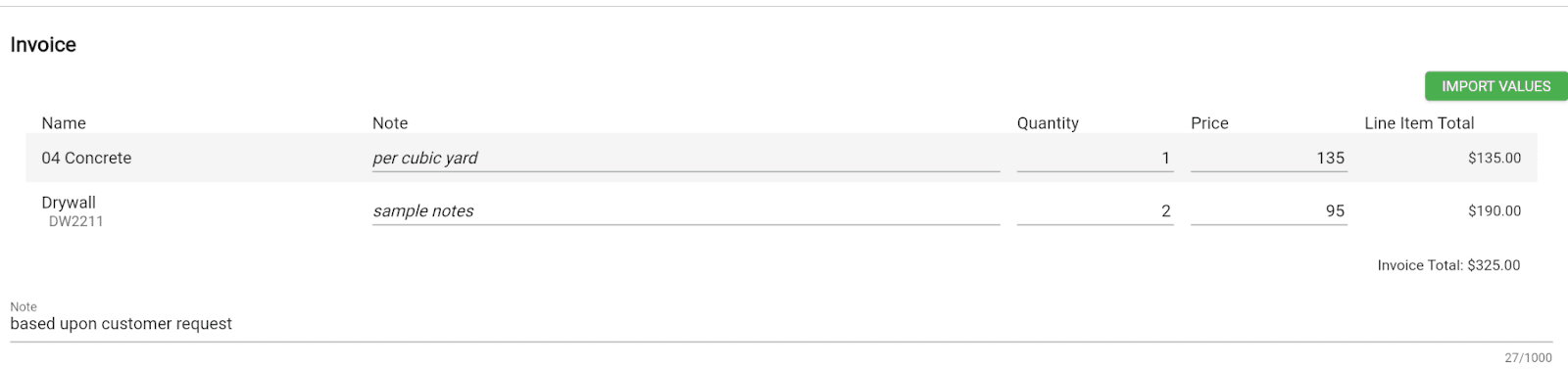
QuickBooks Desktop
Additional Info
The Invoice Note in Lexul Field Service will sync to the Memo field on the invoice in QuickBooks Desktop.