QuickBooks Desktop Integration Web Connector Guide
How to integrate QuickBooks Desktop with Lexul Field Service.
Set Up the QuickBooks Desktop Web Connector
1. Sign in using the first user account that registered the Lexul Field Service workspace.
2. Go to Configuration → General Config → Accounting Integration.
3. Create a password for the .QWC file.
Password requirements:
→ At least 8 characters.
→ At least 1 uppercase letter.
→ At least 1 number.
→ At least 1 special character (!@#$%^&*()?).
4. Select Submit.
→ Customers, Jobs, and Items are selected to sync by default.
→ Choose whether to sync Invoices.
→ Download the .QWC file.
5. Open QuickBooks Desktop and make sure the correct Company File is open.
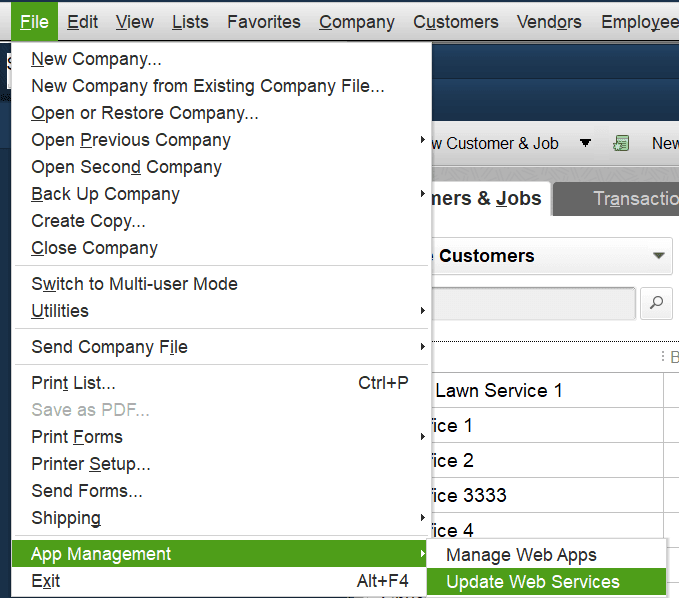
6. In QuickBooks, go to:
File → App Management → Update Web Services
The QuickBooks Web Connector window will open.
Then:
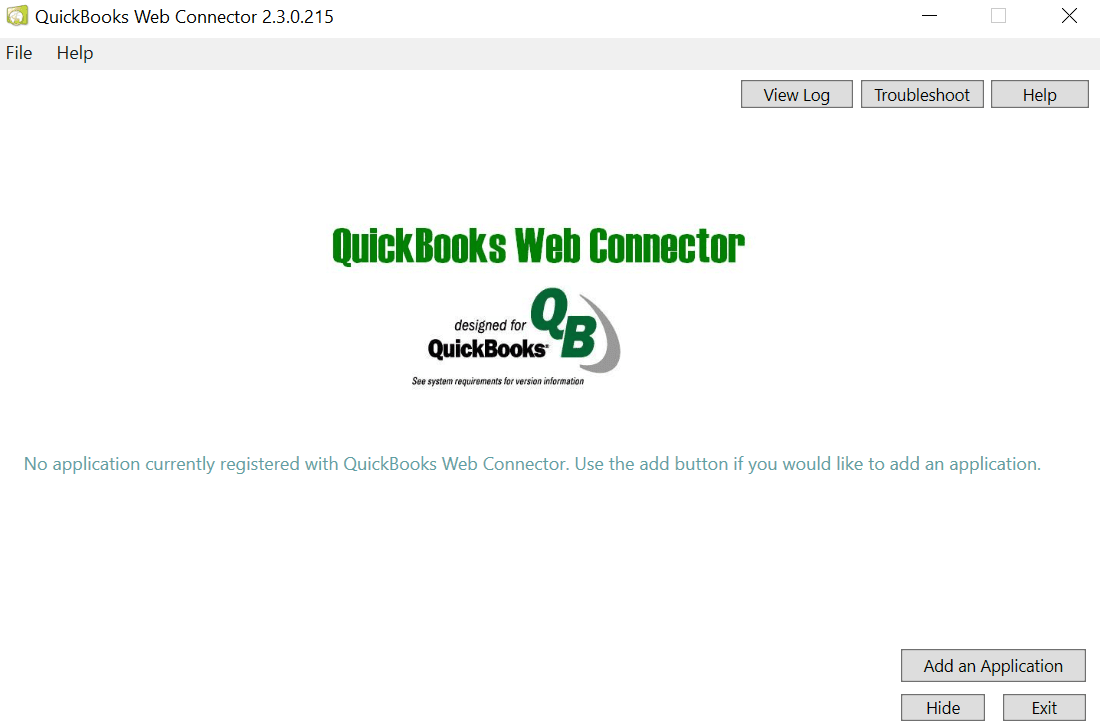
Click on “Add an Application” in the bottom right corner and find the downloaded QWC connector file from your computer. Grant Access to the company file.
Then:
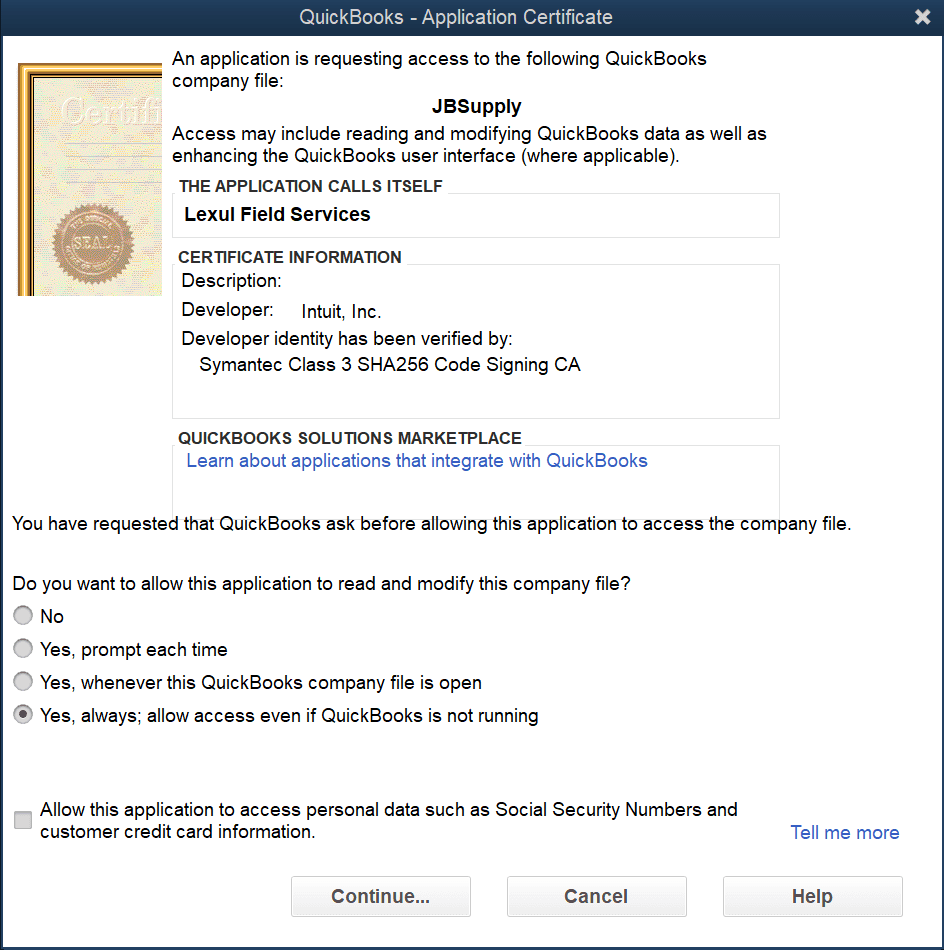
An Application Certificate window will show up with permission options to choose from. Choose “yes, always: allow access even if QuickBooks is not running”
Then:
After clicking continue, the new application will then be populated in the QuickBooks Web Connector window.
In the QuickBooks Web Connector:
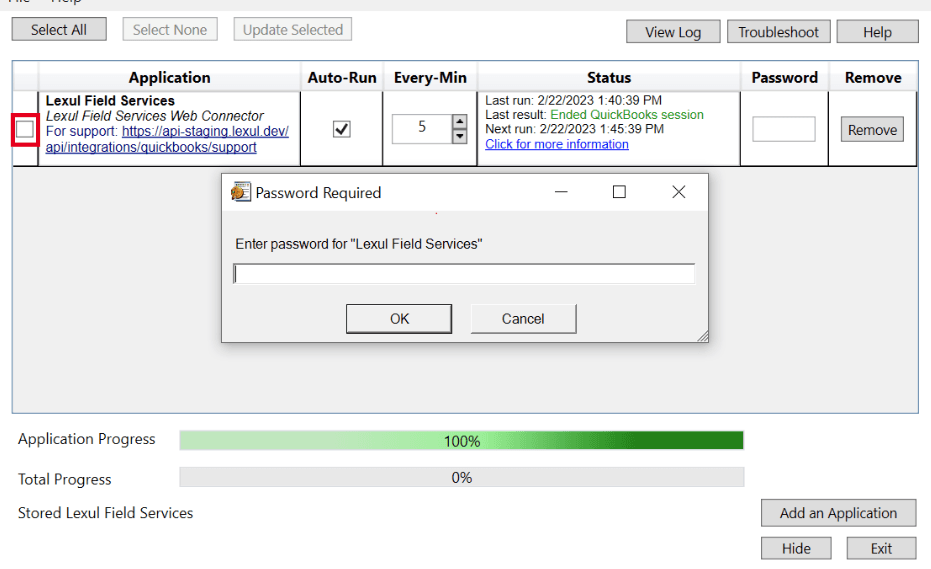
→ Select the Lexul Field Service application.
→ Enter the password you created in Accounting Integration.
→ Check Auto-Run (if it isn't already enabled).
This allows the Web Connector to automatically sync data between QuickBooks Desktop and Lexul Field Service.
If Auto-Run is not set, the web connector will have to be manually run every time you want to sync data to QuickBooks. We suggest running every 30 minutes as a balance of sync speed and performance.
Then:
click “Update Selected” to transfer data into Lexul Field Service. The Web Connector will say “Completed Operation” if synced properly.