Invoicing Offered Service Work as a Provider
Summary
- Complete the service.
- Add all work details and data.
- Add required parts and services.
- Complete the customer sign-off.
Then create and send the invoice.
Create an Invoice
- Open the Invoice tab on the work order.
- Select CREATE INVOICE.
Note
- Make sure all services, parts, and quantities are entered before creating the invoice.
Invoice Item Pairing
If QuickBooks integration is enabled:
- Lexul pairs invoice items with matching QuickBooks items.
- The invoice can then sync to QuickBooks for accounting and billing.
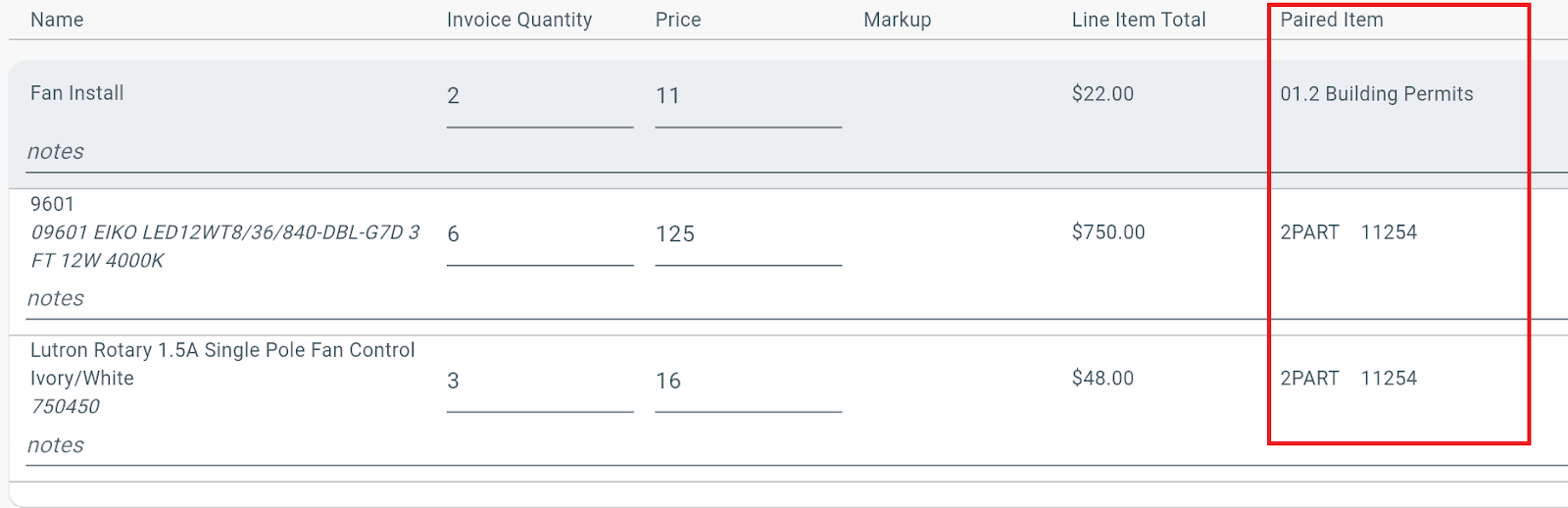
If no integration is connected:
- The invoice item will use the selected paired item.
To submit an invoice:
- Review the invoice details.
- Add an invoice note if needed.
- Select Submit Invoice.
QuickBooks Integration
If QuickBooks integration is enabled:
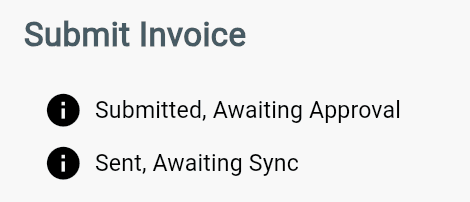
- The invoice will be sent to:
- QuickBooks.
- The Service Company.
- Sync status for both will display after submission.
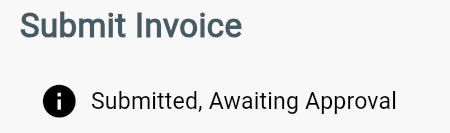
Sent to Service Company
Sent to Service Company and QuickBooks
Important: If the Provider Invoice total exceeds the NTE (Not To Exceed) amount set by the service company, the invoice cannot be sent.
Note: Once an invoice is sent, the work order is automatically moved to Service Complete and can no longer be edited.
Download the Invoice
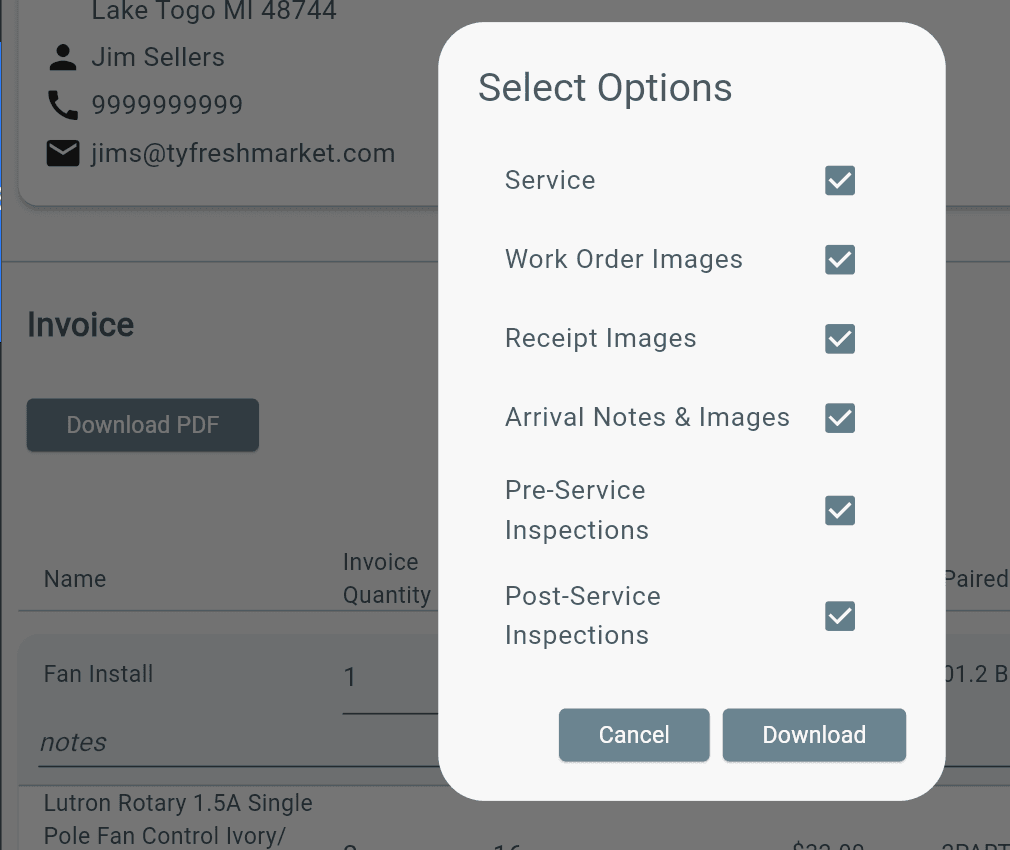
To download the invoice as a PDF:
→ Click Download PDF.
→ Select the desired export options.
→ Download the invoice.
Invoice Emails
Important Note: Invoice email notifications are only available for workspaces that are part of the Lexul Service Network. If your workspace is not in the Service Network, these email notifications do not apply.
After an invoice is submitted, the Accounts Receivable email address receives a notification when the service company accepts or rejects the invoice.
The Service Company also receives an email when:
- The service is completed.
- The invoice is submitted.
Once submitted, the work order is automatically moved to Service Complete.