Technician
Tracking Time as a Technician
Tracking time on work orders, adding new shift and work times, and ending shift and work times.
Starting Shift & Work Time
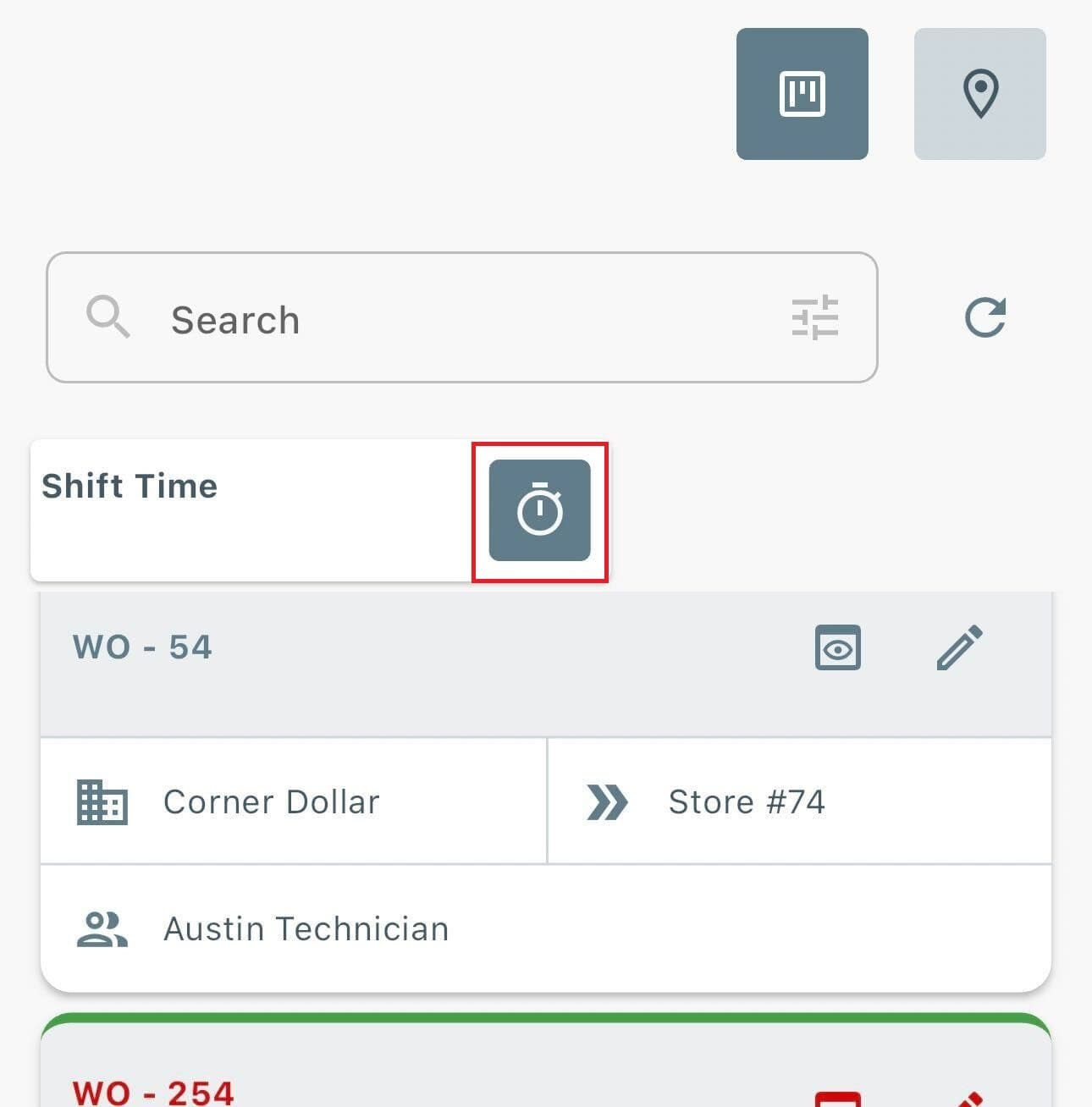
- On the Dashboard, select the Shift Time timer to start your shift.
- Find the Work Order by searching or scrolling.
- Select the Timer icon to start Work Time for that work order.
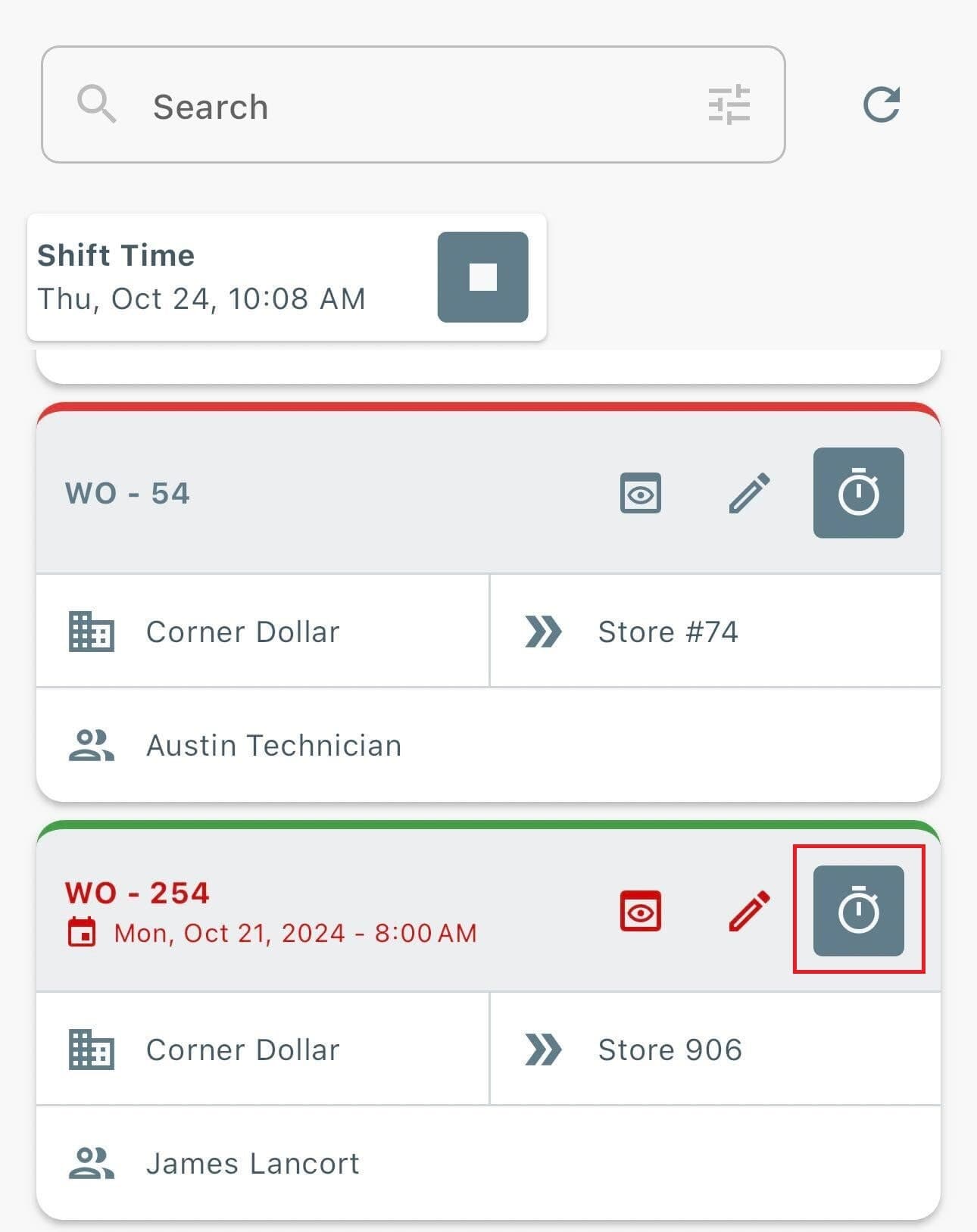
Then,
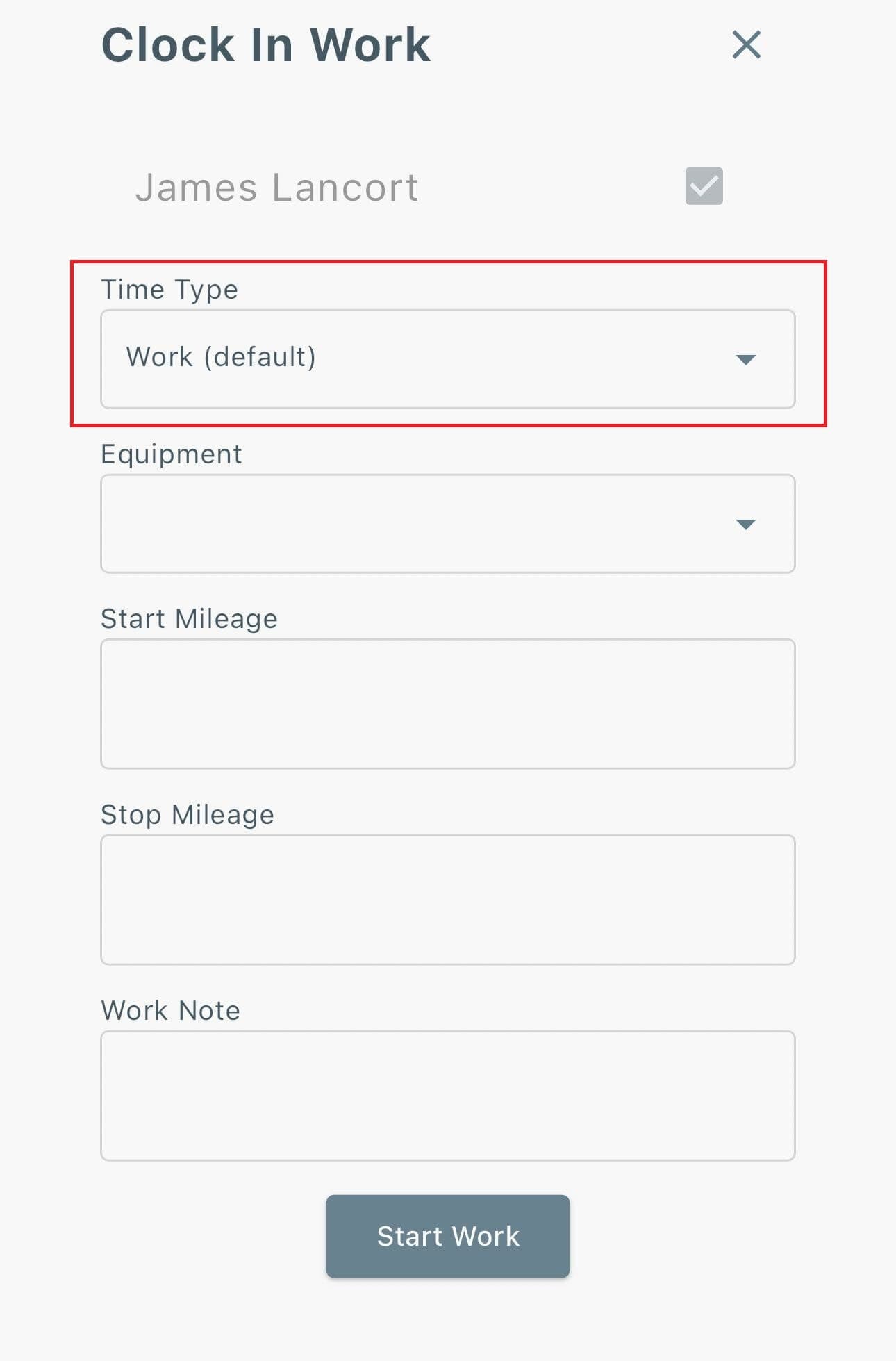
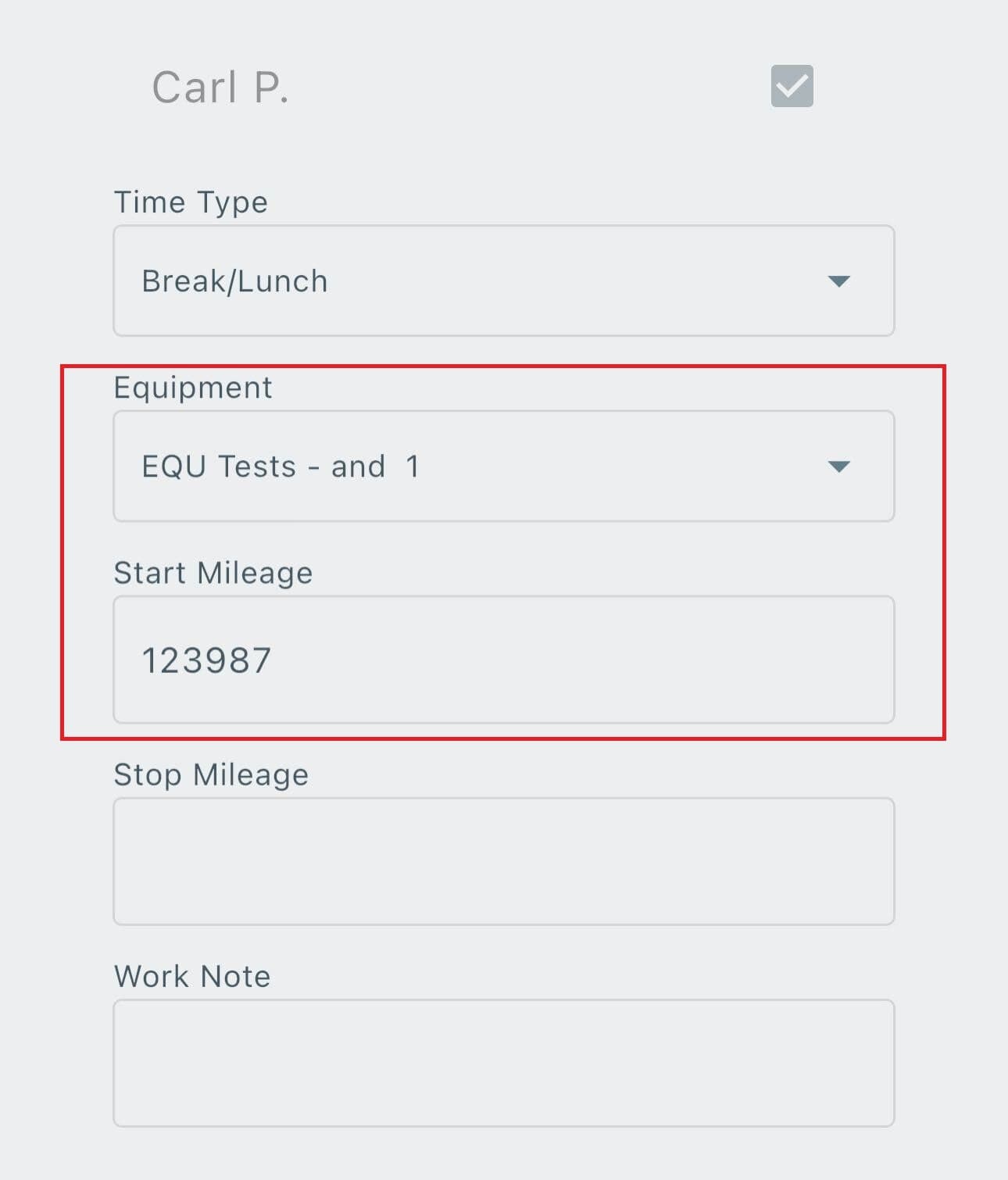
- Add Notes and Starting Mileage if needed.
- Select the Time Type.
- Select Equipment if needed.
- Enter Start Mileage if traveling.
- Select Start Work.
- Open the Work Order and begin work.
Job Location Directions
- Start Work Time.
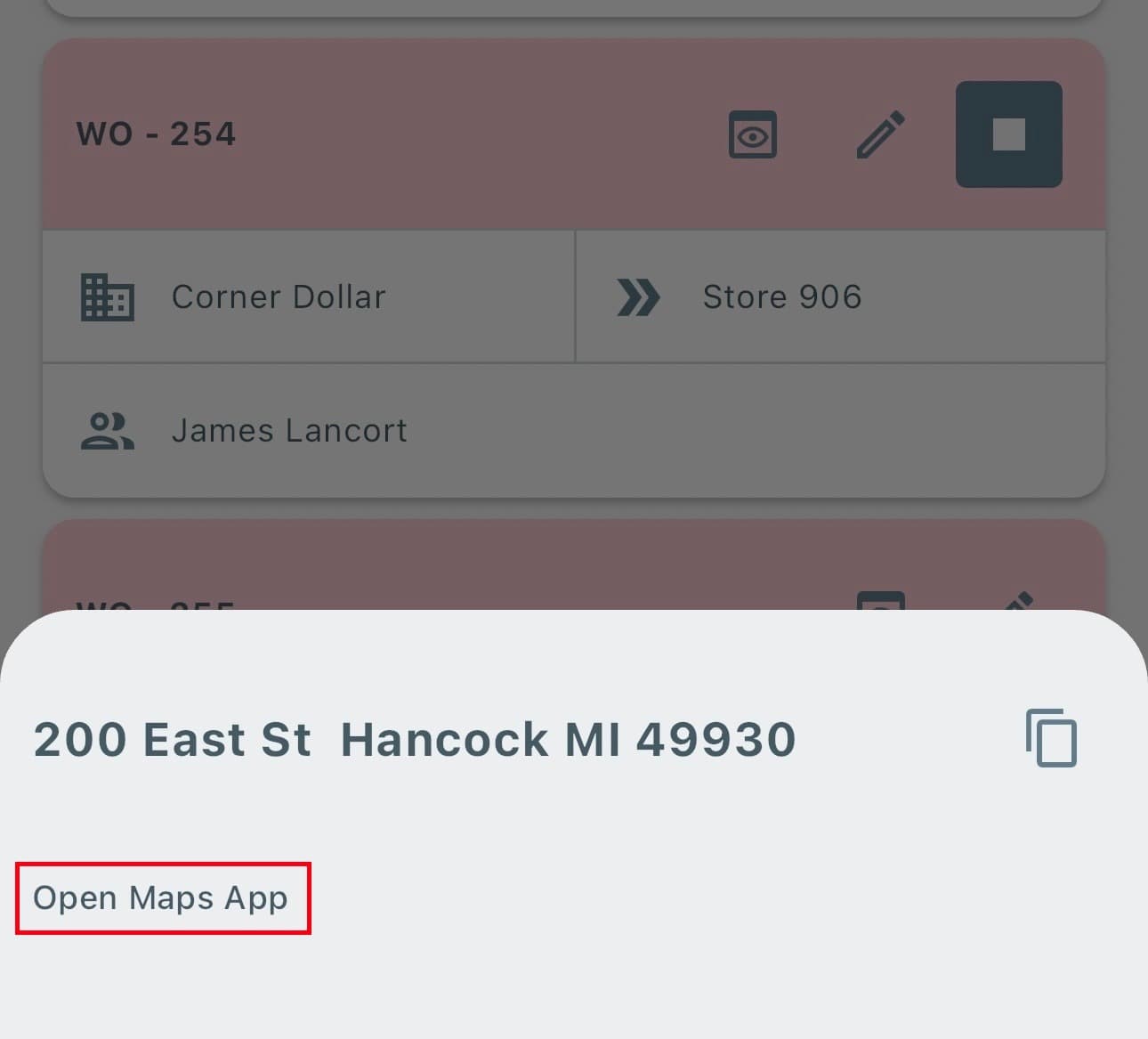
- If a Travel Time Type is selected, directions will appear.
- Select Open Maps App to open the address in your mobile map app.
Ending Work Time and Shift Time
- Find the Work Order on the dashboard.
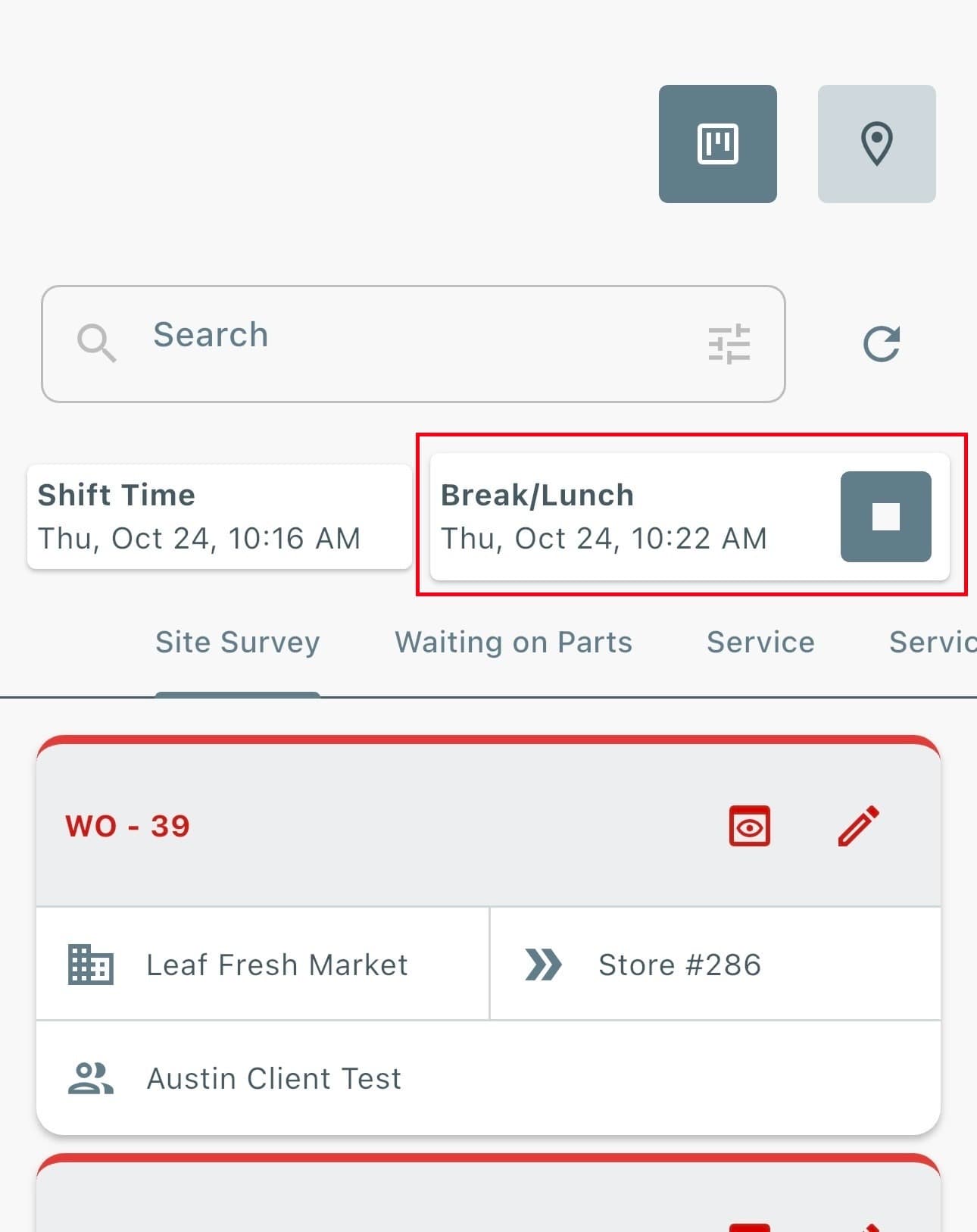
- Select the Timer icon to stop Work Time.
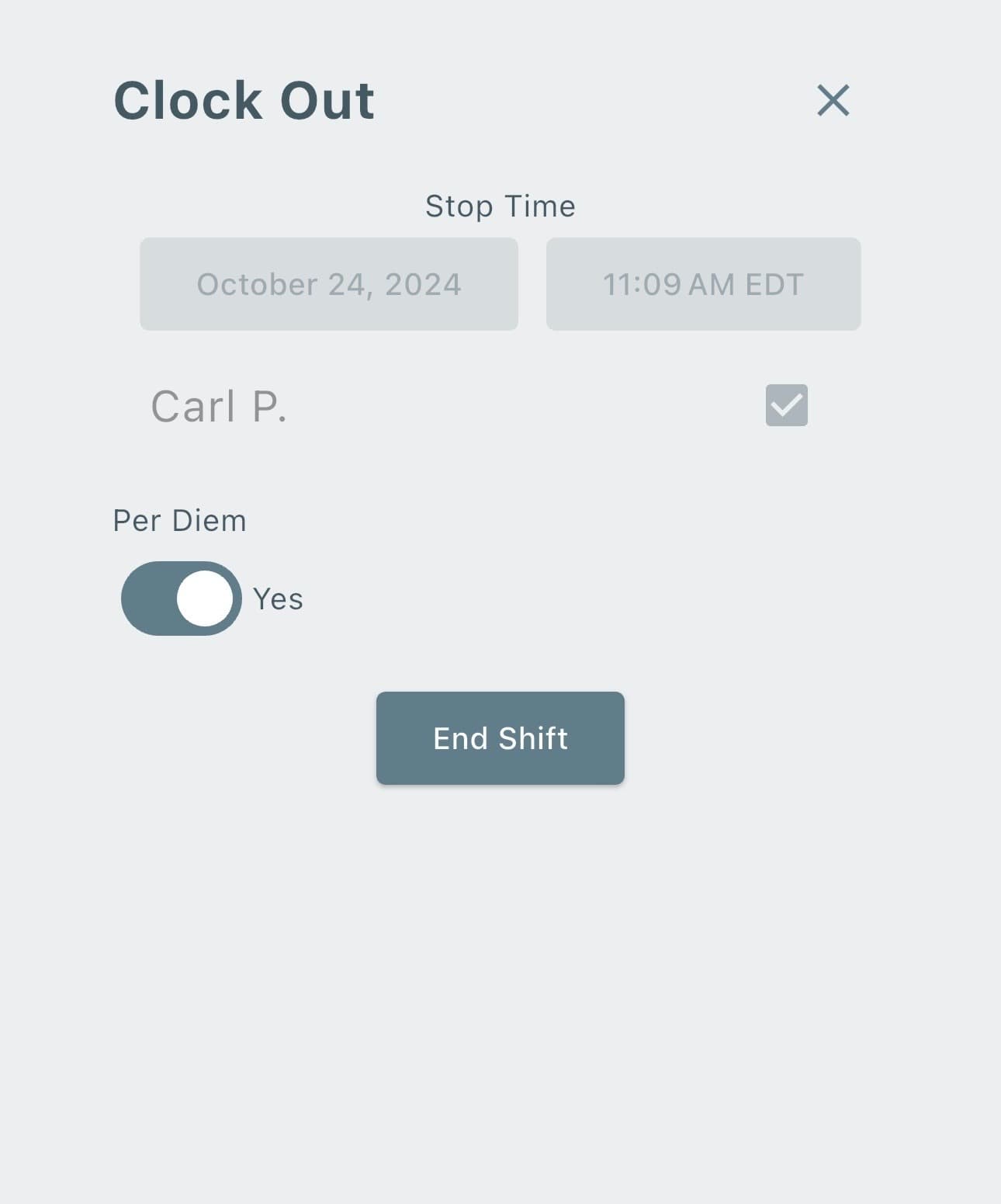
- Select the Shift Time timer to stop your shift at the end of the day.
Then,
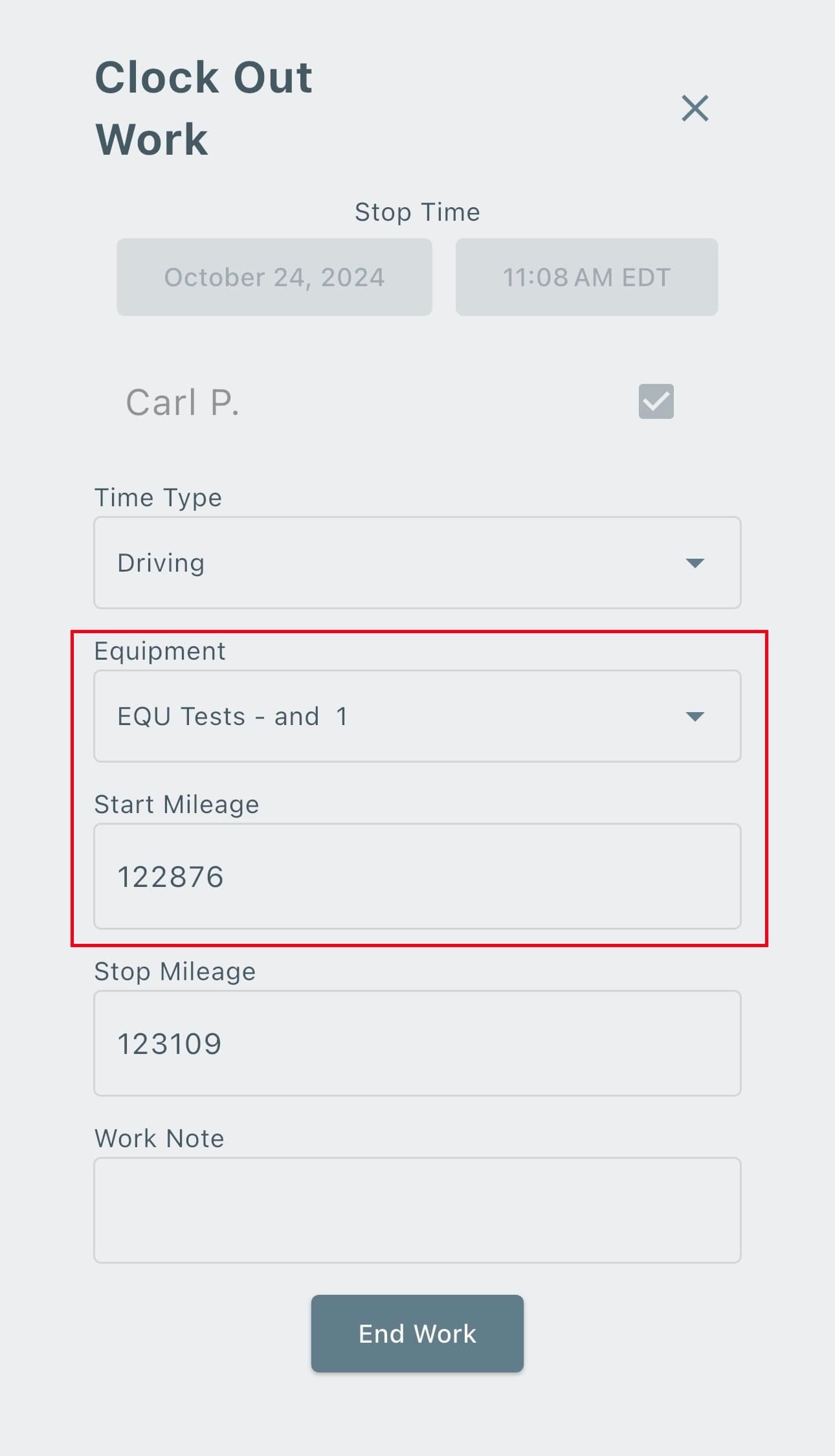
- Enter Ending Mileage if needed for driving/travel time.
- End the current Work Time.
- Reopen the same Work Order.
- Select a new Time Type to continue working, or end Shift Time if you are done for the day.
When ending the shift time, don't forget to select Per Diem if needed: