Adding Images to WO for Technicians
Add, delete, and download images through out the entire work order process.
Overview
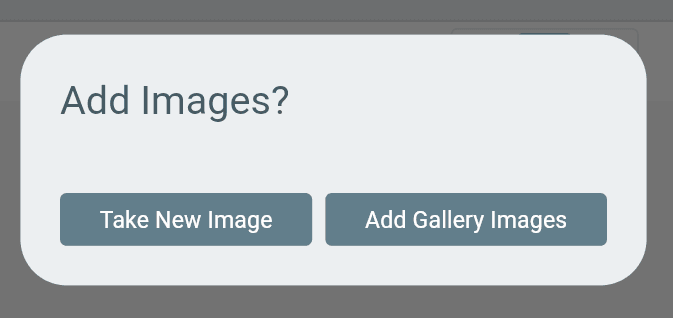
Technicians can add images to almost every section of a work order, excluding Sign-Off and Invoice. Images can be captured directly from the device camera or uploaded from the device gallery.
Notes can also be added to each individual image after it is uploaded.
How to Add Images
→ Open the work order.
→ Navigate to the desired tab.
→ Select Add Image.
→ Capture a new image or upload one from the device gallery.
→ Add notes to the image if needed.
Arrival Tab
→ Scroll to the bottom of the tab.
→ Select Add Image.
Pre-Service Tab
→ Select Add Image below the related question.
Service Tab
→ Select Add Image.
→ Choose the image type:
- Jobsite Image
- Receipt
Note: Images cannot be added from the Sign-Off or Invoice sections.
Post-Service Tab
→ Select Add Image below the related question.
Delete an Image
To remove an uploaded image:
→ Select the image.
→ Click the Delete icon in the top-right corner.
Download an Image
To download an uploaded image:
→ Select the image.
→ Click the Download icon in the top-right corner.
Additional Information
- Up to 100 images can be uploaded at one time.
- Images can be added to any work order tab except:
- Sign-Off
- Invoice