Technician
Adding Parts & Services to a Work Order
How to add Parts & Services as a Technician
Overview
Technicians can add services and parts directly from the Service tab when additional work or materials are needed.
Add Services
To add a service:
→ Open the work order.
→ Go to the Service tab.
→ Select the blue + Action button in the bottom-right corner.
→ Search for and select the required Service(s).
→ Select Submit.
Add Parts
To add a part:
→ Select Add Part under the added Service.
→ Search for and select the required part.
→ Select Submit.
Additional Information
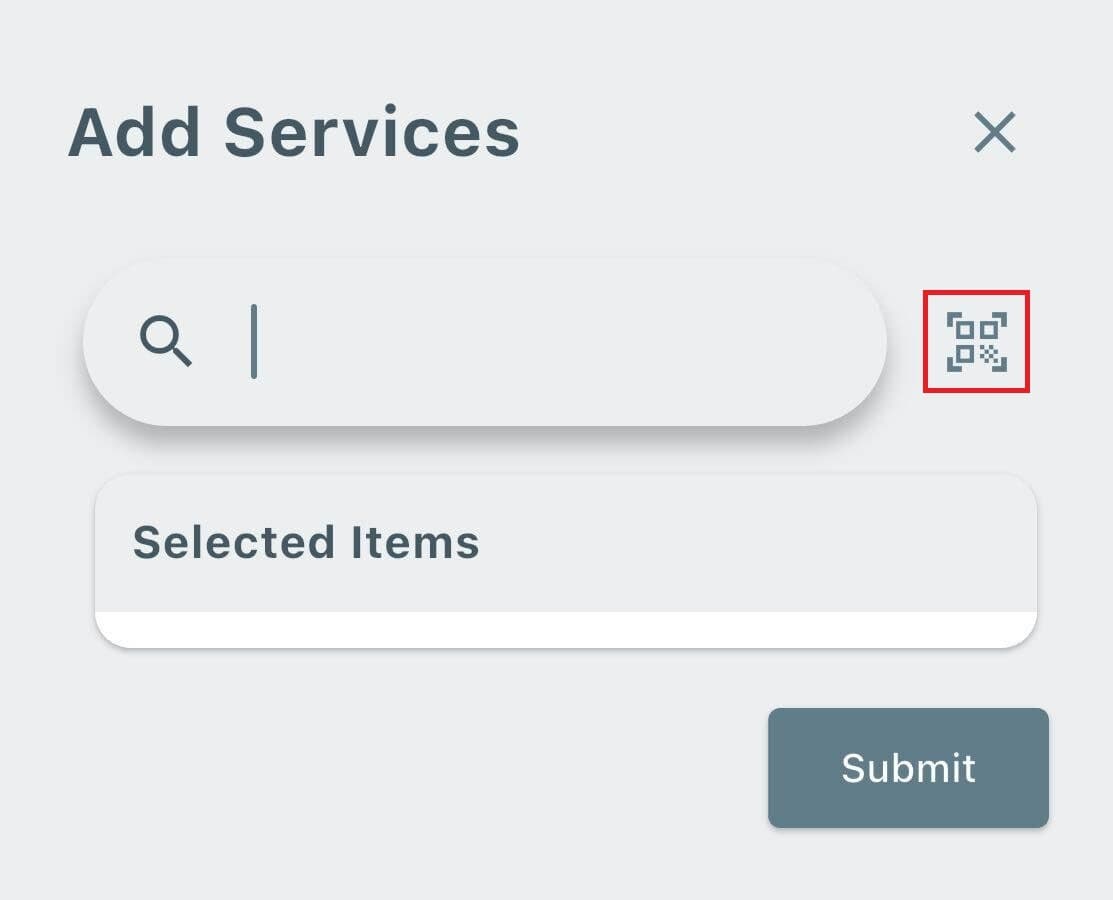
- Services and Parts can also be added using the barcode scanner.
- Barcode scanning is only available if office staff have added barcode numbers to the corresponding Services and Parts.
Additional Information
- A Service can be added at any point during the work order by selecting the blue + Action button.
- If Post-Service Inspection questions do not appear after adding a Service:
- The Service does not have inspection questions assigned.
- Notify office staff so they can add the required questions.
See How to Add Pre-Service and Post-Service Inspection Questions for setup instructions.