Adding Receipts as a Technician
How to add receipts to work orders, and more.
Overview
Add receipts to any work order while completing a job or after the work is finished. Receipts can be added directly from the work order or managed from the Receipts page.
View Receipts
There are two ways to view receipts:
Option 1: From the Menu
→ Open the main menu.
→ Select Receipts.
Option 2: From a Work Order
→ Open the work order.
→ Go to the Service tab.
→ Scroll to the Receipts table below work order images and notes.
Add a Receipt
From a Work Order:
→ Open the work order.
→ Go to the Service tab.
→ Scroll to the Receipts table.
→ Select Create Receipt in the bottom-right corner.
Mobile users: Swipe left to access Create Receipt.
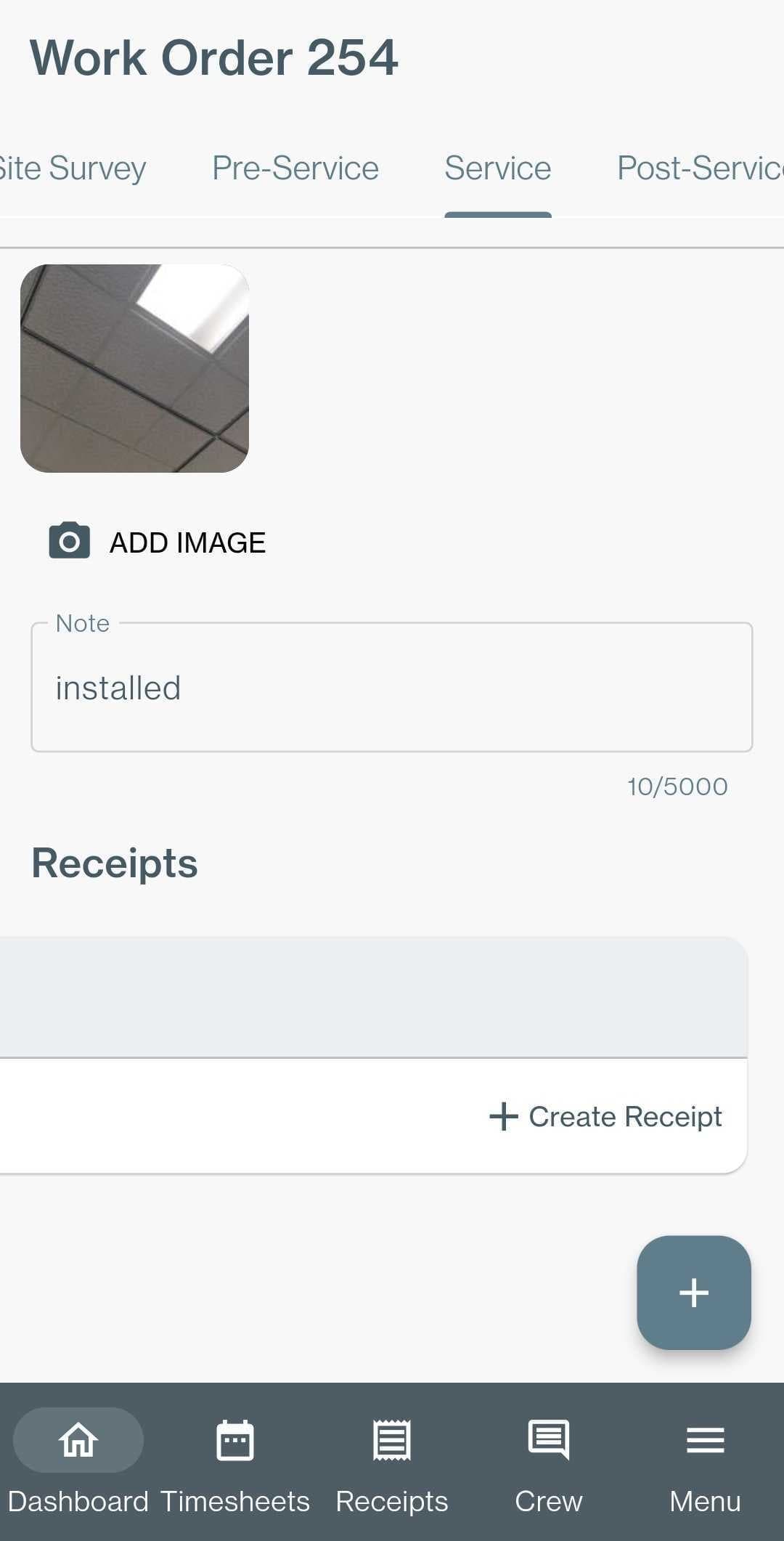
To create a receipt from the Receipts page:
→ Open the main menu.
→ Select Receipts.
→ Click Create Receipt in the bottom-right corner of the Receipts table.
Mobile users: Swipe left to access Create Receipt.
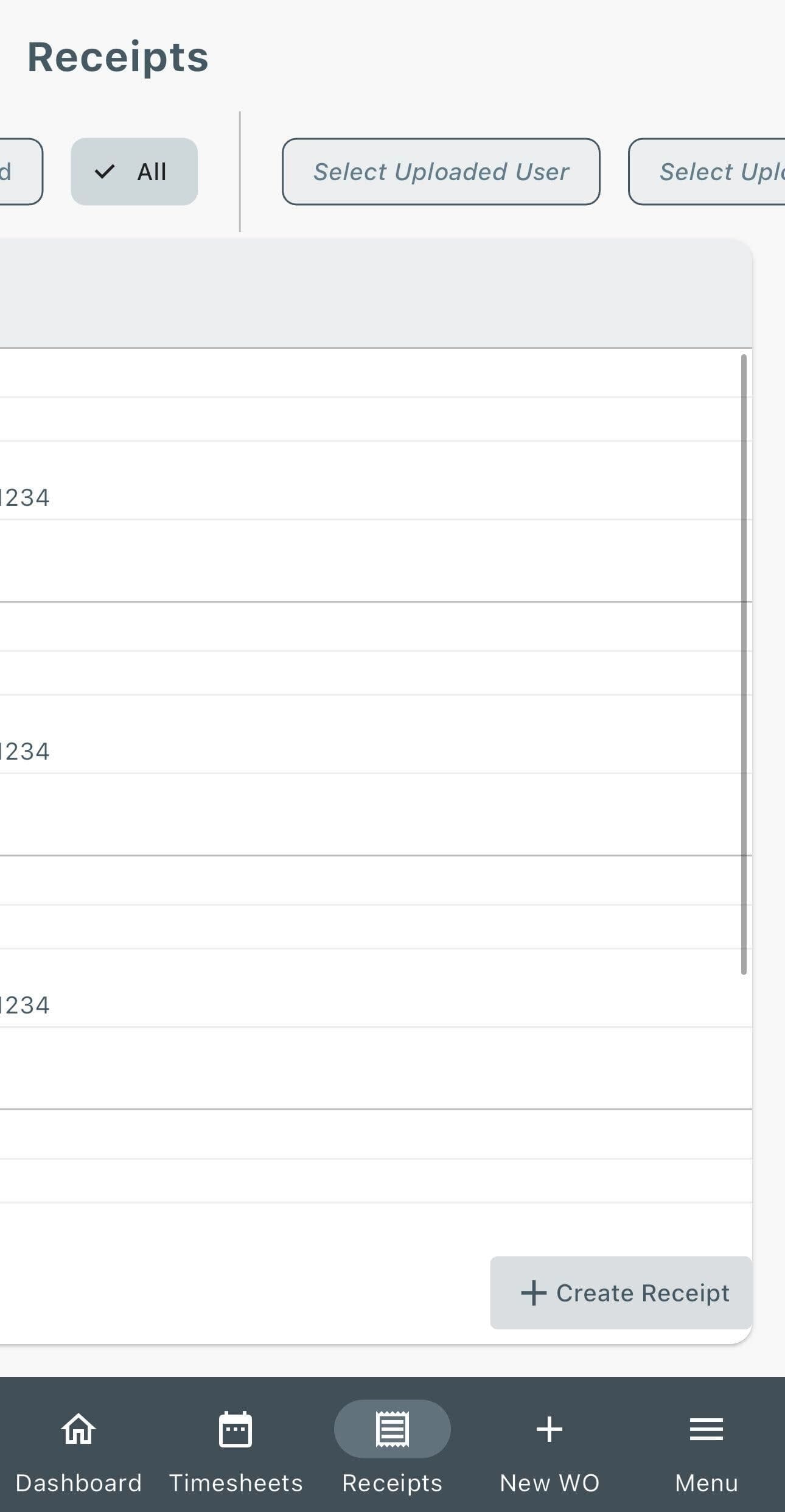
Filter Receipts
Quickly find receipts using the available filters above the Receipts table.
→ Select a receipt status:
- Approved
- Unapproved
- All
→ Use Uploaded Date Time Range to filter receipts by a specific date period.
Additional Information
Technicians can view their own uploaded receipts but cannot view receipts uploaded by other technicians.