Accepting Work from Service Company as Provider
Wanting to submit an invoice to a Service company?
Summary
Learn how to accept and begin new work offered through the Lexul Field Service Network.
Note: This article assumes your company is already set up as a Provider in the Service Network.
How It Works
When new work is offered:
→ The work order appears in Menu → Service Network.
→ An email notification is sent to your Workspace dispatch contact.
→ Open the Service Network to review, accept, or reject the offered work.
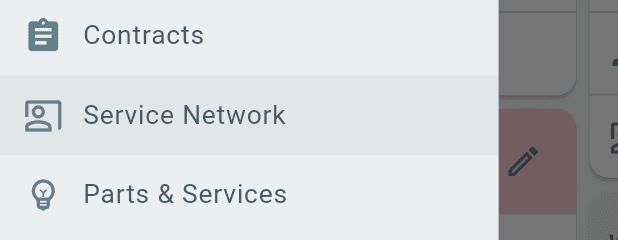
From the Service Network page:
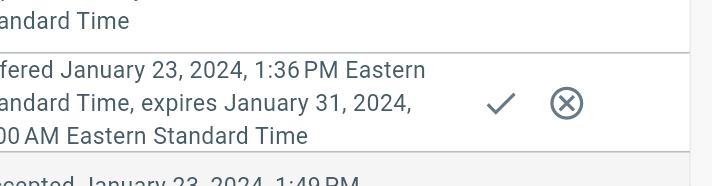
→ Find the work offer.
→ Under Actions, select Accept or Reject.
An email notification will be sent to the Service Company letting them know your decision.
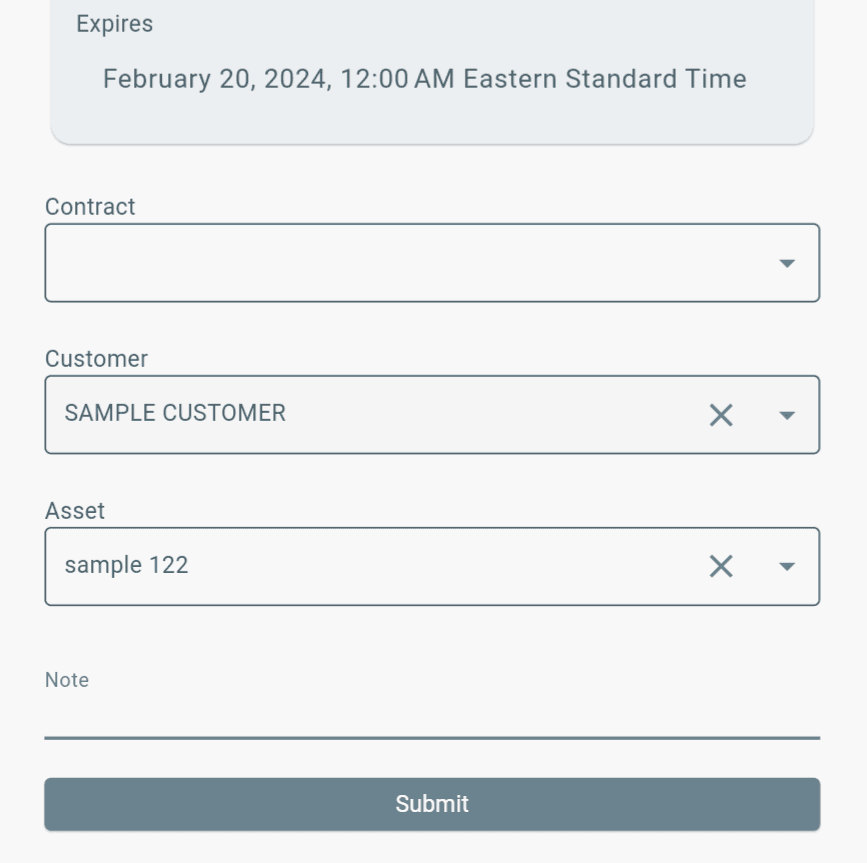
After accepting the work offer:
1. Assign the work by selecting:
→ Contract (if needed).
→ Customer.
→ Asset.
2. If you have a QuickBooks integration:
→ Customer and Asset dropdowns will show synced Customers, Sub-Customers, or Jobs from QuickBooks Online or Desktop.
3. Complete the work order.
→ The invoice can be synced to QuickBooks after the work is completed.
After accepting and assigning the work:
→ Open the Dashboard table.
→ The newly accepted work order will appear at the top.
→ Select the work order and begin service.
QuickBooks Functionality
QuickBooks Online Integration
Available synced data:
→ Customers
→ Sub-customers
→ Products
→ Services
→ Employees
QuickBooks Desktop Integration
Available synced data:
→ Customers
→ Jobs
→ Items
→ Services
→ Employees
No QuickBooks Integration
Work orders use data created directly in Lexul:
→ Customers
→ Assets
→ Parts
→ Services
→ Users
Additional Information
To learn how to invoice offered work, see How to Invoice Offered Service Work.